Setting Service cities
Service cities are necessary to attribute an order from another city, especially if it is an area with small villages or towns. You can add cities for delivery besides your main city, and the system will bind the addresses to orders in accordance with the city of the customer.
Click on the Settings tab on the upper navigation panel, then click on the Service cities on the left sidebar (screenshot 1).

(screenshot 1)
At the Service cities screen, you will see already existing cities. You can search, filter and also to add a new city.
Click on the Add button to add a new city.
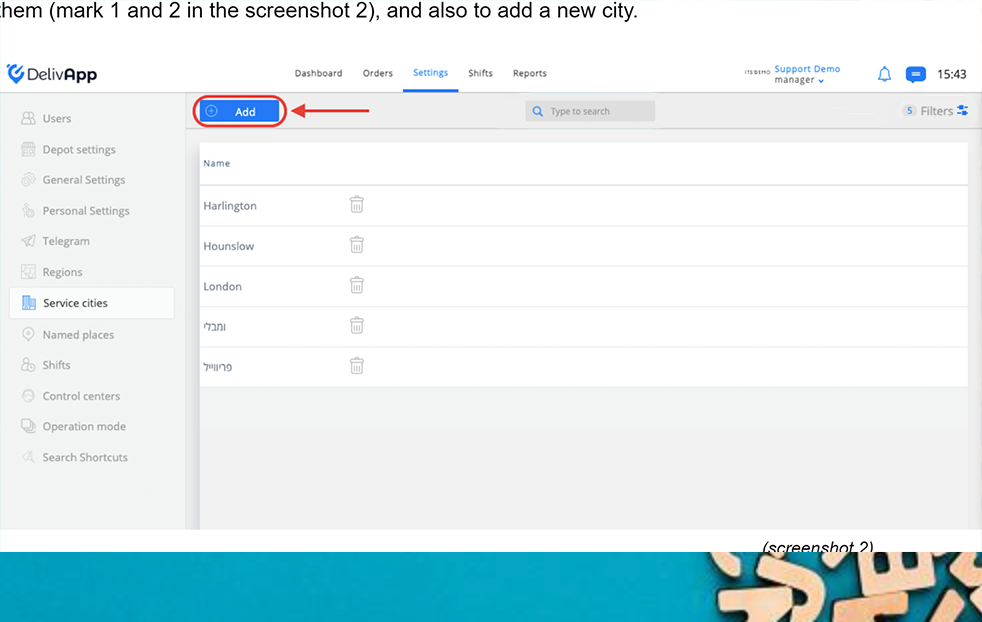
(screenshot 2)
At the newly opened screen, fill in the service city name in the City field (screenshot 3), or find the city on the map and click on it (screenshot 4):
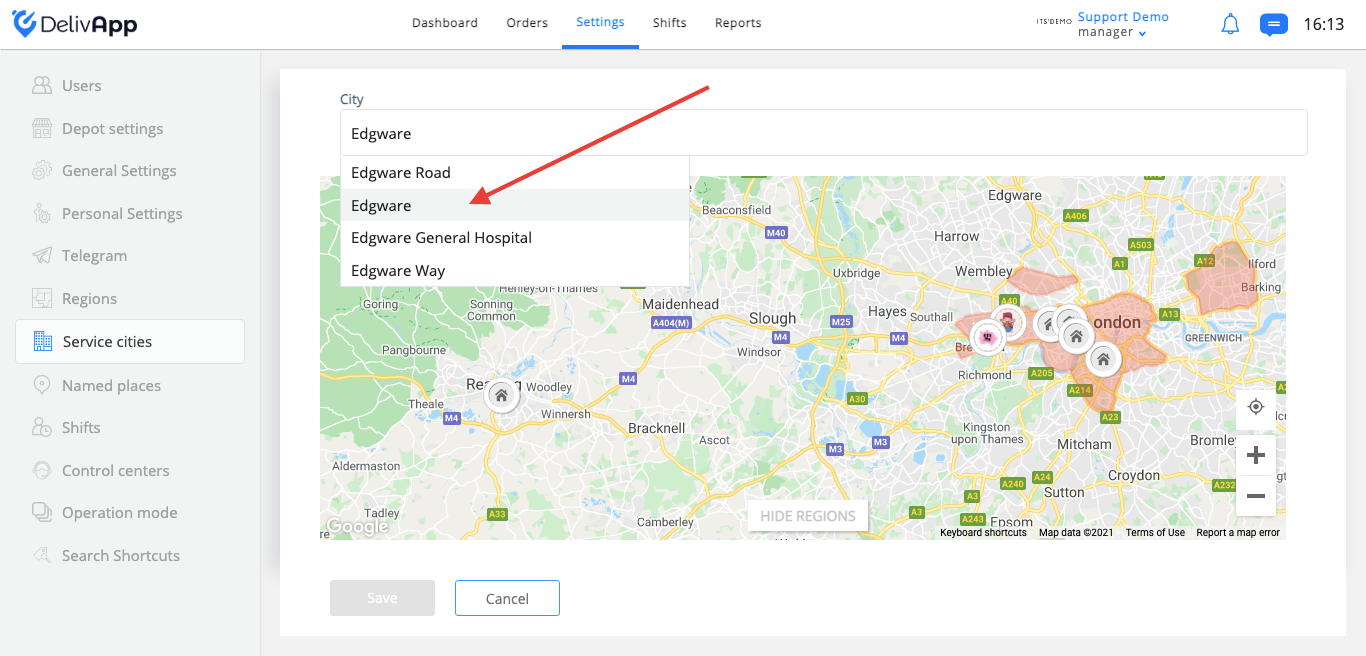
(screenshot 3)
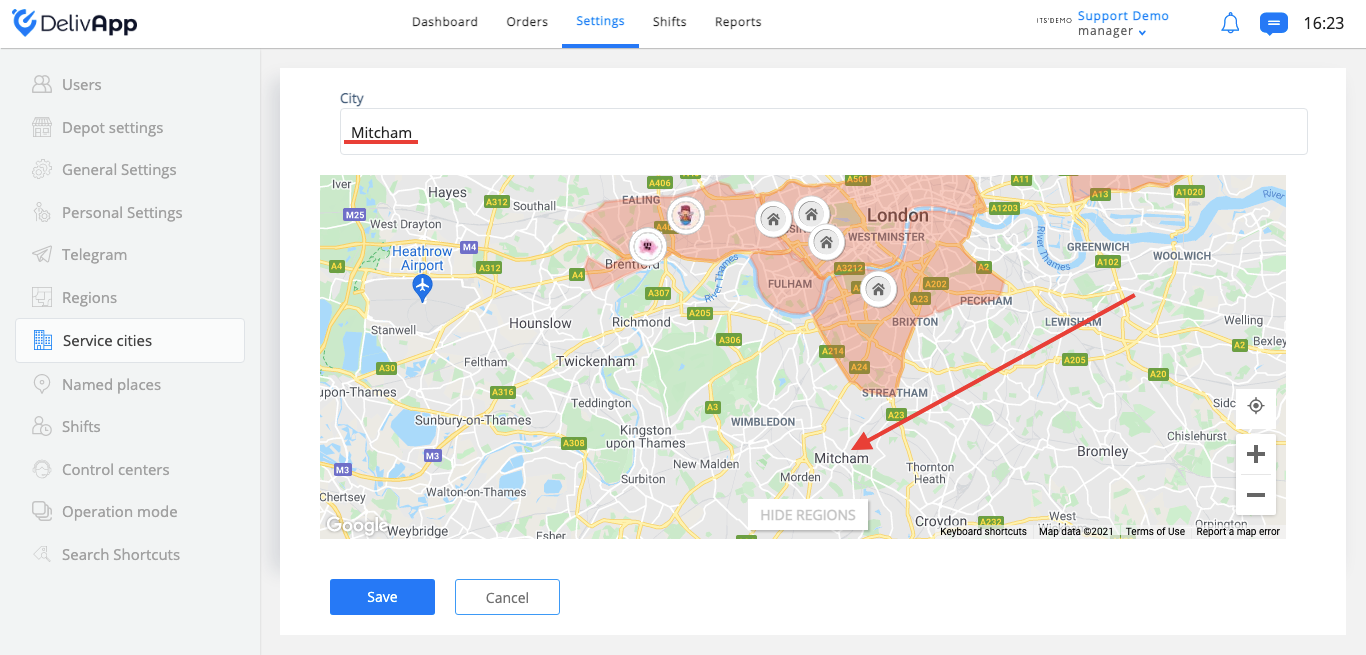
(screenshot 4)
Save the changes and service city will appear at the list.