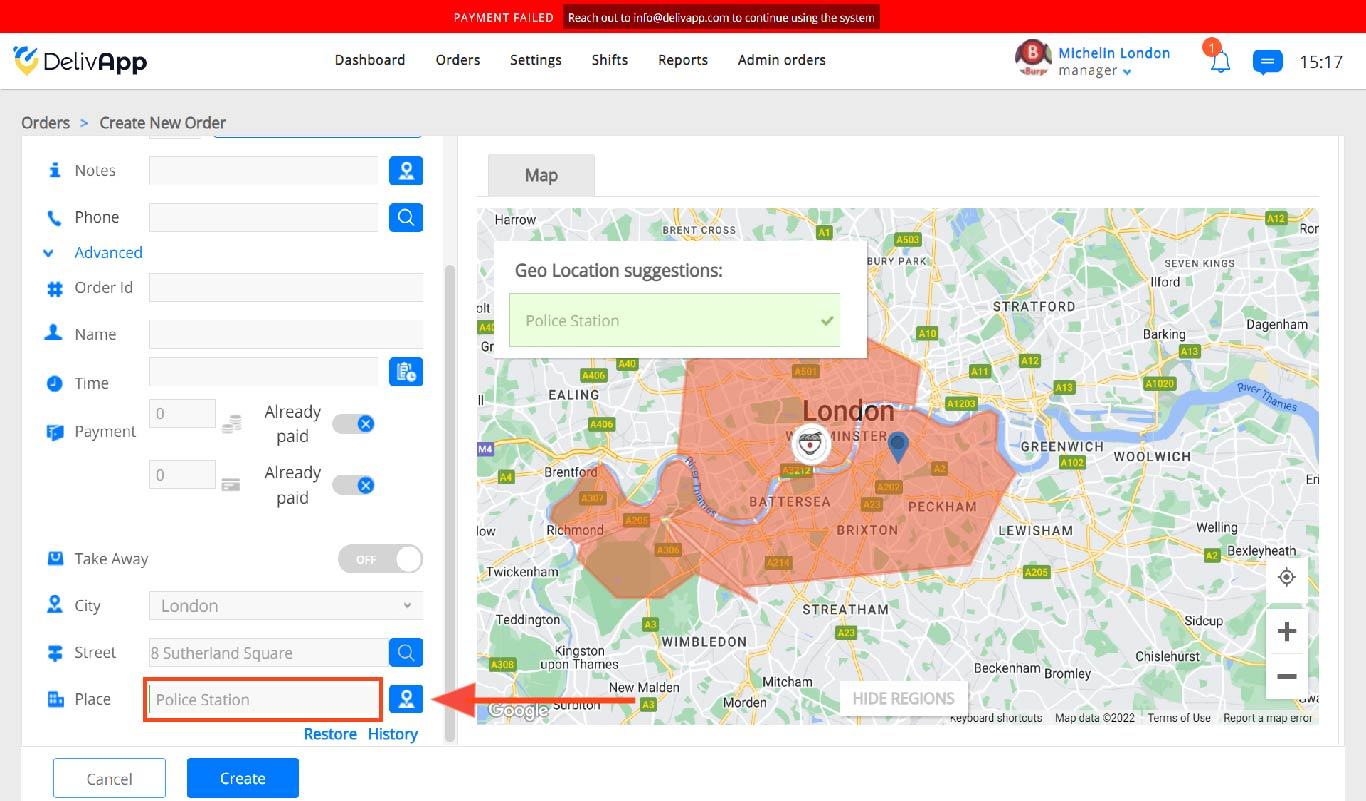
Using Named Places as Delivery Addresses
If you regularly receive orders from certain addresses, deliver to specific offices or buildings known by their name and not by their address (Police station) for instance, you can add these places to favorites to speed up order creation.
Add a Named Place
Click on the Settings tab on the upper navigation panel, then click on Named places on the left sidebar (screenshot 1).
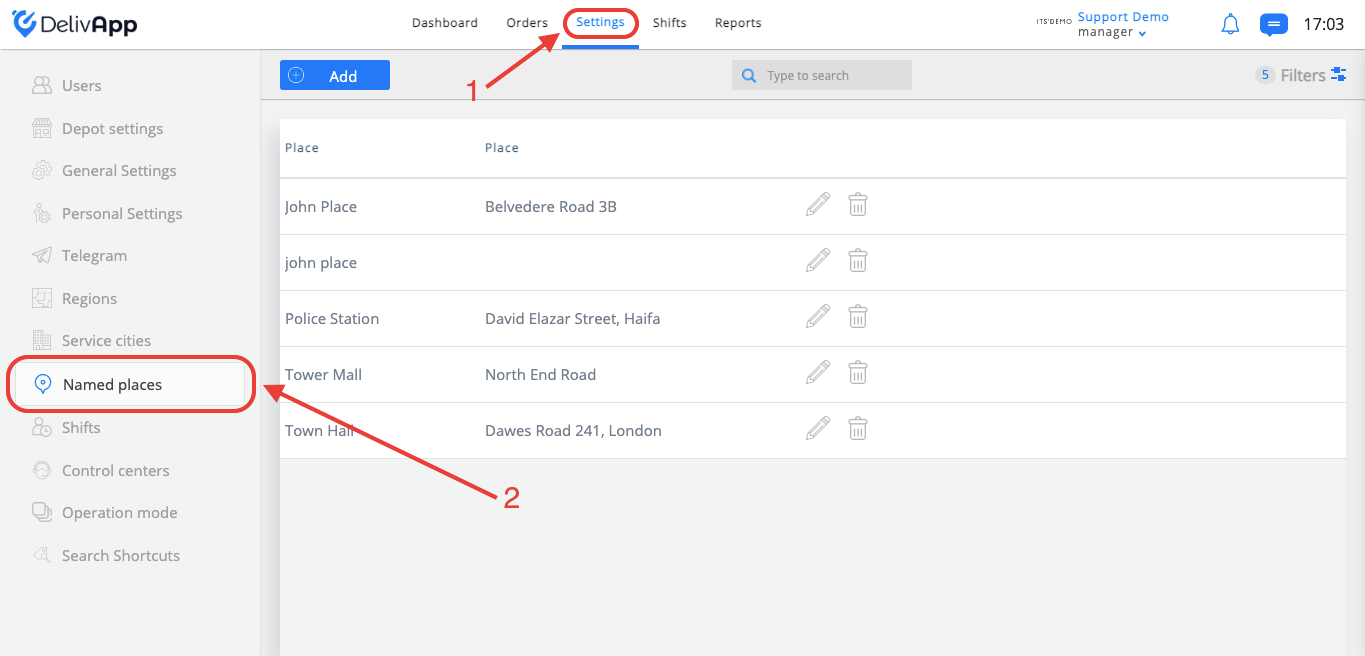
(screenshot 1)
On the Named places tab, you can add your named places. Hit the Add button

(screenshot 2)
To add the new named place, enter the name and address, or find the place’s address on the map and click on it (screenshot 3):

(screenshot 3)
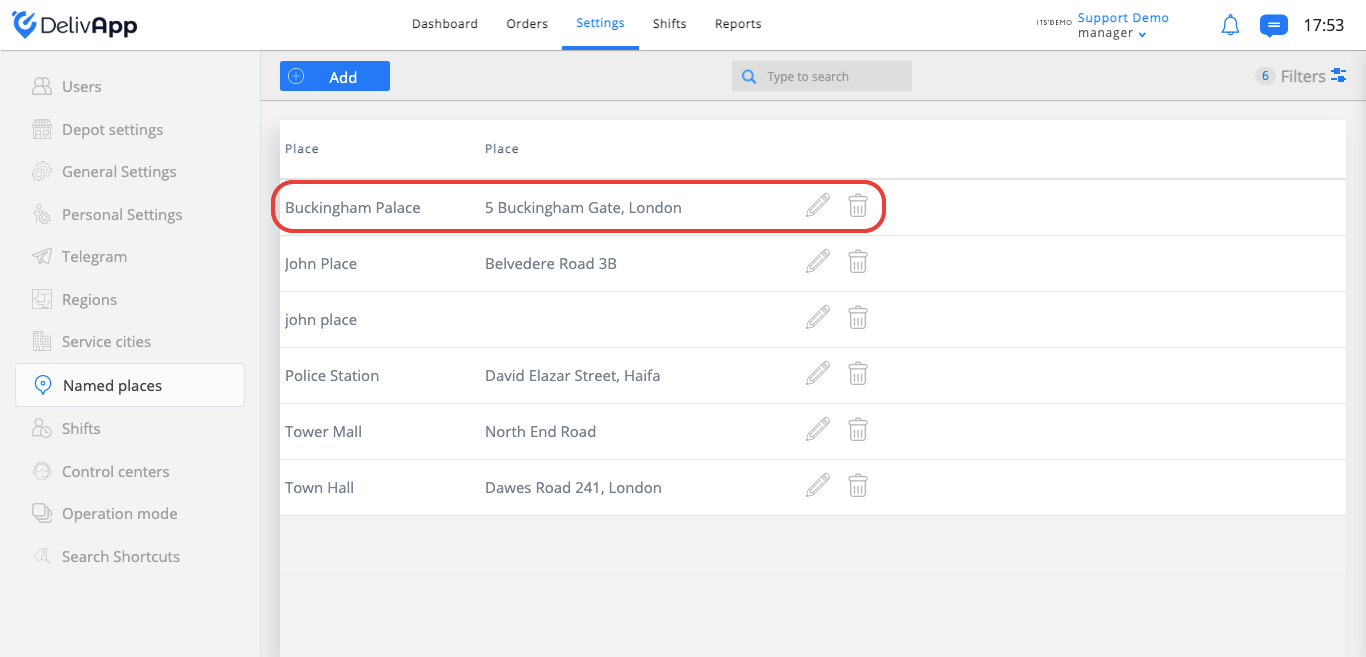
Click on the Save button and the newly created place will appear in the Named places list. You can search and filter the added Named Places from the top navigation panel.
Create an Order Using the Named Place
To use a named place as an address, just type the name of the place you want to deliver to when creating your order in the Place field.