Driver tip
You can add a tip for the driver for every order. The driver tip proposal will appear at the marketplace checkout screen.
To manage “Driver tip”, please click on the “Settings” tab on the upper navigation panel, then scroll down on the left sidebar and click on the “Driver tip” (screenshot 1).

screenshot 1
At the “Driver tip” screen, you will see “Enable” toggle to enable this function in the system, “Max value” and “Predefined values” fields. Fill in the fields where “Max value” is the highest value of tips (it can’t be zero) and predefined values is a proposal of already fixed tips that will be shown in the marketplace. To add predefined values, enter the value you prefer and click the plus button. Once all changes are done, click on the “Save” button (screenshot 2).
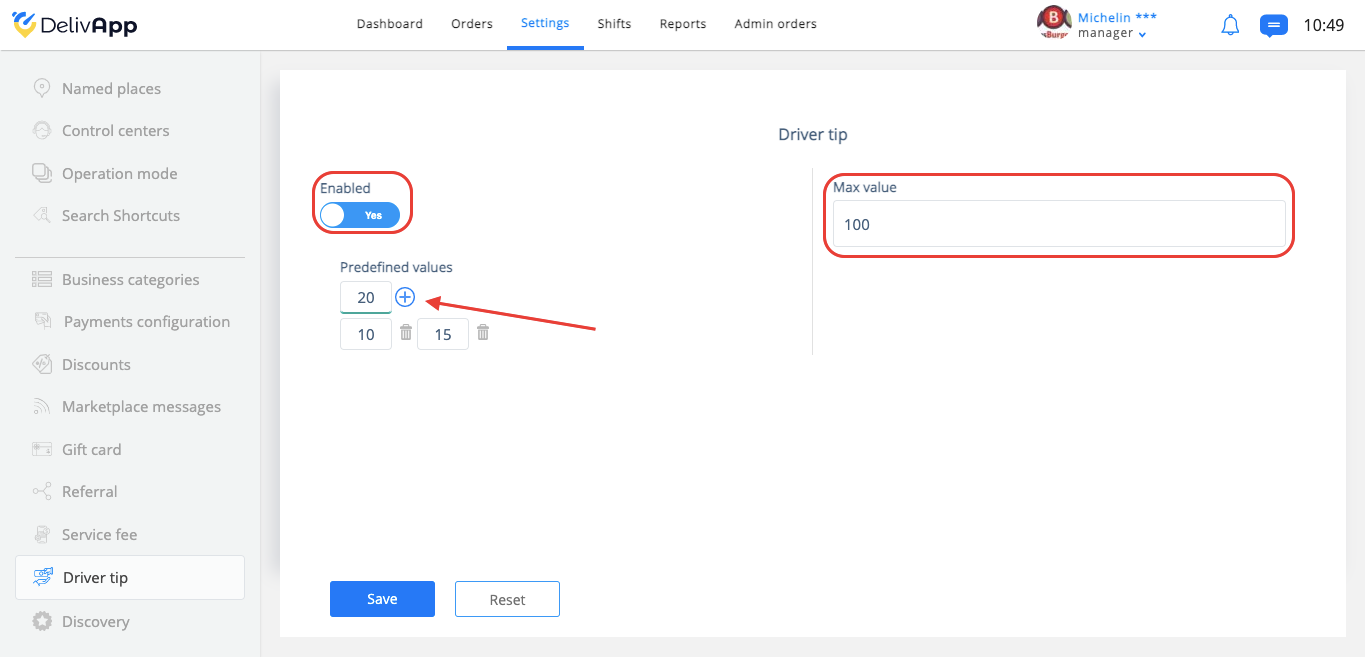
screenshot 2
Marketplace application view:
Once a customer completes an ordering and is ready to make a checkout, he needs to click on the checkout button (screenshot 3).
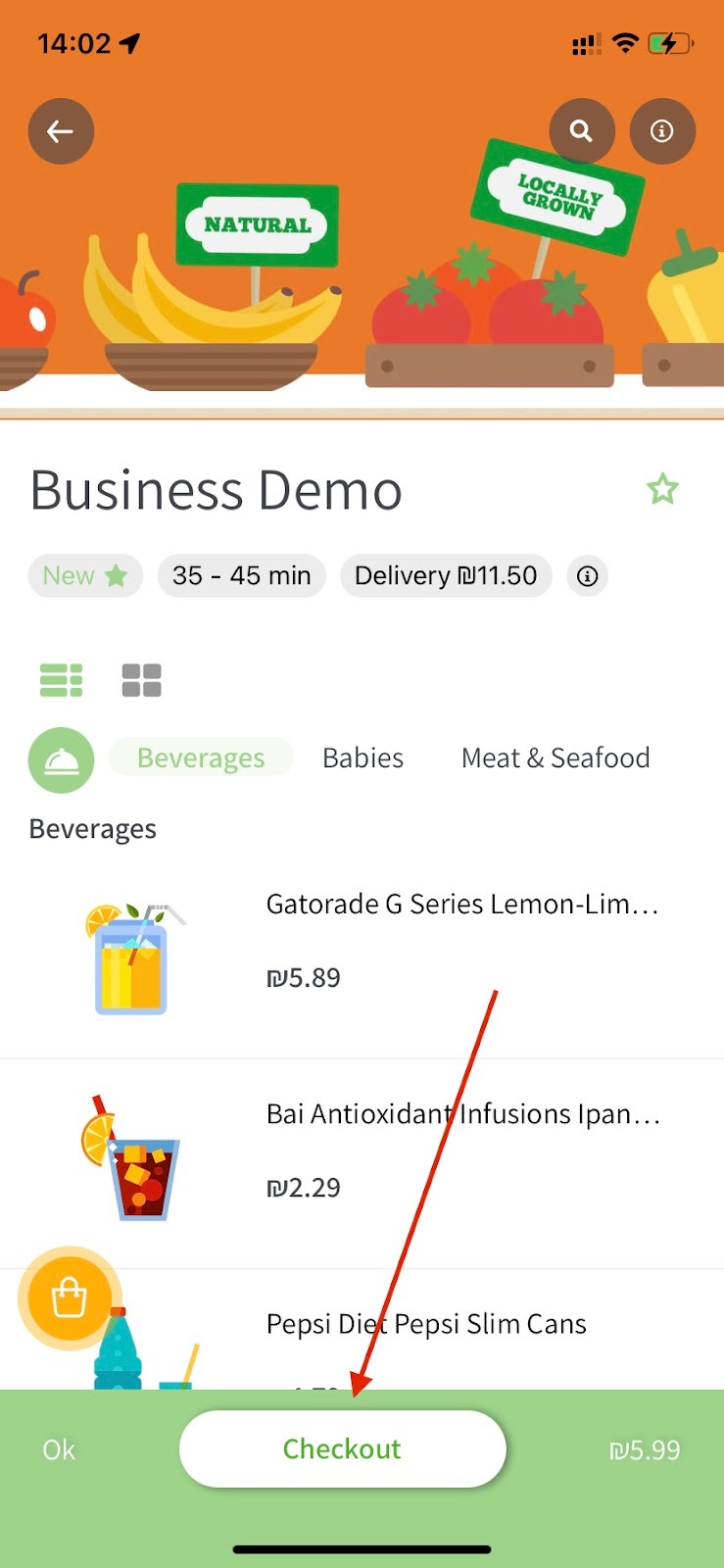
screenshot 3
At the checkout screen, he will see the “Tip the courier” option (screenshot 4).
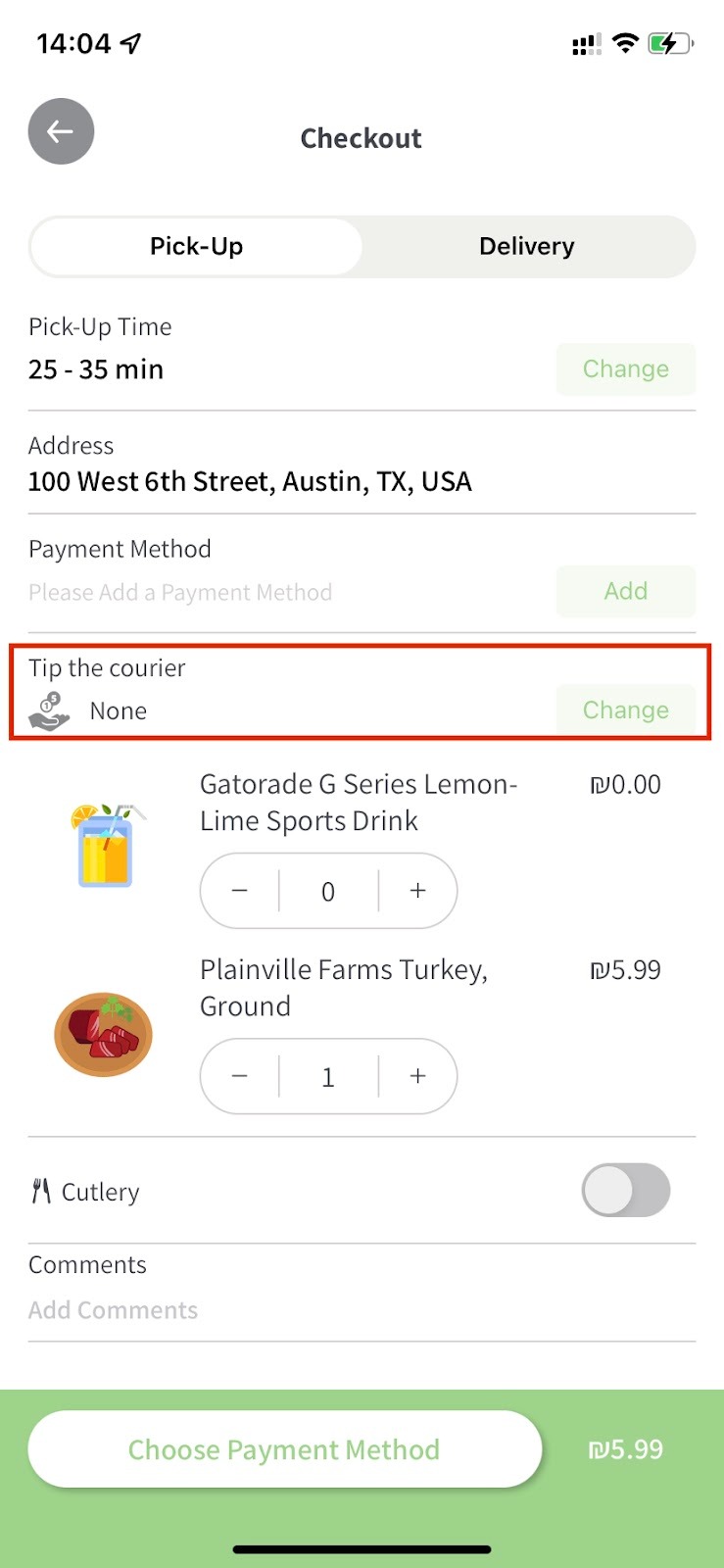
screenshot 4
By click on the “Change” button, a new screen will be opened where you will see predefined tip values and an option to add tip value manually (screenshot 5).
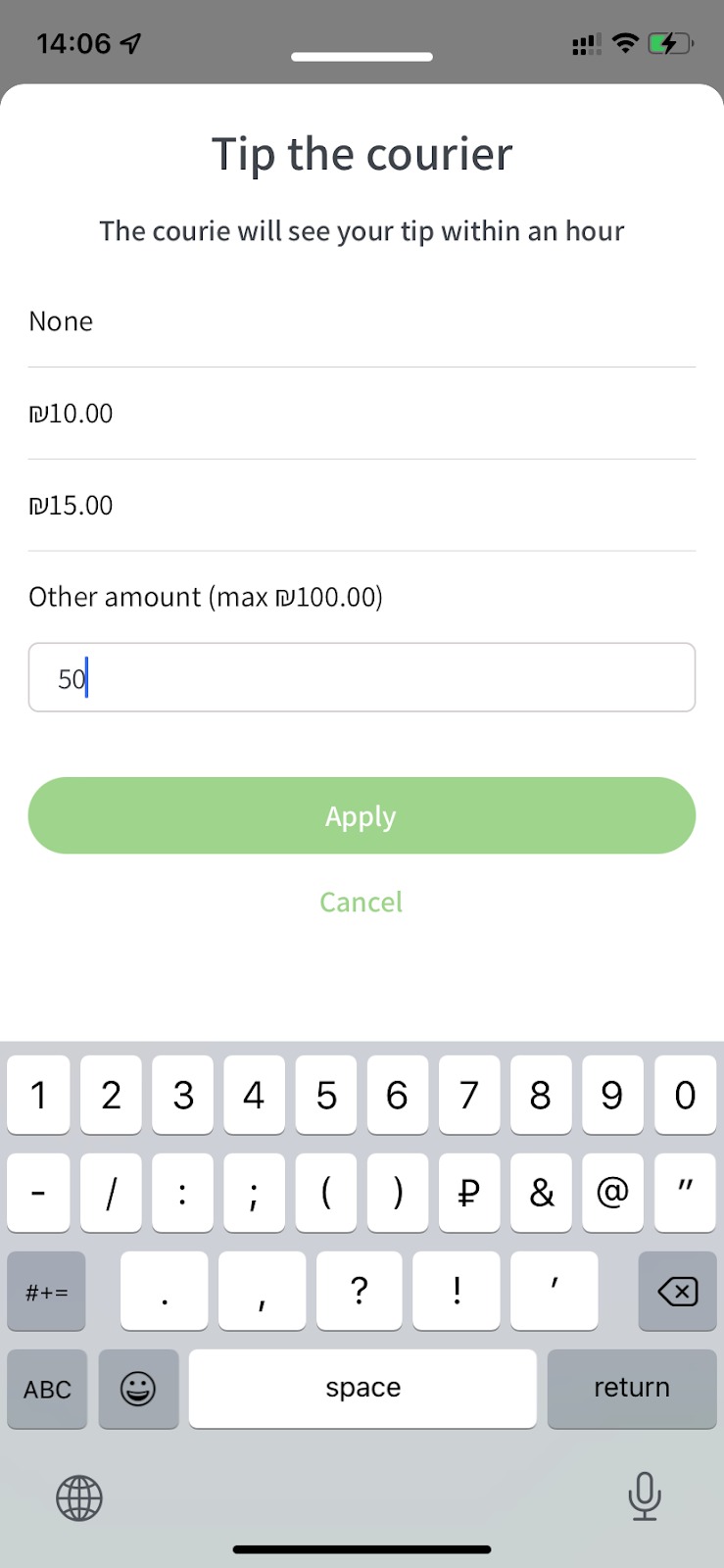
screenshot 5
After the tip for the courier was added, it will appear below the “Tip the driver” option (screenshot 6).

screenshot 6