Adding a Service Fee
You can add a service fee to every order. It can be a percentage of the order or fixed value that will be added to the final order price.
Set up the Service Fee
Click on the Settings tab on the upper navigation panel, then scroll down on the left sidebar and click on Service fee (screenshot 1).
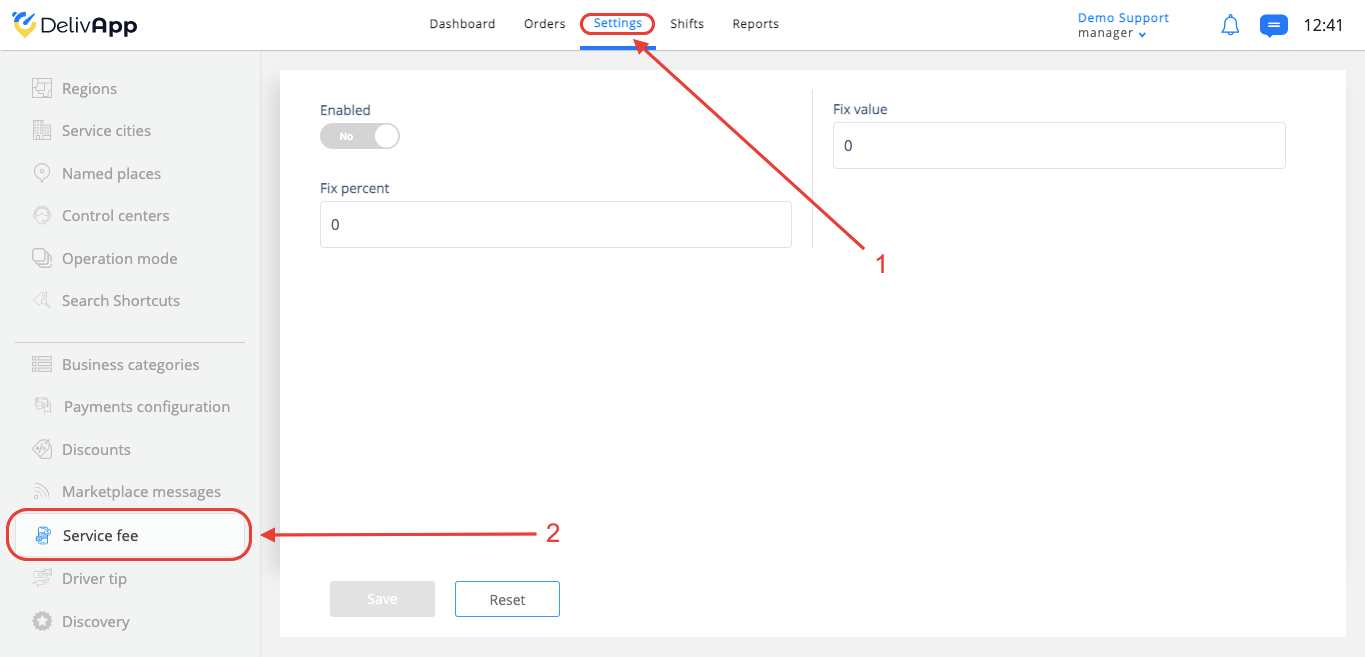
screenshot 1
On the Service fee screen you can see three settings:
Enable (Turns on this function in the system)
Fix value (What fixed amount of money you charge as the service fee, e.g. 4 dollars)
Fix percentage (What fixed percentage of the order cost you charge as the service fee, e.g. 10 percent) (Calculated after any discounts that apply, and without the delivery fee)
Fill in the Fix value or Fix percentage, whichever you prefer to use, and click on Save (screenshot 2).
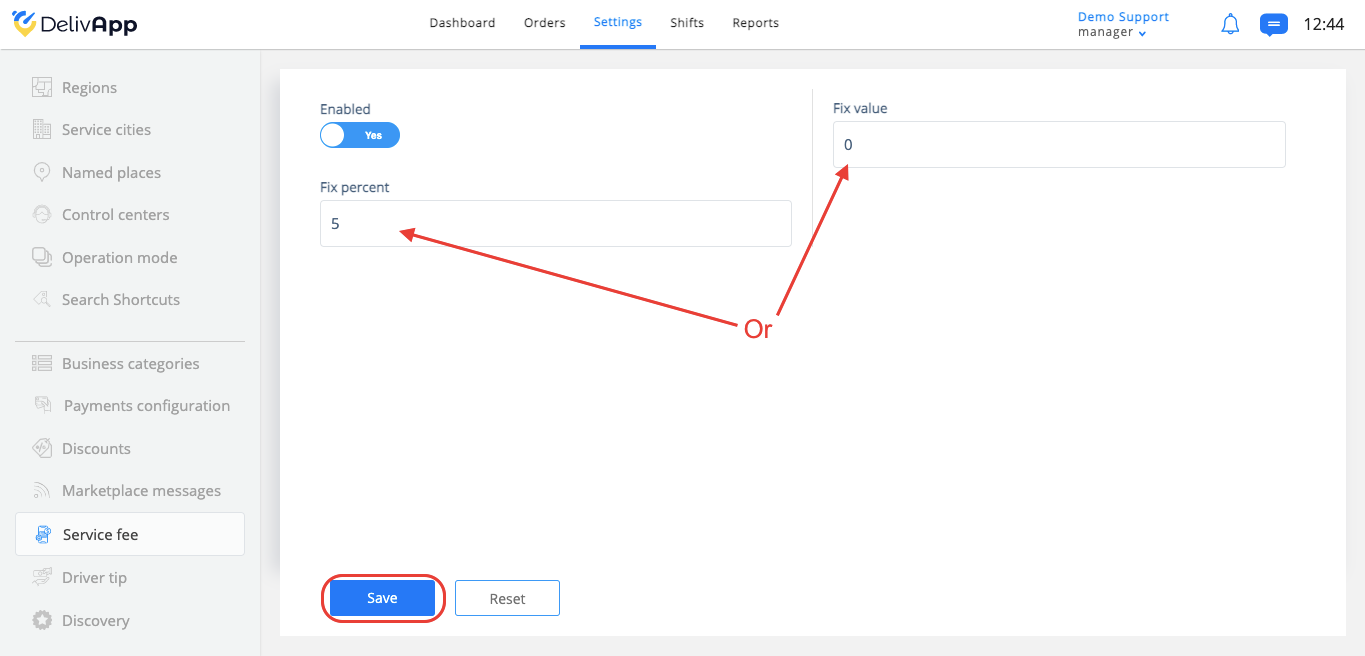
screenshot 2
View an example order on the marketplace app
Once a customer completes an order and is ready to checkout, they need to click on the checkout button (screenshot 3).
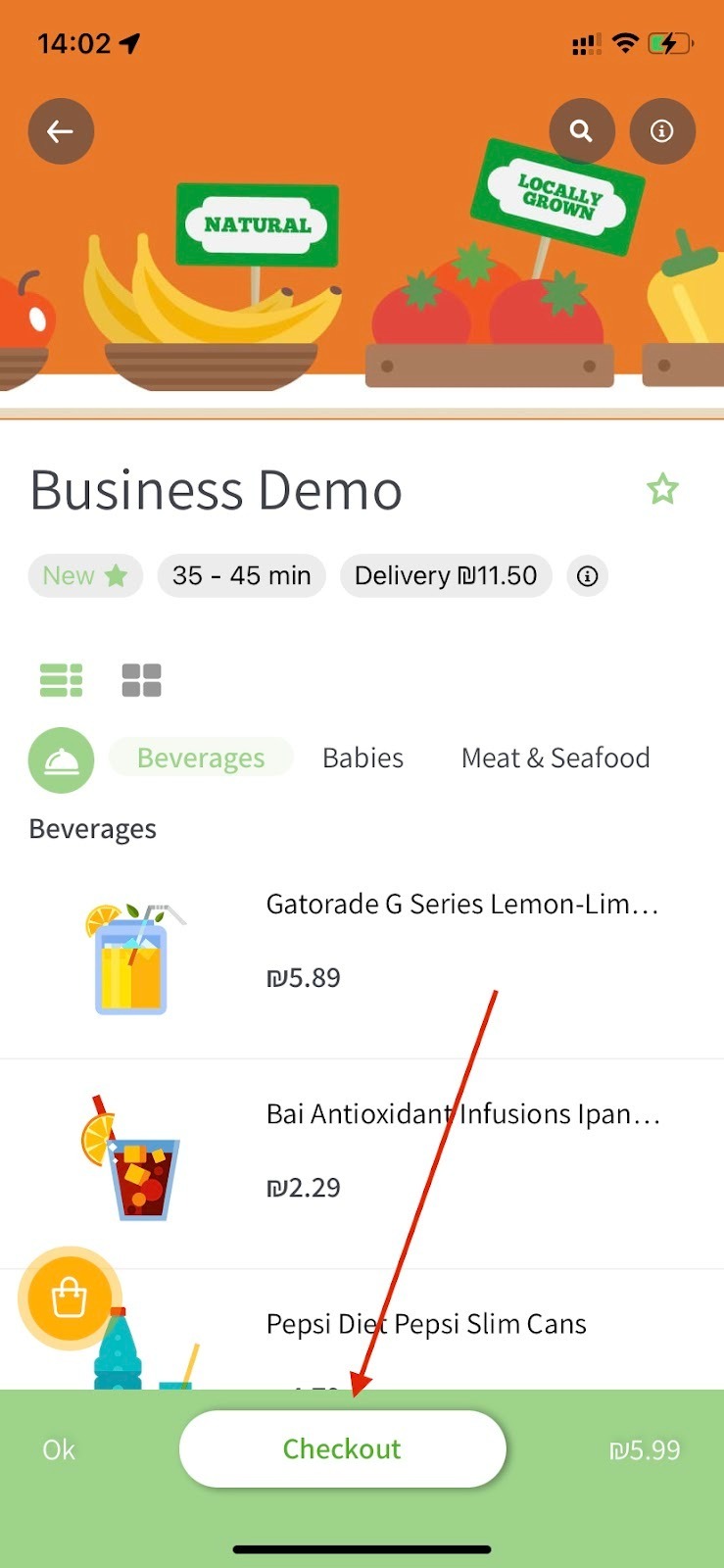
screenshot 3
On the checkout screen, they will see the Service fee that was added automatically (screenshot 4).
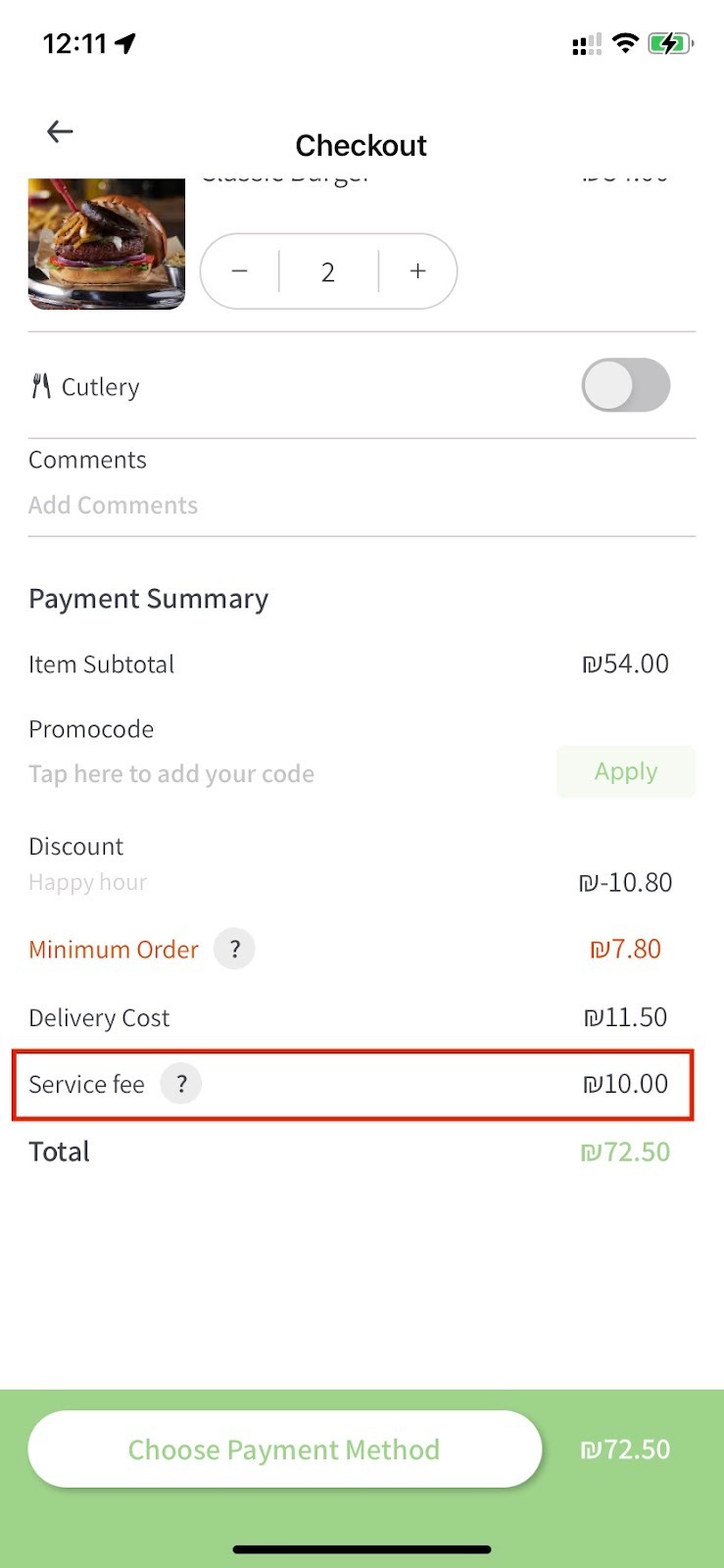
screenshot 4