The carts that never became orders now have a screen of their own
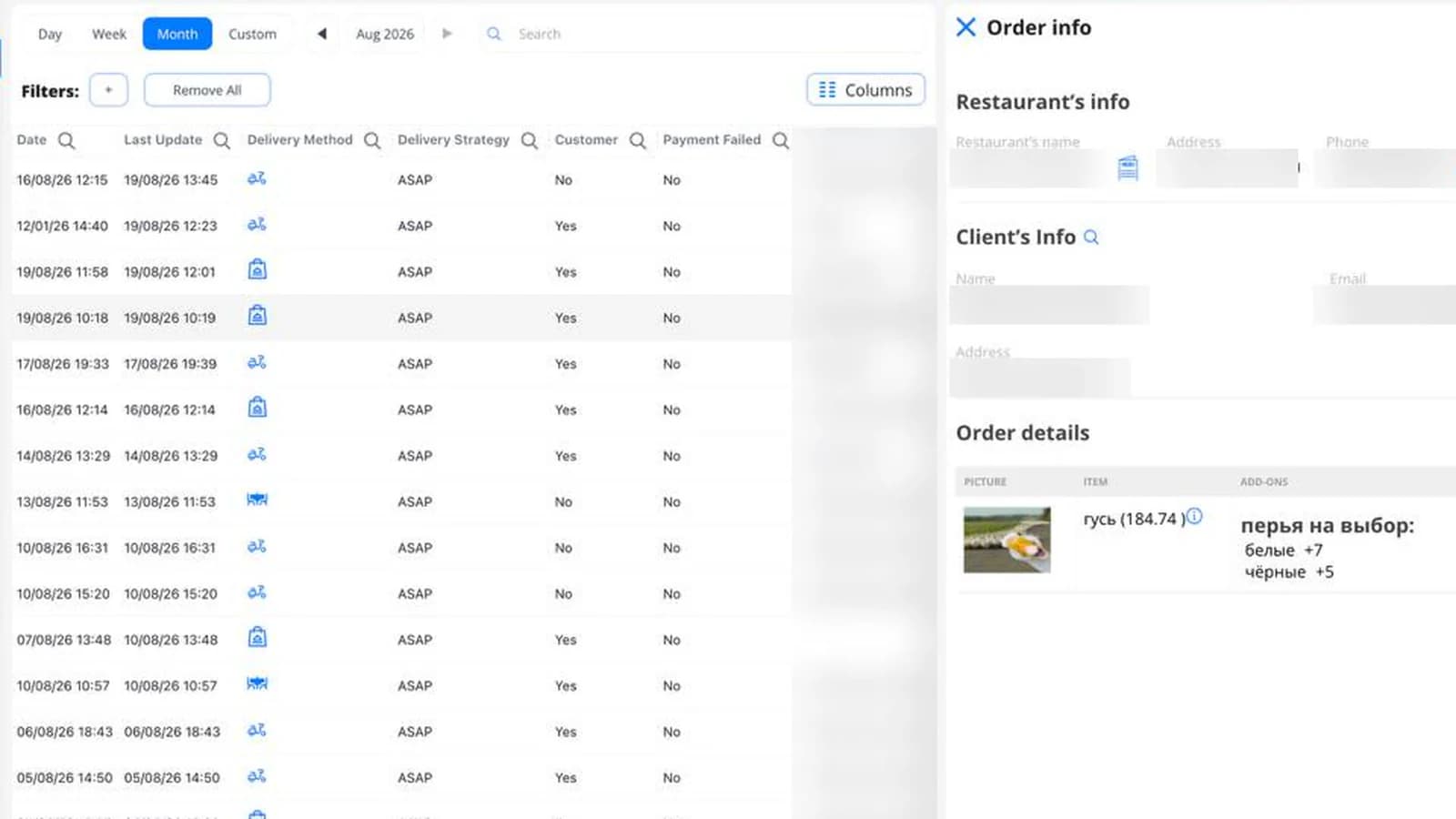
Some carts never make it to checkout. Someone adds a sandwich, gets distracted, closes the tab. Until now, those carts weren't visible anywhere in DelivApp.
Now they are. A new screen lists every order that never reached confirmation.
What the screen shows
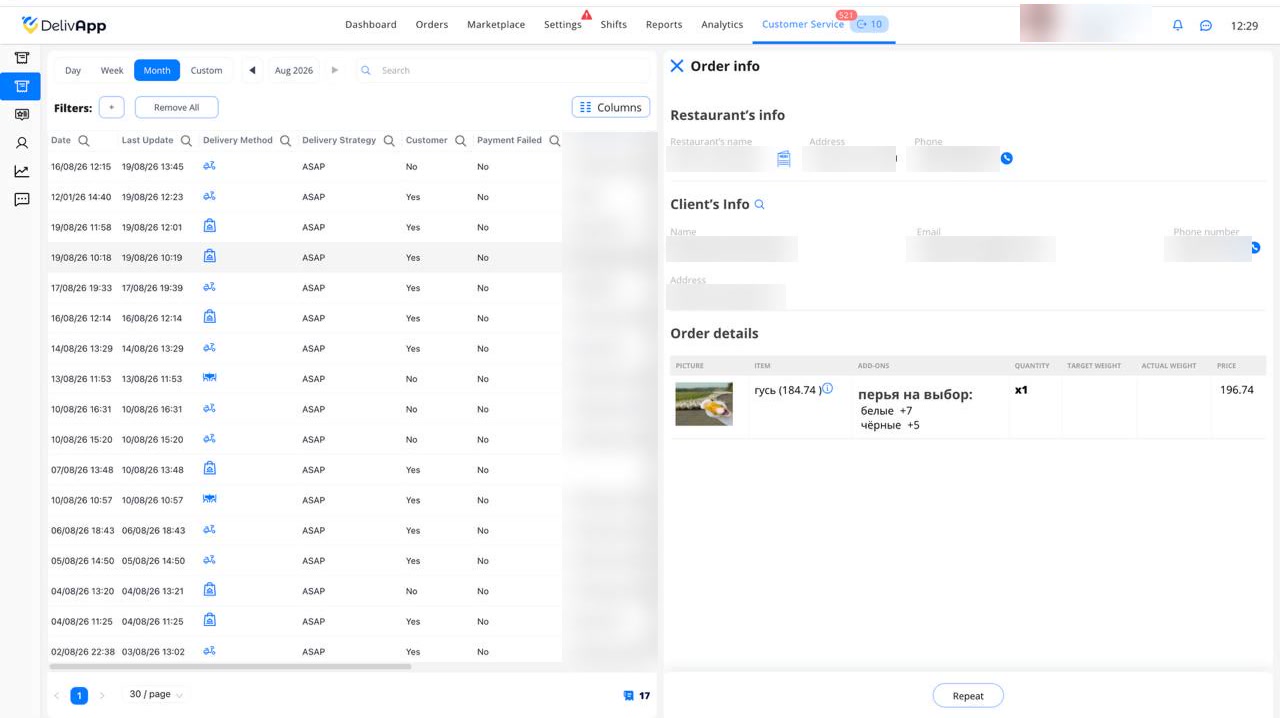
Each row is a cart that stopped short of confirmation. Open one and you get:
- The customer's details, when they were logged in at the time.
- The items they added to the cart.
- When the cart was last updated, in a column of its own.
Why the last column matters
A cart isn't a single moment. It's something people come back to.
Say someone adds a sandwich in the morning and leaves without ordering. That evening they open the site again and add two colas. It's the same cart — but it changed, hours after they first abandoned it.
The last-updated column records when that most recent change happened. It's what separates a cart nobody has touched in two weeks from one that someone was still editing an hour ago.
What it's for
A cart that stops short isn't only a lost order — it's a signal, and the screen separates two different kinds.
Look at the Payment Failed column. A run of Yes there points at the payment provider, not at your customers. That's something you can fix today instead of finding it in next month's revenue. Carts that stalled without a payment failure are saying something else: the price, the delivery fee or the minimum order gave someone pause at the last step.
Then there's the order itself. The customer's details are on the record, so a cart worth recovering can be followed up while it's still warm — and the last-updated column is what tells you which ones those are. A cart edited an hour ago is a live customer. One nobody has touched in two weeks is history.
Also shipped: courier pay rules can now depend on where a delivery starts
Courier delivery fees could already be set by delivery region. They now take the pickup region into account as well.

Pickup region is optional. Leave it blank and the price applies to orders from any region, exactly as before. Set it, and the rule covers deliveries running from one specific region to another.
There is also a Both Directions checkbox. Tick it and a single rule covers the trip out and the trip back.
Where a delivery ends was never the whole story. A courier sent from an outlying branch into the centre works a longer trip than one starting there, even when both drop at the same address — and until now the fee couldn't tell those apart.
Both Directions is the other half of it. Routes that run both ways needed two mirrored rules kept in step with each other; now one rule covers both, and there is no second rule to forget to update.
This matters most where crossing zones is routine: operators running several branches, marketplaces with many vendors spread across a city, anyone who prices cross-zone work differently from deliveries that stay inside one zone, and routes with a return leg.
Related reading

Sales analytics, refreshed: every number against the last period
How did this week go against the last one? Sales analytics answers in one look: every number next to the period before, the channels that bring orders and revenue, every branch with its change, and one filter for the whole page.

Reprice your whole menu in one file: export, edit, import
A new price list for the whole menu is now one file: export, update, import, and the whole menu changes at once. Plus a Wolt menu priced on its own terms, and the whole network at a glance.
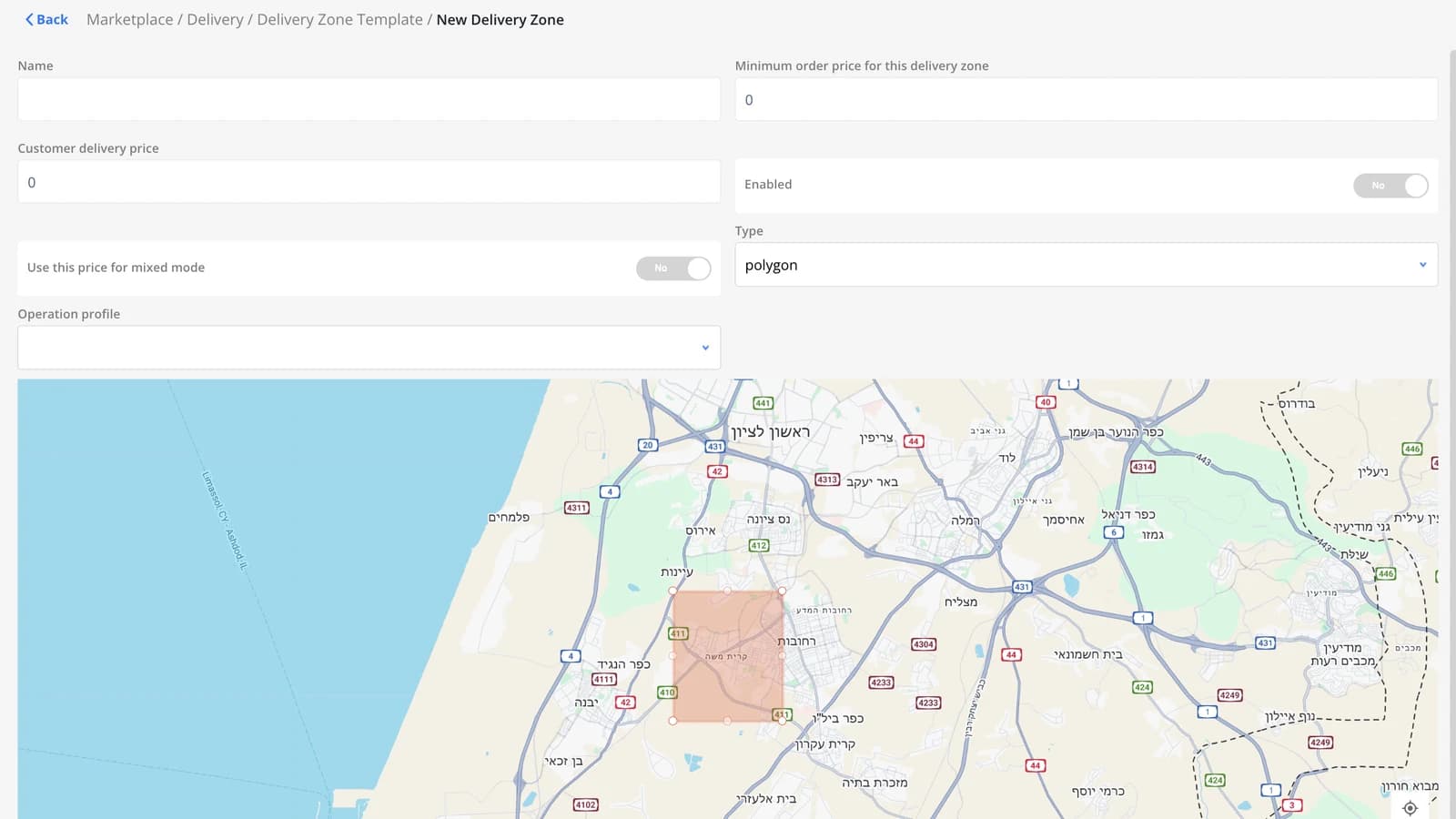
Regions from Google Maps: pick a template or click the map
The Regions screen now has a template of regions already drawn from Google Maps. Don't feel like searching the list? Click a point on the map and every region covering it is selected. Plus: new payment method icons.