Takeaway orders management
Takeaway orders management
Orders can be made for delivery or for takeaway. Let's see how to create a takeaway order from a regular order (order for delivery).
When you create an order, click on the advanced button.
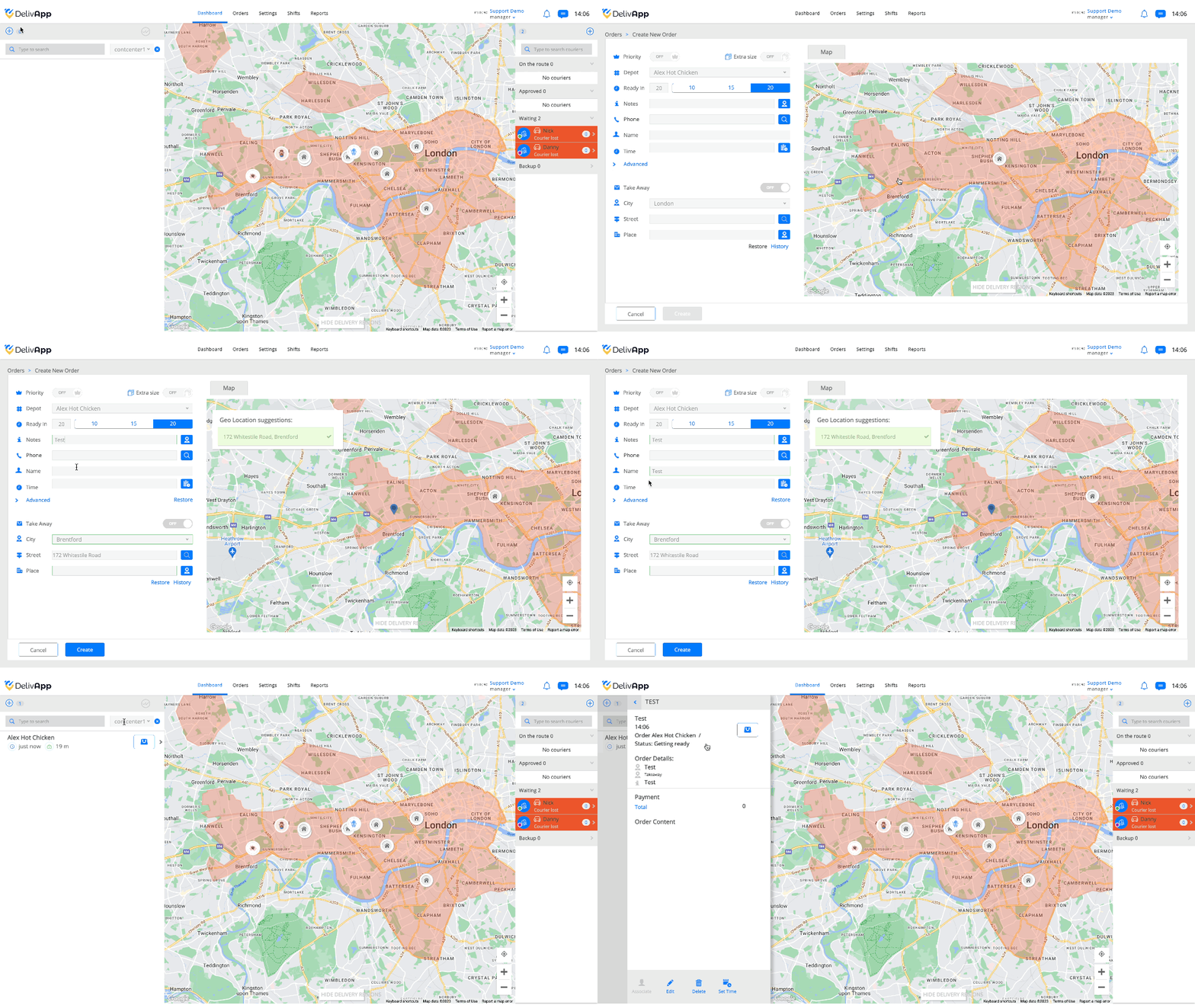
In the advanced creation mode, click on the takeaway toggle.
After entering all the necessary information, click the Add order button.
The takeaway order will appear in the orders’ list with the icon

(screenshot 2).
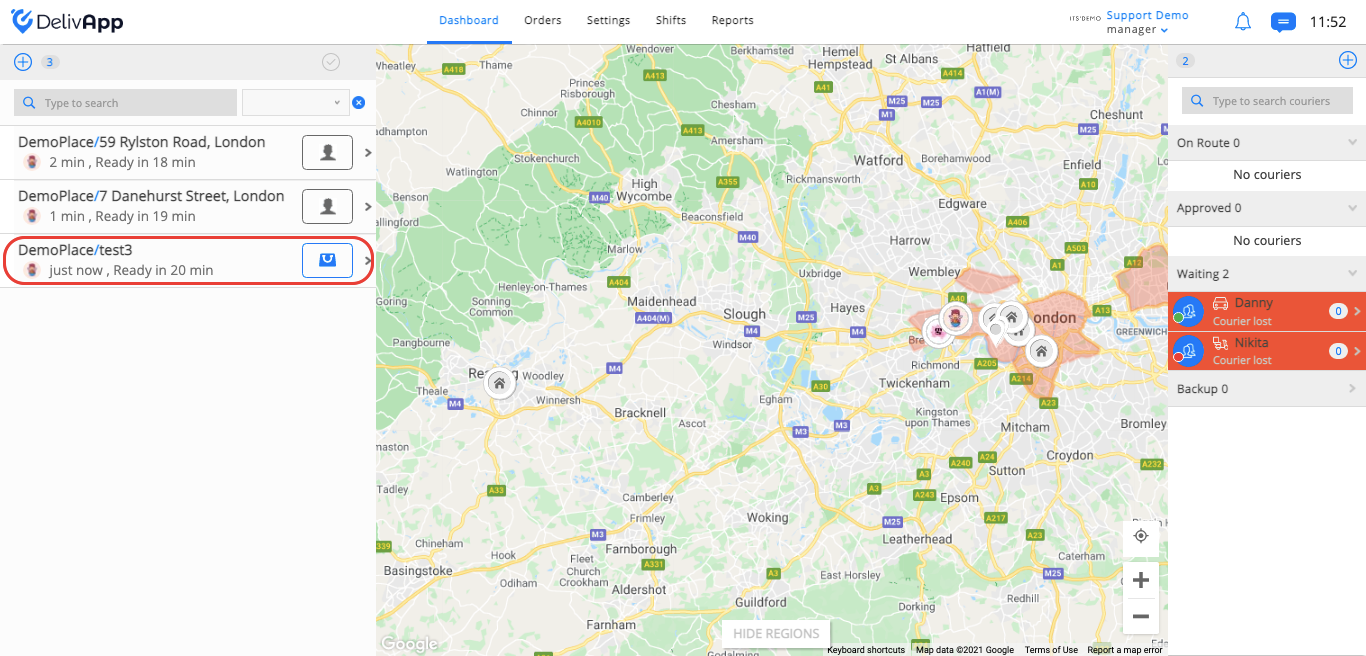
(screenshot 2)
In the order card information, the order will be marked as takeaway (screenshot 3).
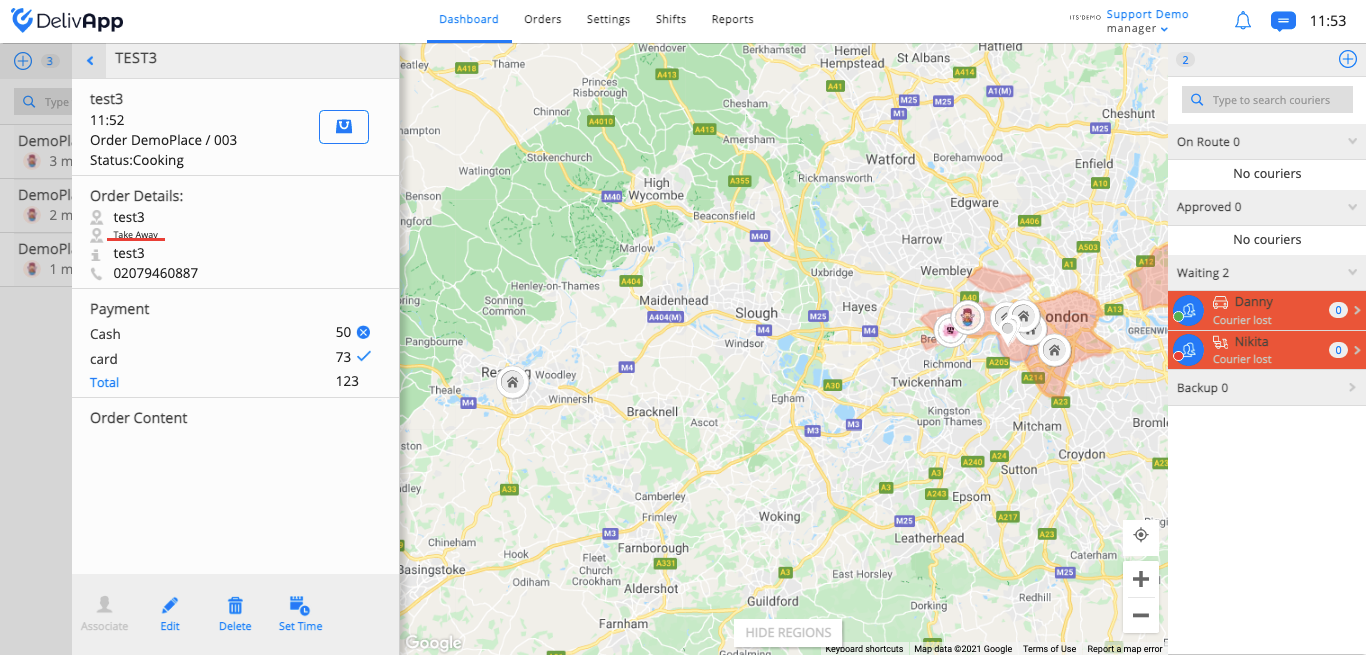
(screenshot 3)
There is an option in the system to sort orders for delivery and takeaway separately.
Click on the Settings tab on the upper navigation panel and then click on Personal settings on the left sidebar (screenshot 4).
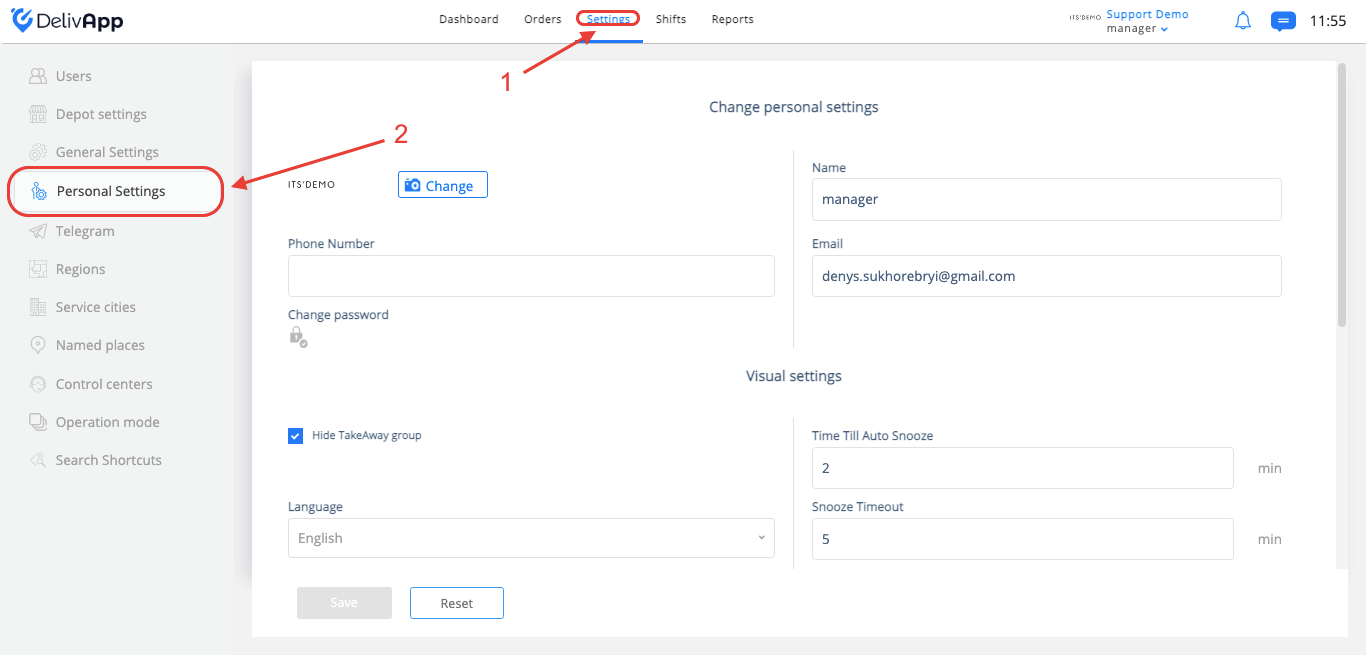
(screenshot 4)
On the Personal settings screen, find the hide takeaway group option. It should be marked as hide, please click on the option to unhide the group and save the changes (screenshot 5).
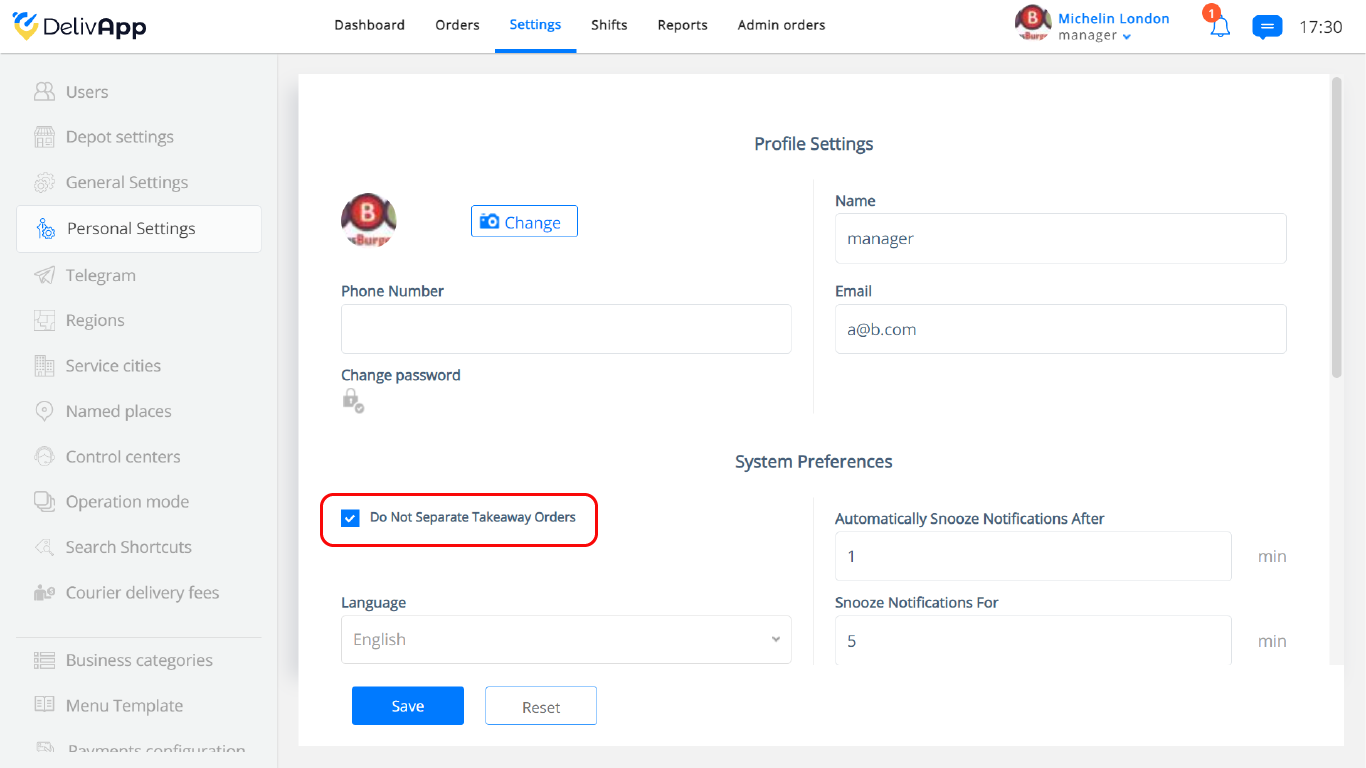
(screenshot 5)
In case Do not separate takeaway orders is not marked, you already have a separate orders’ view.
On the dashboard screen, you will have a delivery/takeaway/Extra size button (screenshot 6).
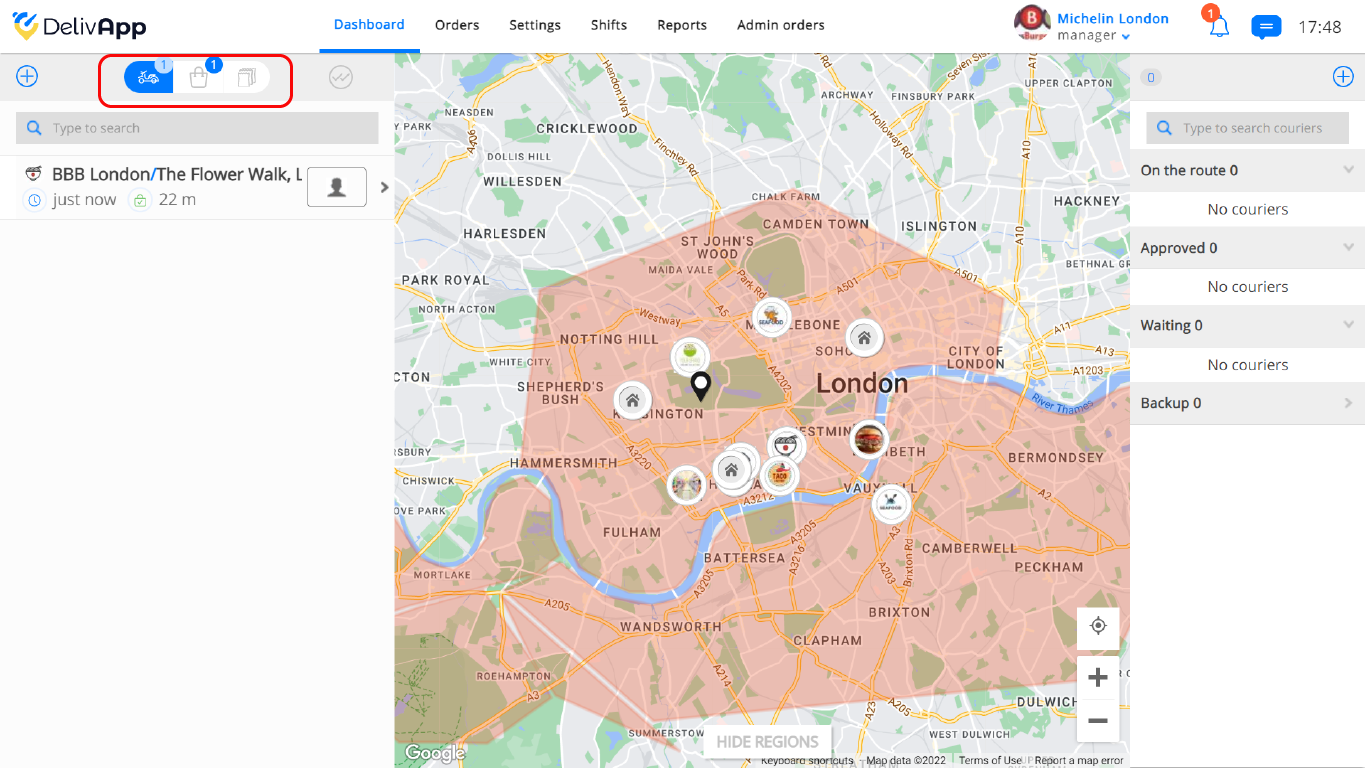
(screenshot 6)
Click on the takeaway icon to see takeaway orders (screenshot 7).
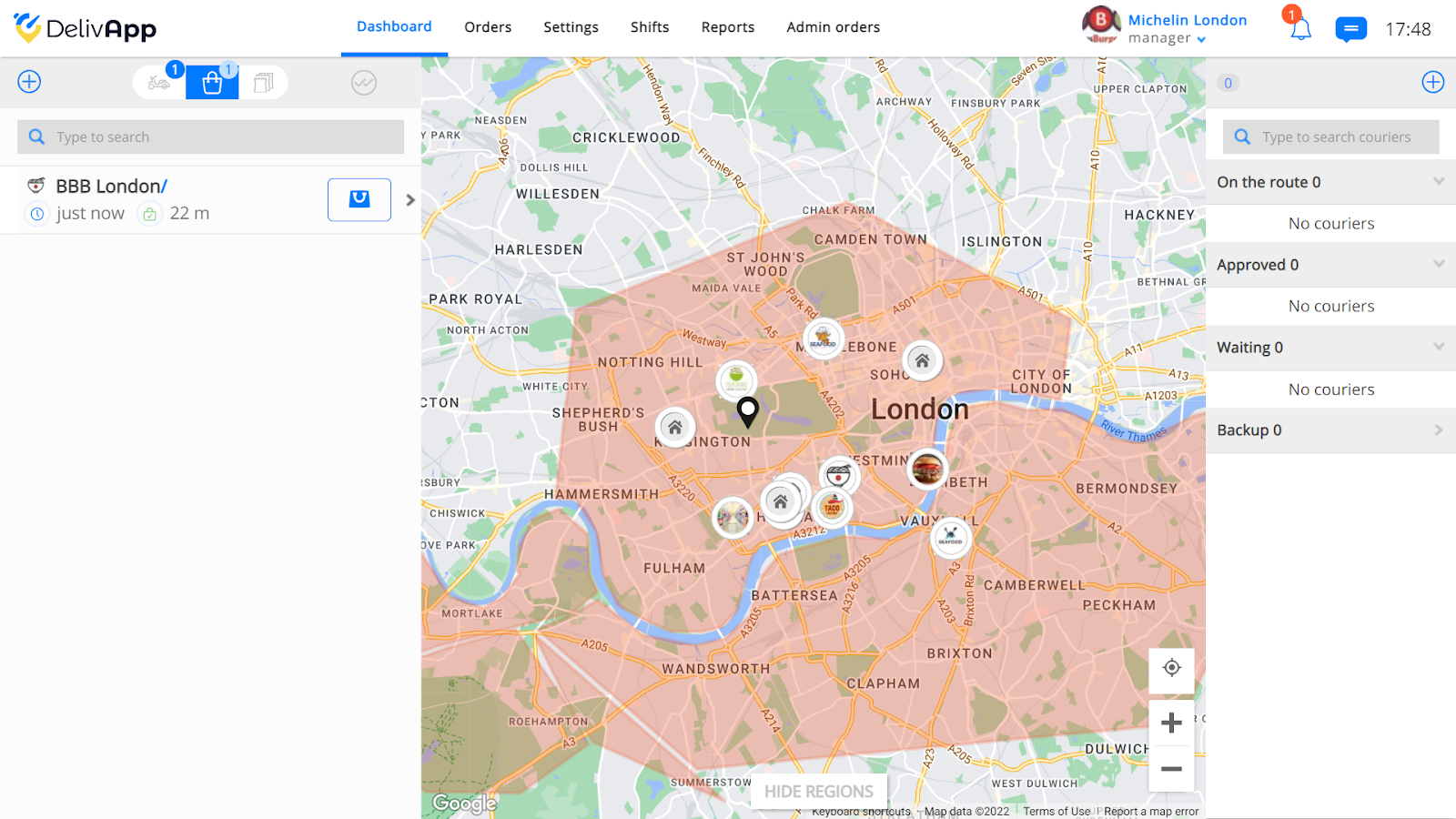
(screenshot 7)