DelivApp Integration Setup Guide
1. Introduction
In Settings → Integrations, two key sections are available:
Service Providers — this is where aggregators and external delivery services are connected (such as FullGaz, Yango, Wolt, DoorDash, and others). These providers automatically send orders to DelivApp for further processing by a manager and courier assignment.
Telegram — this section configures the Telegram chatbot, which businesses can use to create orders. It serves as an alternative to the Business app or the web Merchant Portal.
This guide explains in detail how to configure both sections, what features are available, and what each setting means.
2. Requirements and Preparation
Before you start, ensure that you have:
Access to the DelivApp admin panel with Manager or Admin permissions.
Credentials provided by the aggregator (tokens, keys, host URLs).
A clear understanding of your business process — which channels you want to receive orders from: only aggregators, only Telegram, or both.
TIP: Keep your provider credentials nearby — you will need them during setup.
3. Step-by-Step Configuration
3.1. Configuring Service Providers (Order Aggregators)
The Service Providers screen displays the list of available integrations: Yango, Wolt, DoorDash, Mishloha, Sendiman, Haat, Gett.
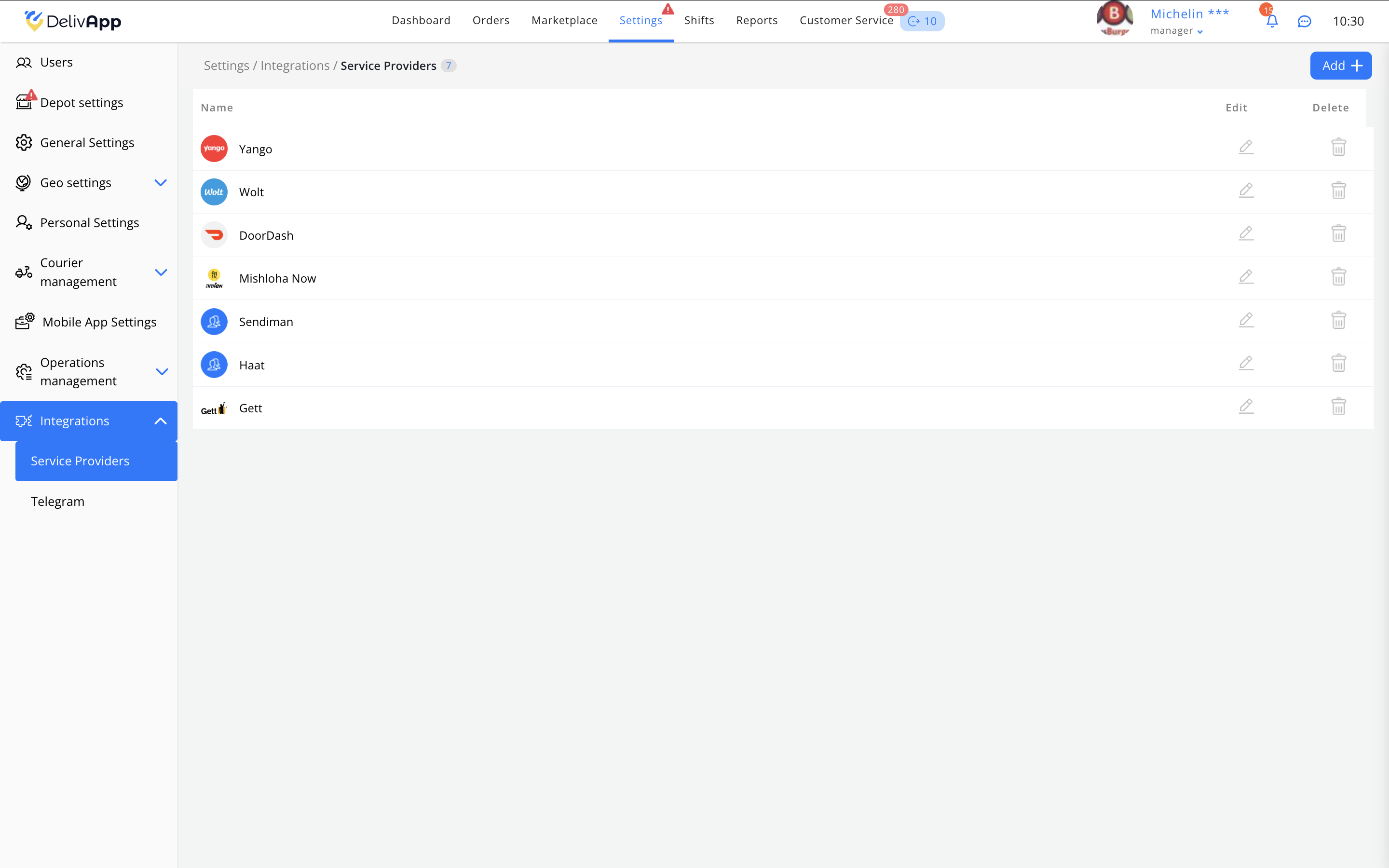
3.1.1. Opening a Provider’s Settings

Go to Settings → Integrations → Service Providers.
If a provider has not yet been added, click Add in the upper-right corner and choose a provider from the dropdown list.
If a provider is already connected, click the Edit icon next to its name to open its settings.
You will then see the individual configuration page for the selected service.
3.1.2. Example: Configuring Yango

Fill in the following fields:
Correction Threshold in Meters — the distance within which the system may adjust the order’s coordinates (typically 300–500 m).
Emergency Contact Name — the name of the responsible staff member.
Emergency Contact Phone — phone number used by the provider in case of an issue.
Host — the API URL of the provider (e.g., https://b2b.taxi.tst.yandex.net).
Token — the access key issued by the provider.
Switches:
Use Order ID — when enabled, DelivApp sends its internal order ID to the provider.
Use Yango Geolocation — when enabled, routes and coordinates provided by Yango will be used.
IMPORTANT: An incorrect token or host URL will result in an error during order creation.
After filling in all fields, click Save.
3.1.3. Notes on Other Providers
Although the interfaces may differ slightly, the general configuration process is the same for all providers:
Enter the API host URL
Provide the token
Set additional options
Save the settings
3.2. Configuring the Telegram Bot
This section controls how businesses create orders through the Telegram chatbot.

Here you can configure:
chatbot functionality,
which actions are available to the user,
what information is requested when creating an order,
which notifications are sent.
3.2.1. Main Switches
Each setting can be toggled Yes / No.
Require Preparation Time — the bot will ask the user to specify preparation time.
Show Map — displays a map with the delivery point.
Notify About Dispatched Courier — sends a notification when the courier has departed.
Display Cancel Order Button — allows the business to cancel the order.
Notify Business About Delivered Orders — useful for tracking order completion.
Phone Number Support — enables faster order creation; the bot identifies the user by phone number.
Display Order Delay Button — allows delaying the order dispatch.
Display VIP Order Button — enables priority order handling.
Hide Ready Button — useful if the “Ready” confirmation step is not required.
Require phone number on order creation — enforces customer identification.
TIP: Enable only the necessary options — fewer elements make the bot easier to use.
3.2.2. Preparation Times
Below is a list of predefined preparation times: 10, 20, 25, 15, 30 minutes.
You can:
add new values,
remove existing ones,
rearrange the list.
NOTE: These times are displayed in the Telegram bot interface during order creation.
3.2.3. Using Waiting Times from the Operational Profile
The switch Use waiting times of the Operational profile allows the system to automatically apply the waiting time that corresponds to the business’s active schedule.
If enabled, the system uses the waiting times defined in the active Operational Profile. In this case, the preparation time list in the Telegram section is ignored.
If disabled, manual preparation times (e.g., 10, 20, 25, 15, 30 minutes and any additional values you add) are used.
4. Verifying the Setup
After configuration, make sure that:
For Service Providers:
Orders from the provider appear in the Logistics Orders list.
The order contains the correct address, items, and customer contact details.
The order status updates correctly (Accepted → Assigned → Delivered).
For the Telegram Bot:
The bot responds to commands.
Buttons appear according to your configuration.
Orders are successfully created and visible in the system.
Notifications are delivered to the manager.
If something does not work — verify the token, URL, and enabled switches.
5. FAQ — Frequently Asked Questions
1. Why is the provider not connecting?
Check the correctness of the token and host URL. These must match exactly what the provider issued.
2. The Telegram bot is not creating orders
Make sure Phone Number Support is enabled and the preparation time templates are valid.
3. Can I use both Telegram and providers at the same time?
Yes. The system can receive orders from all channels simultaneously.
6. Conclusion
You can now:
connect aggregators and receive orders directly in DelivApp,
configure the Telegram bot and customize the order creation workflow.
These tools help businesses operate faster and more efficiently by automating key stages of order intake and processing.
For unusual situations, contact DelivApp Support through the admin panel interface.