Creating a manager user
You can create a manager user in your business account, this role will manage order creation and assign orders to the couriers.
To create a manager user, click on the Settings tab on the upper navigation panel, then click on Users on the left sidebar (screenshot 1).
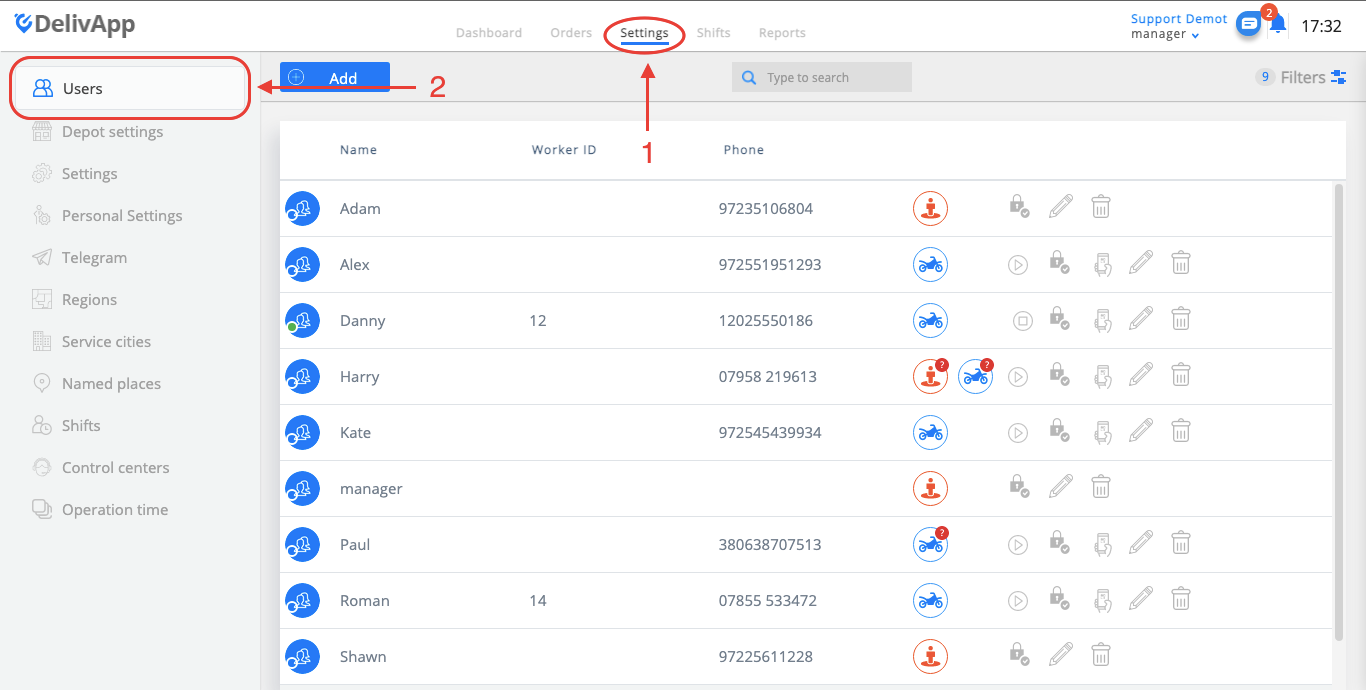
(screenshot 1)
On the Users screen, you will see already existing users. Click on the add button to create a new user (screenshot 2).
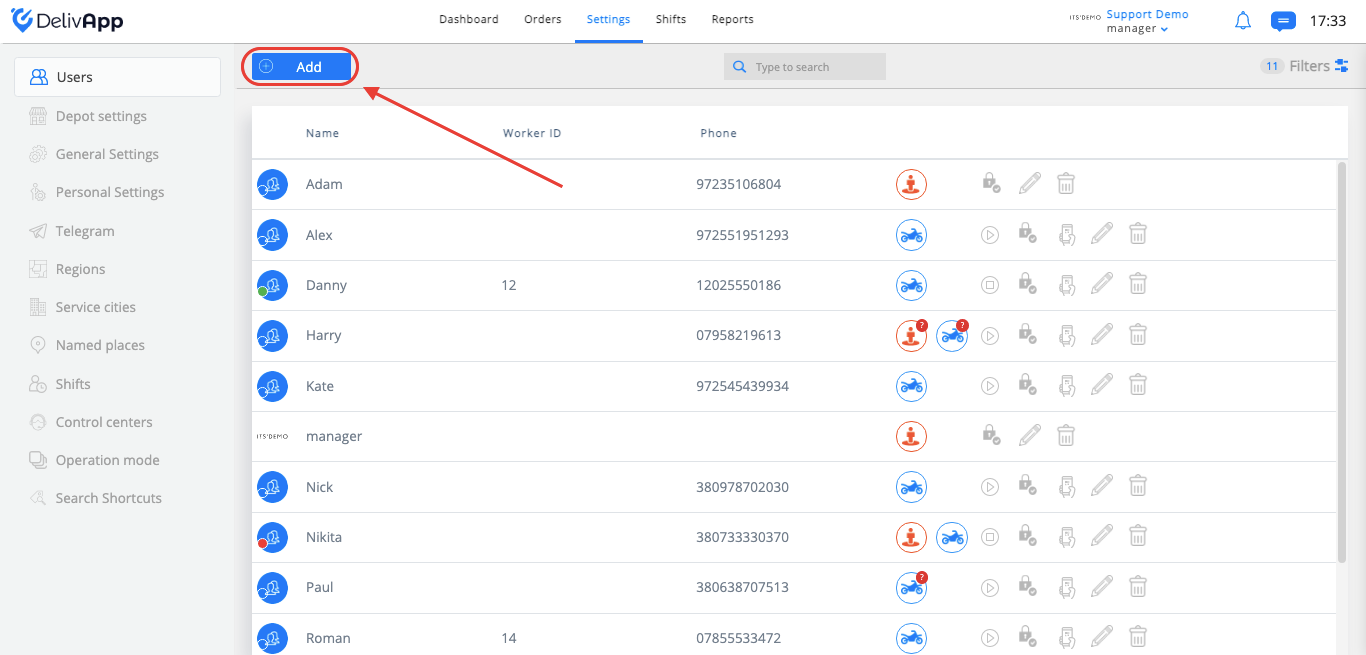
(screenshot 2)
On the new screen, choose the manager user role , and fill in the following fields (screenshot 3):
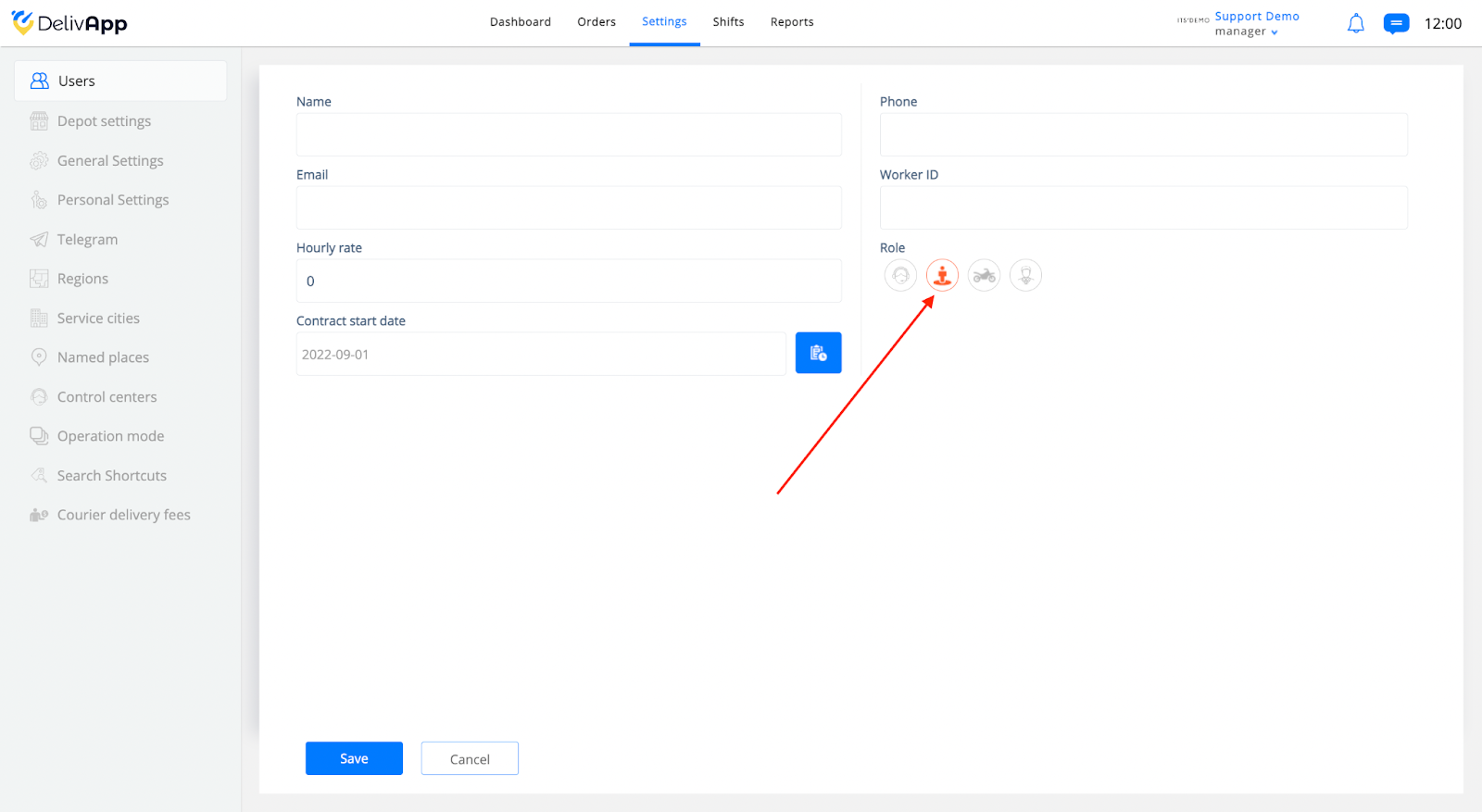
(screenshot 3)
Name (The name of the employee)
Phone (The employee’s phone number)
Email (The employee’s email address)
Worker ID (The employee’s work ID in the company)
Hourly rate (The employee’s compensation per hour)
Contract start date (User registration day)
*Name, phone number and role are mandatory fields.
*The phone number should be unique for each user.
Once all the data was added, click on the Save button.