DelivApp
AboutPlans & PricingBecome a Partner
All DocsFor Merchants

On this page

All DocsFor Merchants

On this page

All DocsFor Merchants
Docs/For Merchants/Users & Settings

Adding multiple accounts/businesses to one device

Updated Jun 17, 2025·1 min read
marketplaceaccountmerchantmanager

If a merchant operates several brands or needs to use several merchant accounts to accept marketplace orders, they can manage all of these accounts from one device without having to input their credentials each time they need to switch between the accounts. The user receives notifications from all accounts added to the device, so they won’t miss incoming orders.

Here is how to set them up for that

On the business tablet, log out of the current account:
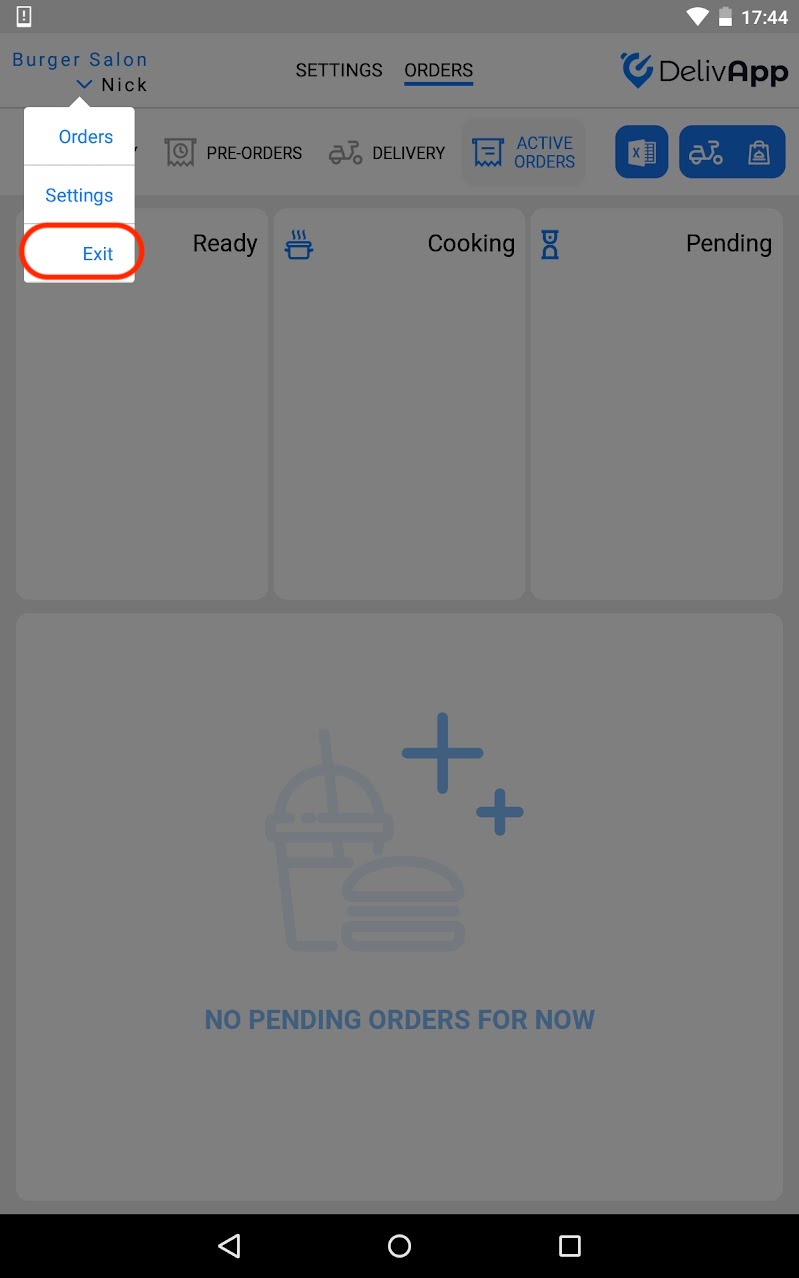
Screenshot_2022-06-15-17-44-36

Next, click the sign up button below:
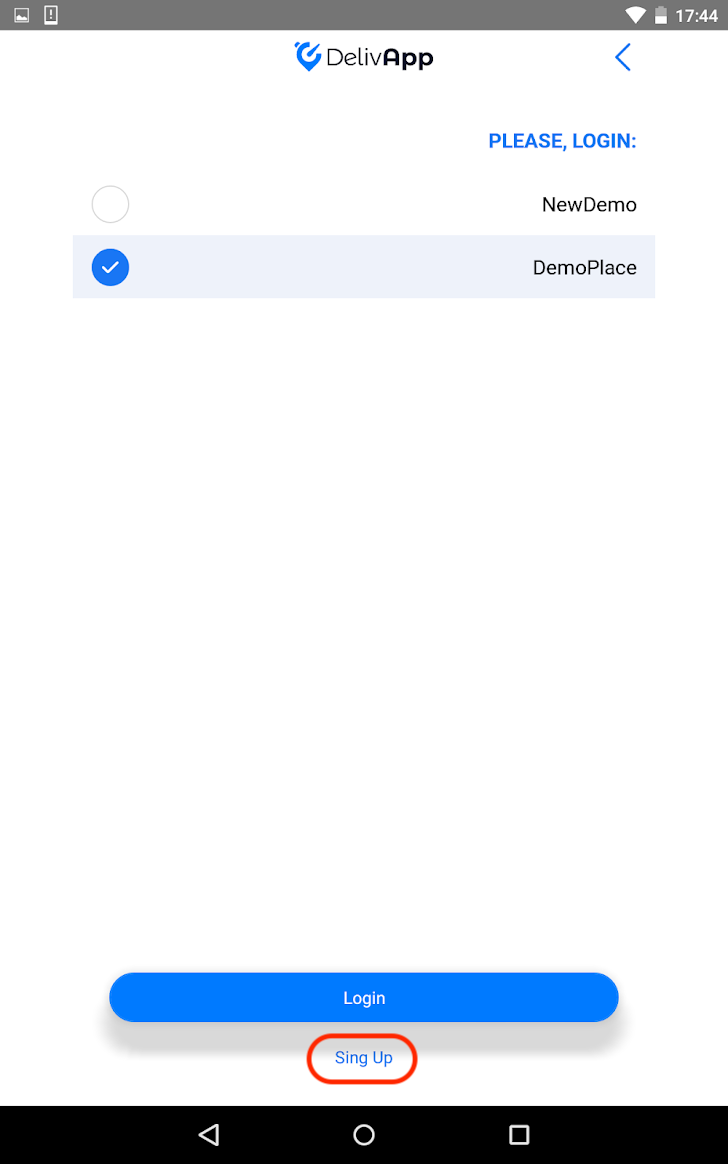
Screenshot_2022-06-15-17-44-56

And sign in using a code, a login password, or a QR code from the second business (merchant account):
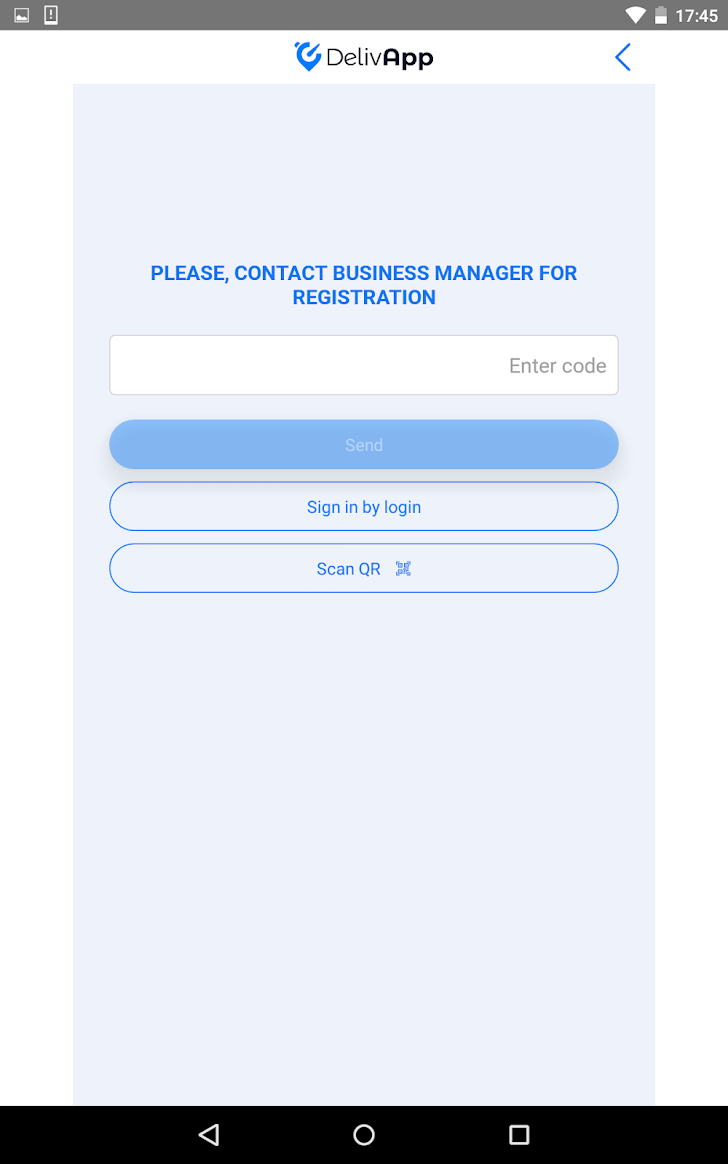
Screenshot_2022-06-15-17-45-05

The QR code for a business can be created from Logistic Admin Portal in the settings of the business:
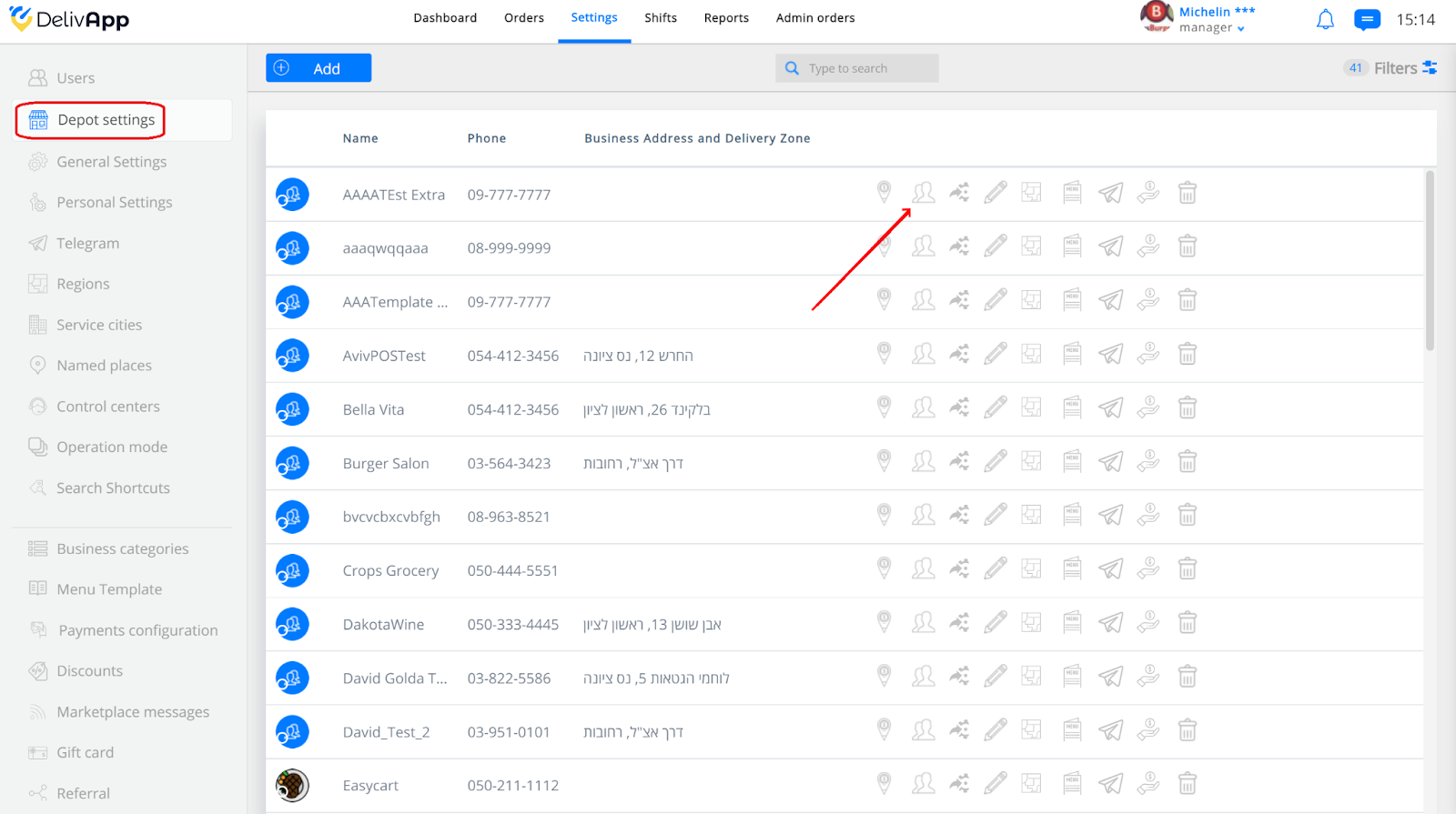
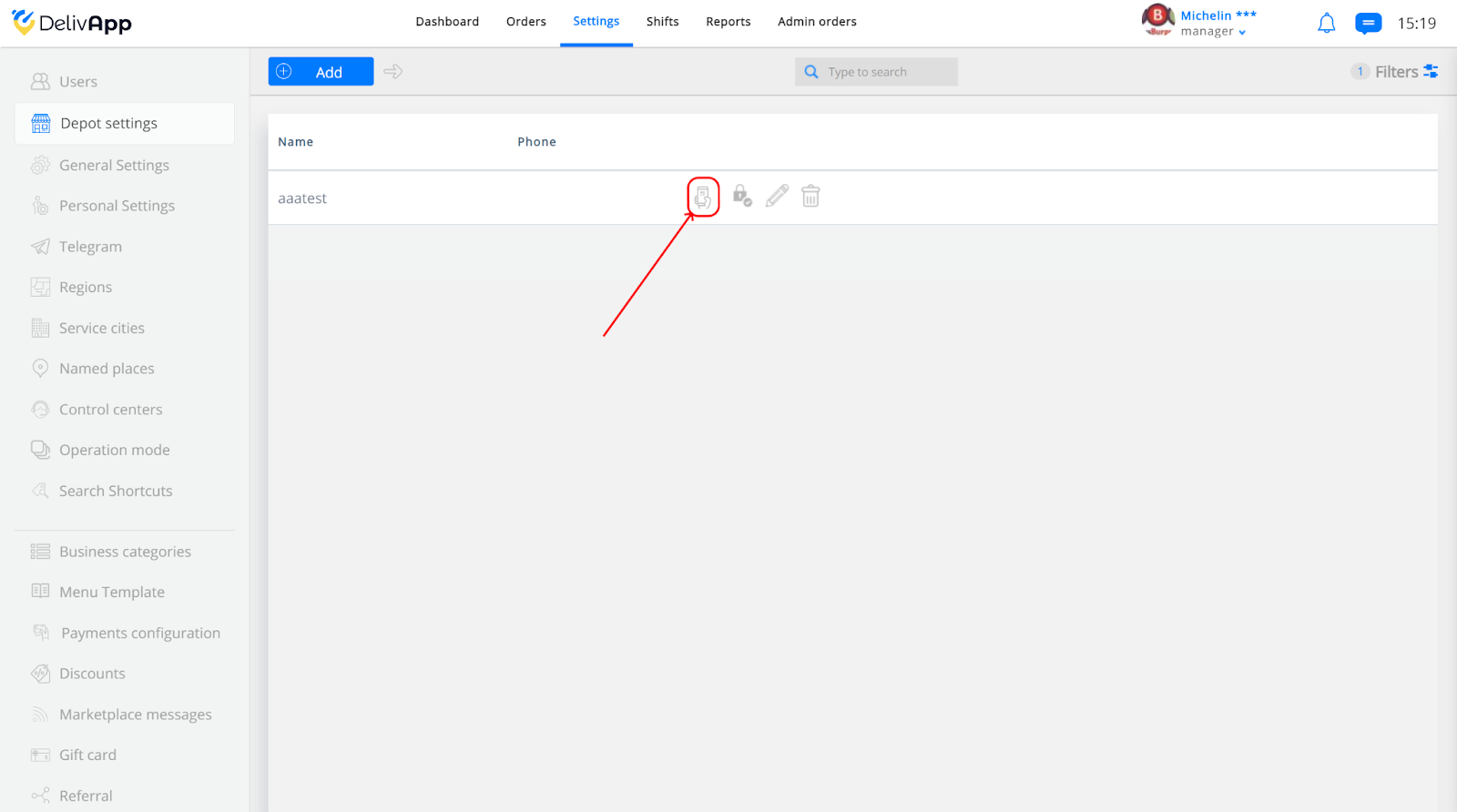
Now, when the merchant wants to switch between accounts, they can do so by logging out:
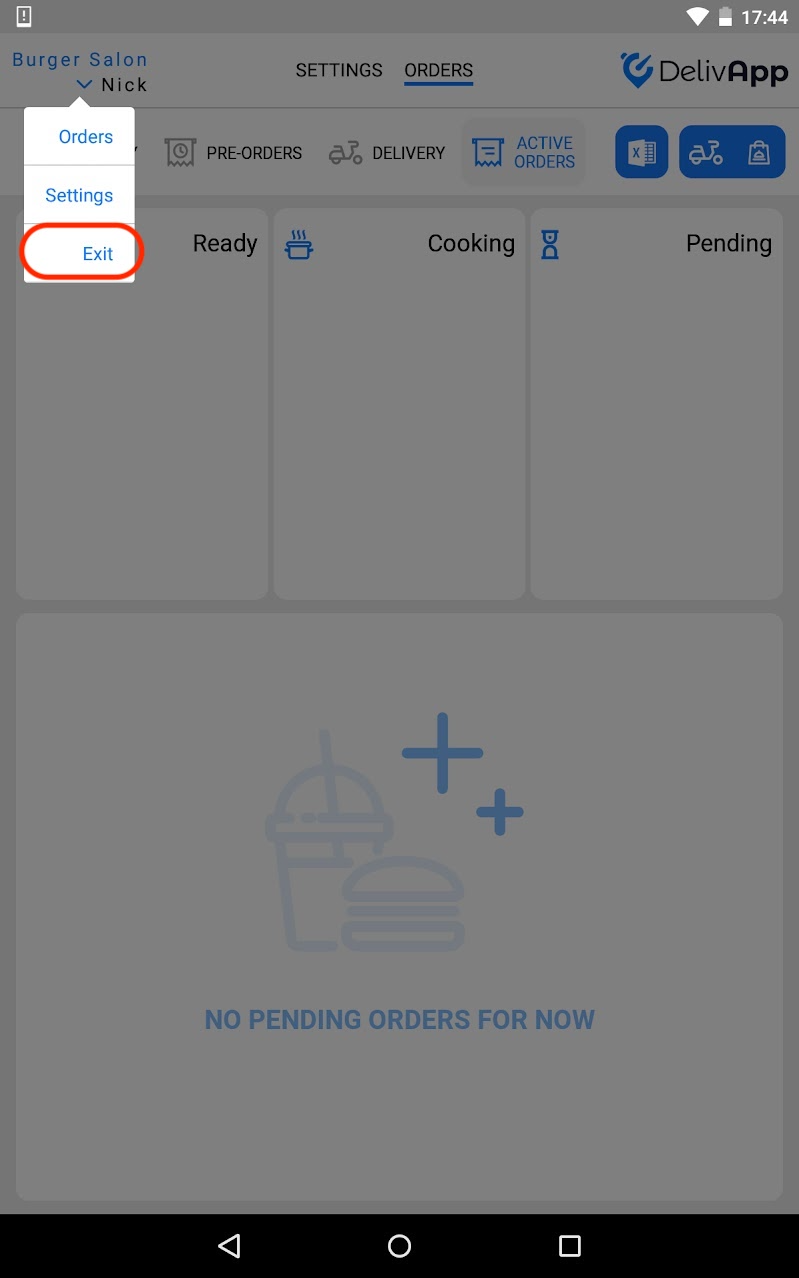
Screenshot_2022-06-15-17-44-36

and switching to any account on the list by tapping on it:
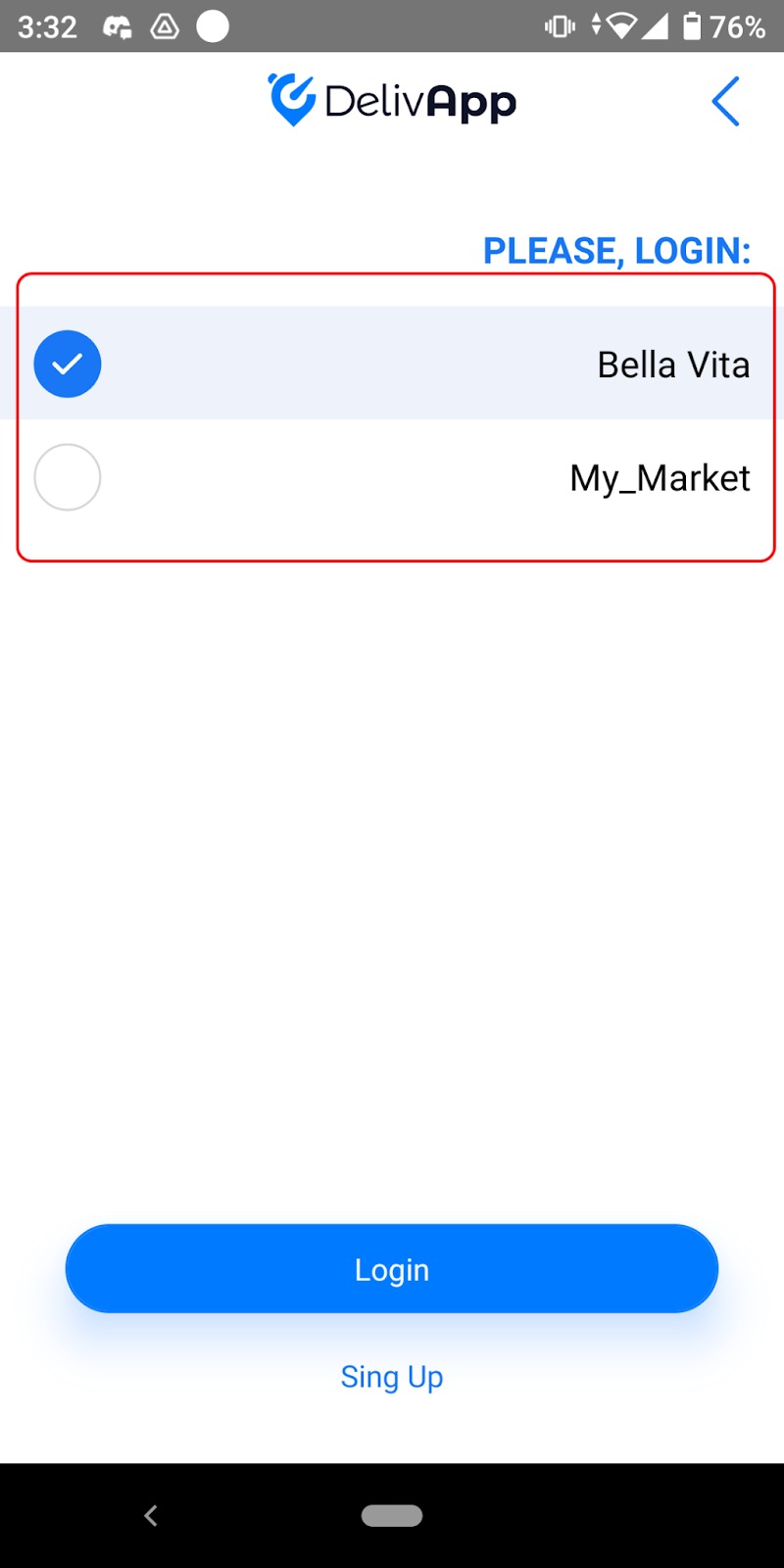
Was this article helpful?
← Previous
Creating orders via Business App
Next →
Connecting a Printer to the DelivApp Business Application
DelivApp

White-label ordering and delivery infrastructure for tech partners

Product

  • Online Ordering
  • Delivery Management

Solutions

  • Marketplaces
  • Restaurant Chains & Groups
  • Delivery Companies

Resources

  • Documentation
  • API Reference
  • Blog

Company

  • About Us
  • Contact

Legal

  • Privacy Policy
  • Terms of Service
  • Cookies Policy

© 2015-2026 DelivApp. All rights reserved.