Setting up and using operation modes
The Operation mode is a template for order preparation time. You can add some operation modes for different workloads. It is applicable for manual order creation.
Click on the Settings tab on the upper navigation panel, then click on the Operation mode on the left sidebar (screenshot 1).
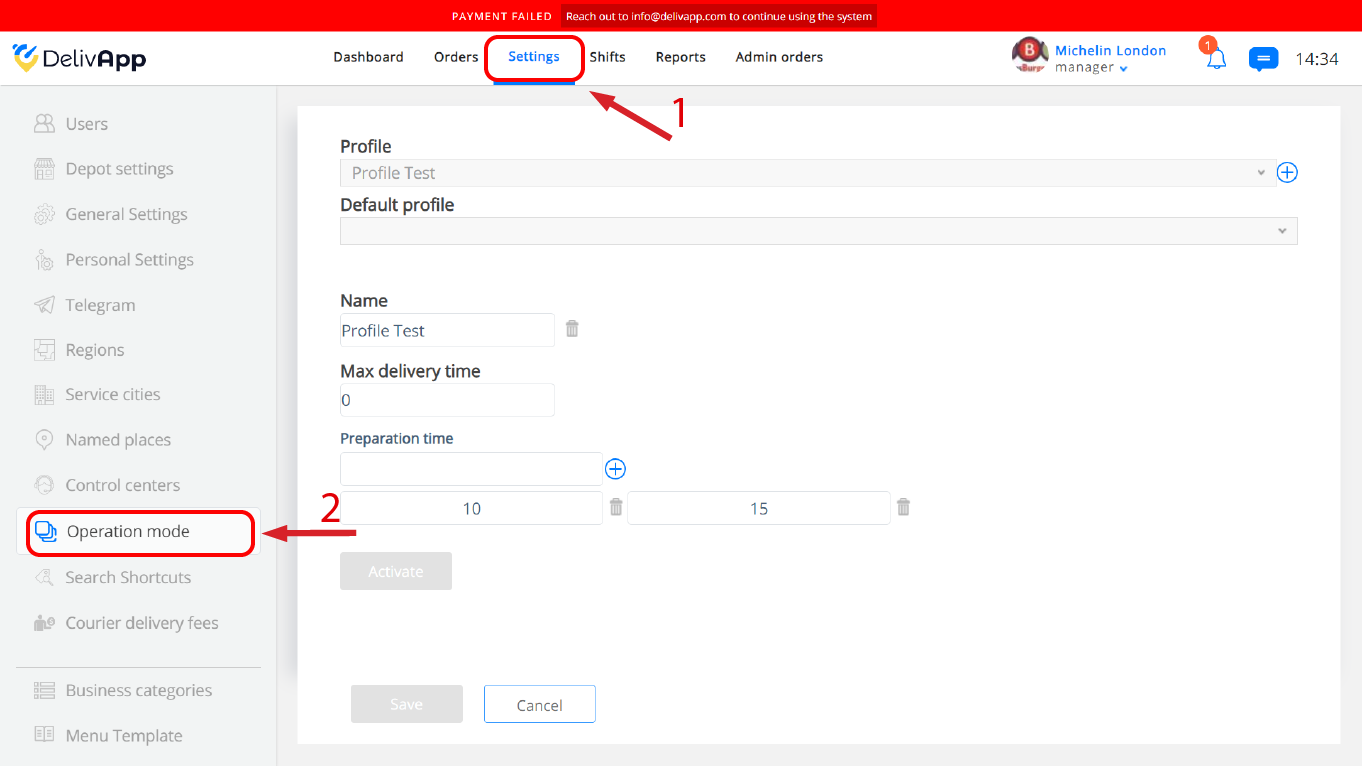
(screenshot 1)
In the Operation mode screen, click on the plus icon next to the Profile field to create a new profile (screenshot 2).
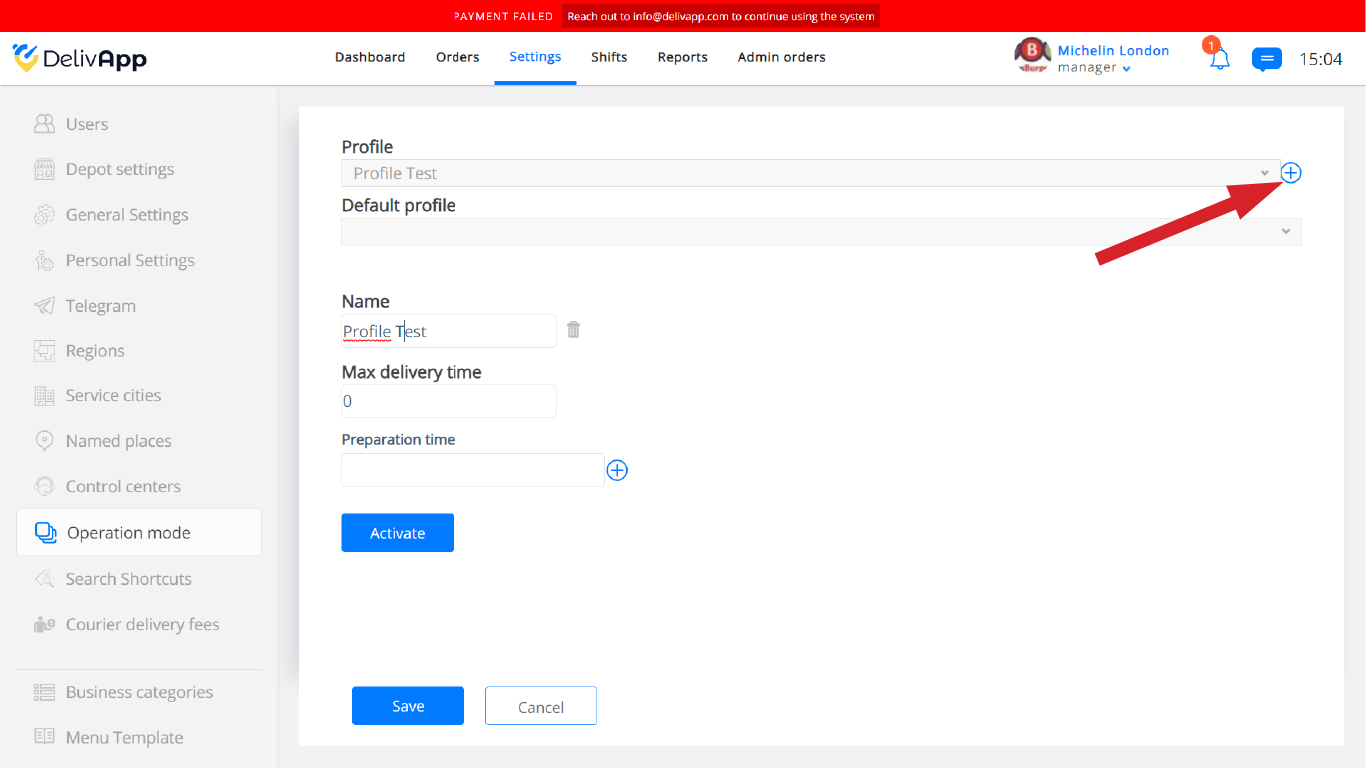
(screenshot 2)
Enter the profile name in the Name field, and the Max. delivery time, then enter preparation time in minutes and click on the plus icon (screenshot 3).
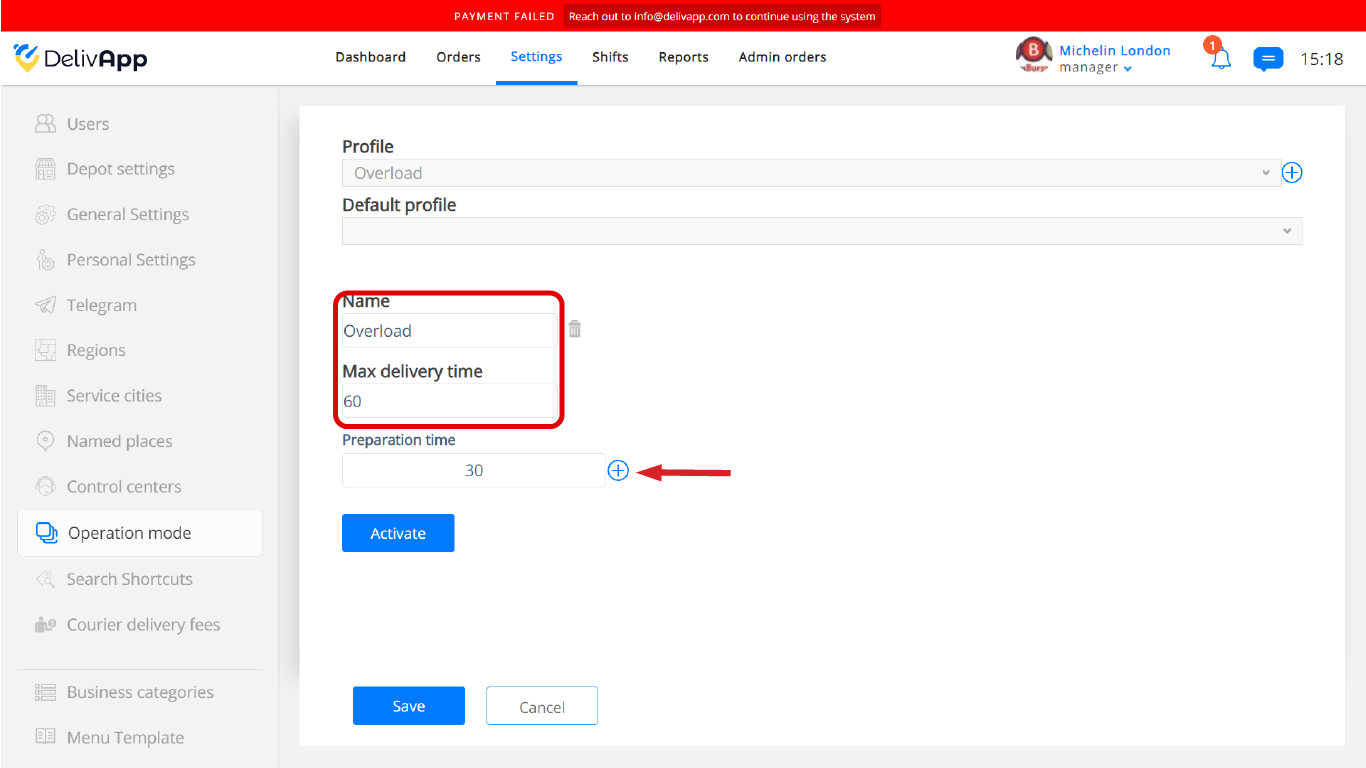
(screenshot 3)
You can add as many preparation times as you need (screenshot 4).
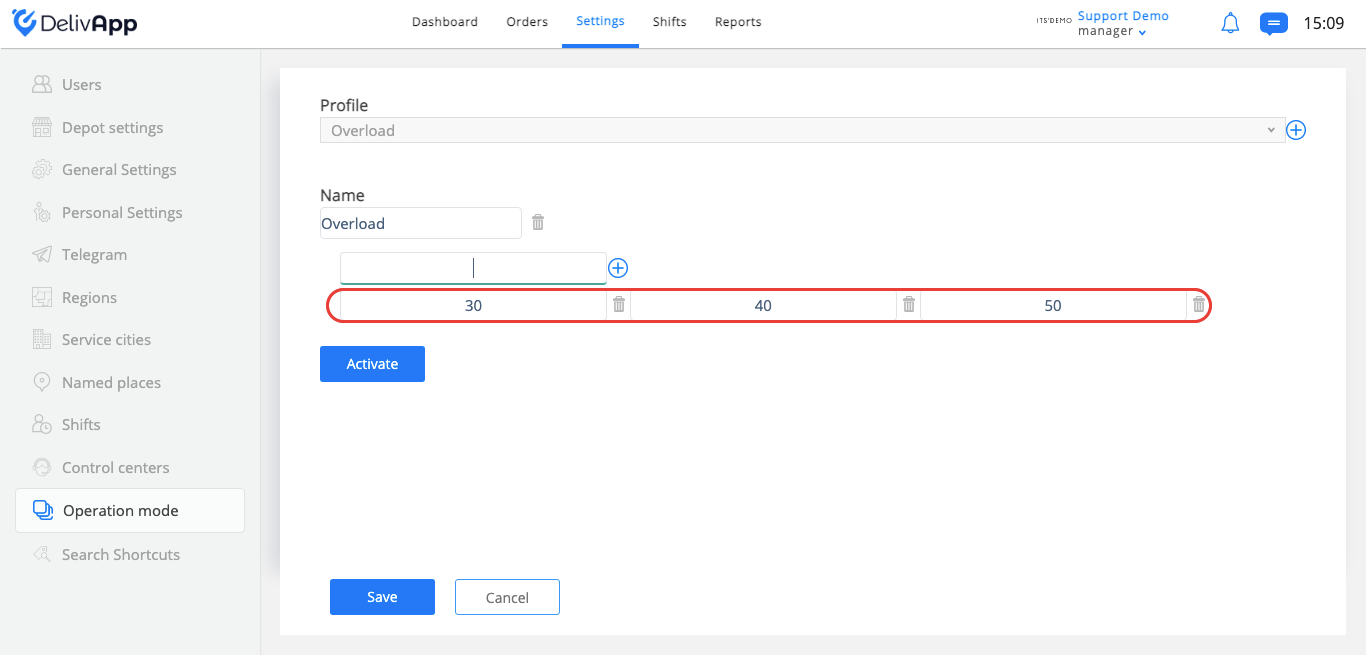
(screenshot 4)
Once changes are done, click on the Save button.
To turn on one of your profiles, click on the profile field, choose the profile you want to use and then click on the Activate button (screenshot 5).
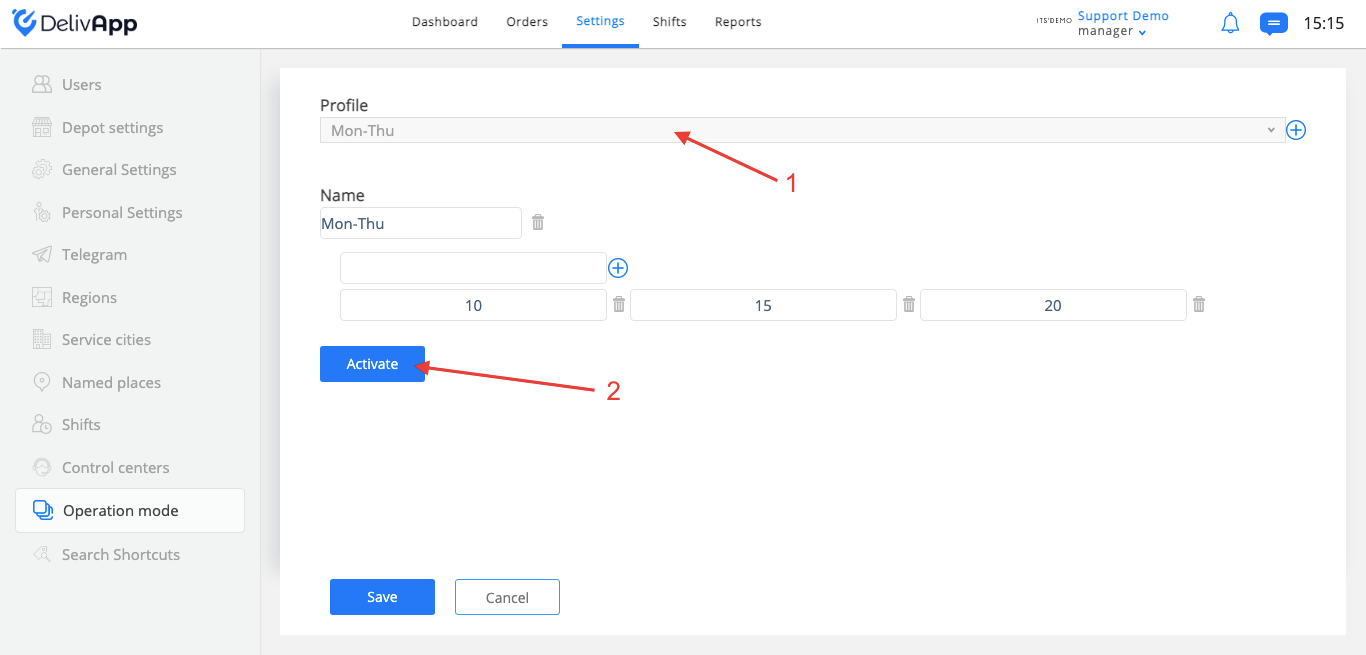
(screenshot 5)
For example, I have created some profiles (Mon-Thu; Fri-Sun; Overload). Now I am using the “Mon-Thu” profile (screenshot 6).
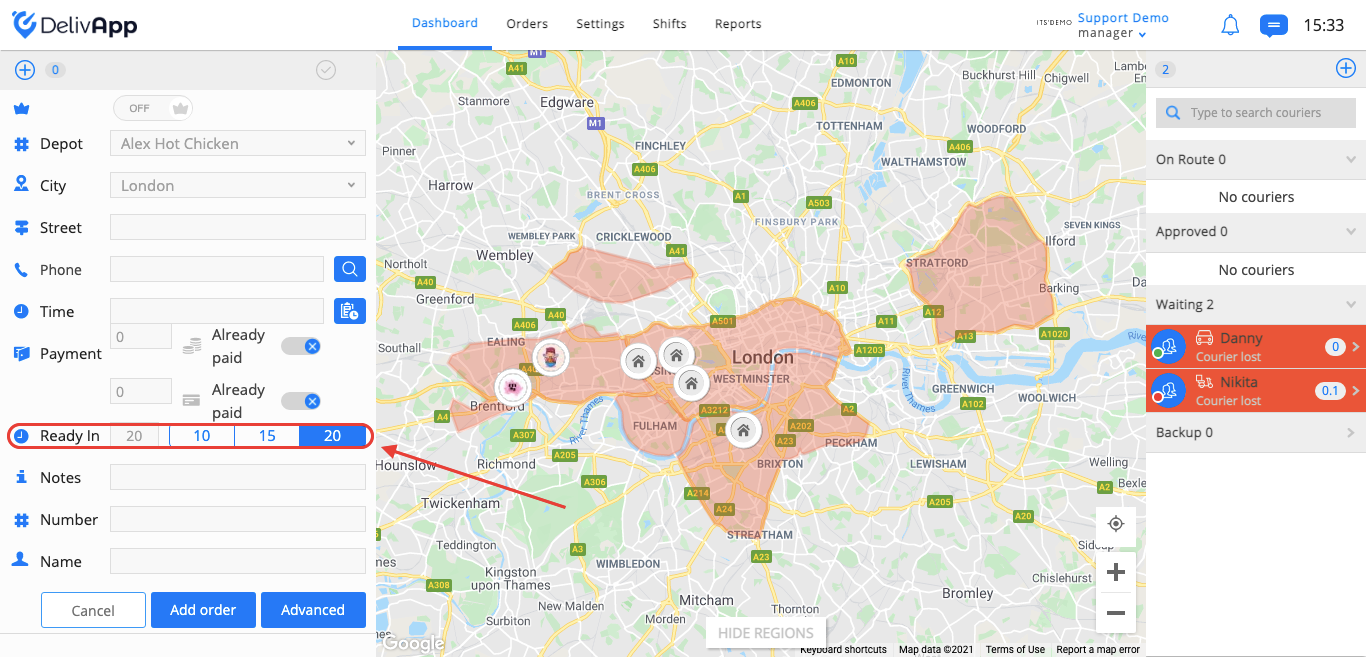
(screenshot 6)
But I am feeling that we are overloaded, and I have a profile for overload work time. I am going to the “Operation mode” and activating the “Overload” profile. My preparation times will be changed according to this profile (screenshot 7).
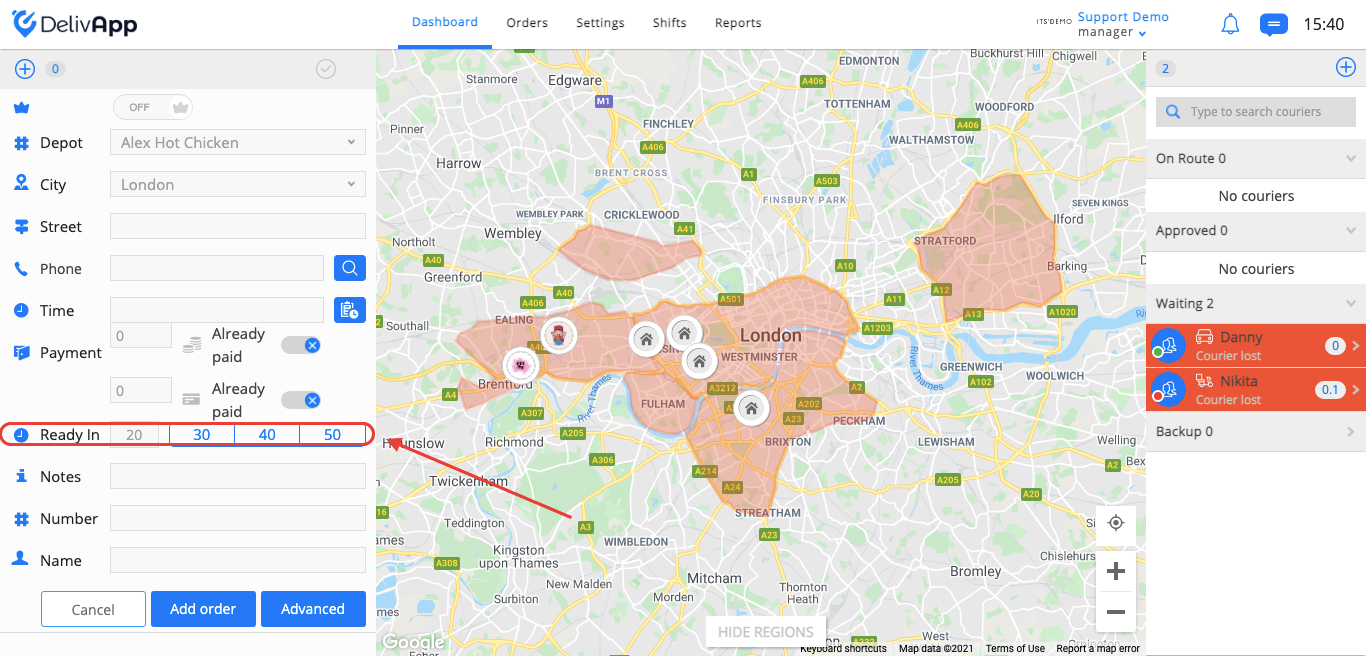
(screenshot 7)