How to change a manager for a control center
Click on the “Settings” tab on the upper navigation panel, then click on the “Control centers” on the left sidebar (screenshot 1).
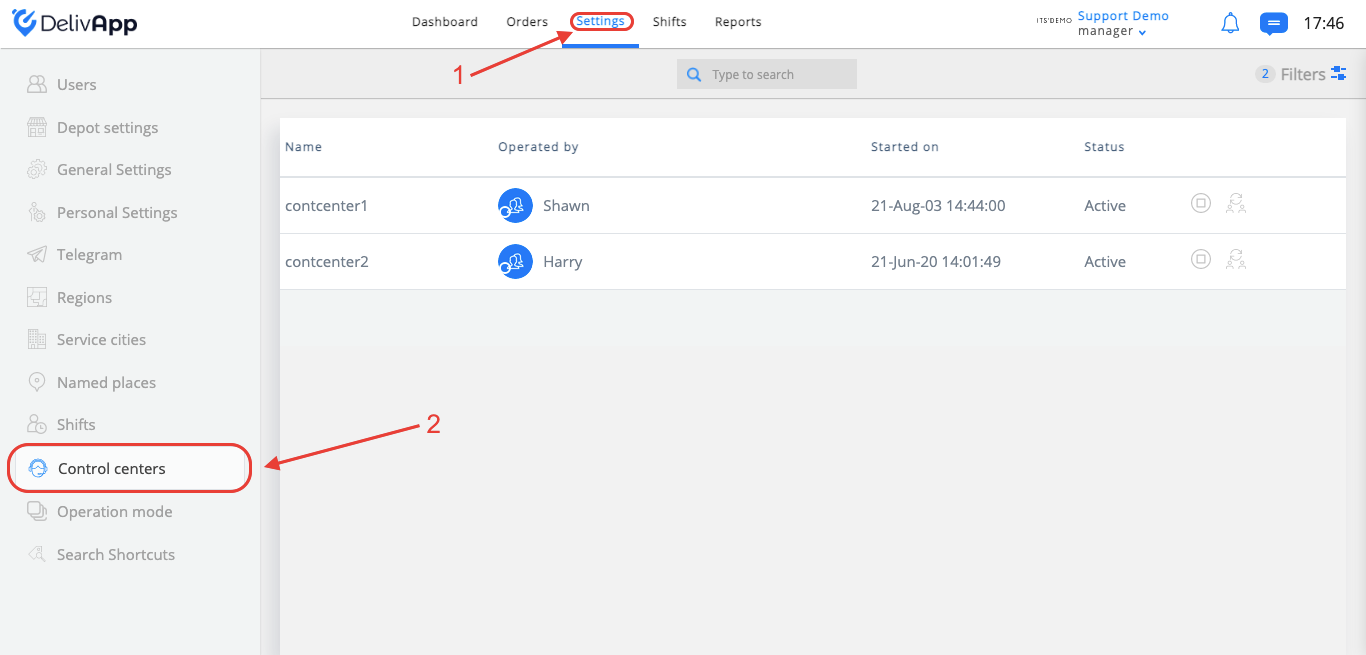
(screenshot 1)
At the “Control centers” screen, you will see your control centers list with the following information: control center name, who is operating it, when it was started (in case the status is “active”), and control center status (active or closed).
At the control center row, there are action buttons: active control center (only if control center is closed), close control center
 (only if control center is active), switch manager
 (only if control center is active).
By clicking on the “active control center” button, you need to choose one of your managers from the users drop-down list and turn on/off “Pull orders” option (screenshot 2).
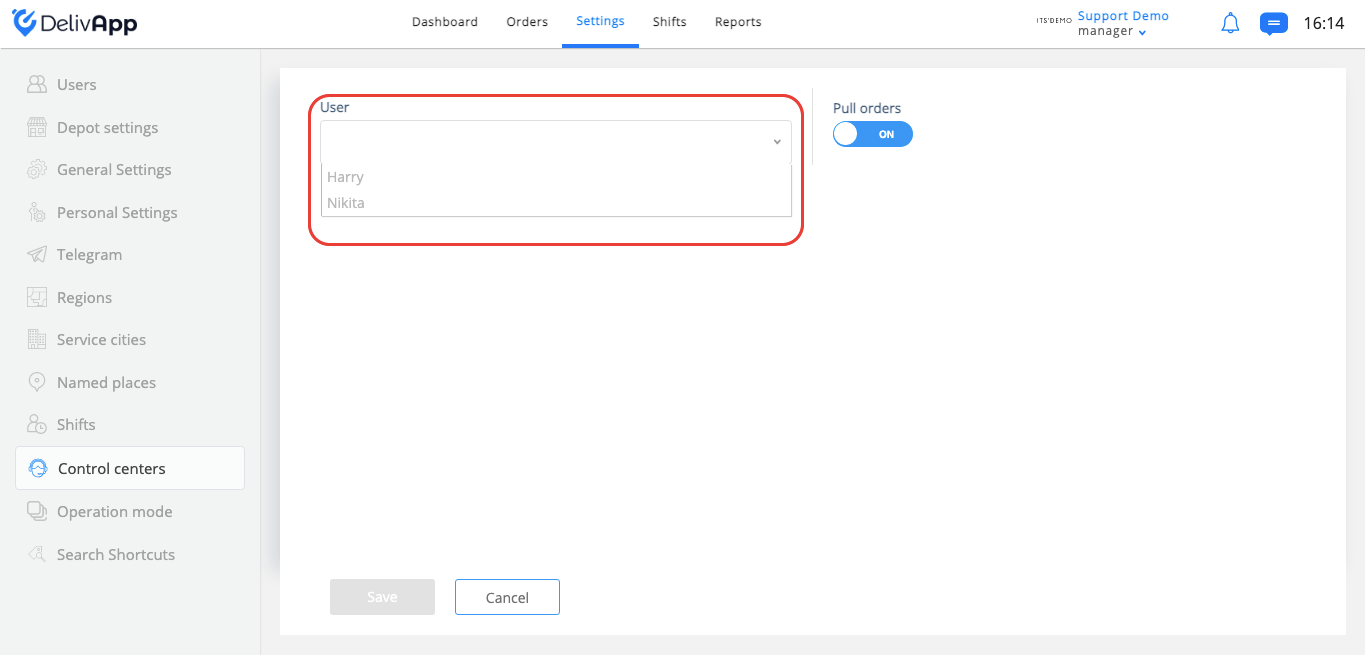
(screenshot 2)
*Do not forget to click on the “Save” button.
By clicking on the “close control center” button, you need to choose control center you want to move data from the closed one from the users drop-down list and choose control center to reroute future orders (screenshot 3).
*In case you want to close the control center without transferring data to another one, please choose dash “–” from the drop-down list.
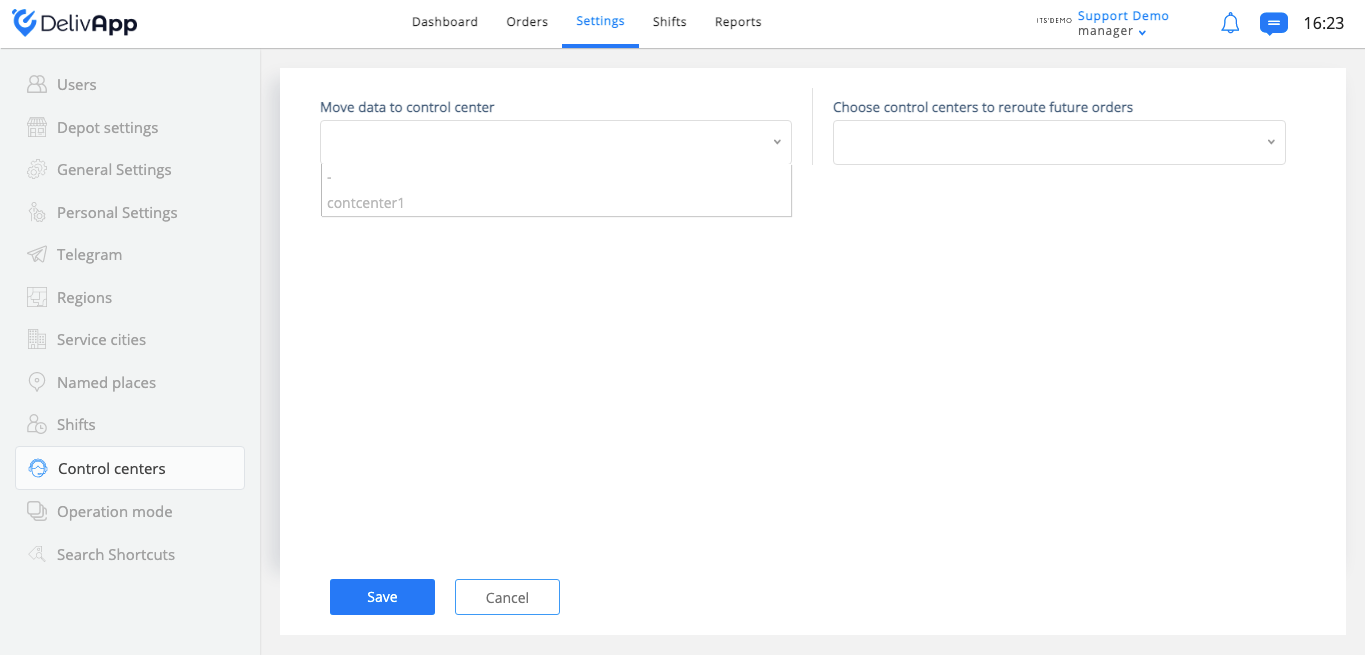
(screenshot 3)
By clicking on the “Switch manager” button, you need to choose one of your managers from the users drop-down list and click on the “Save” button (screenshot 4).
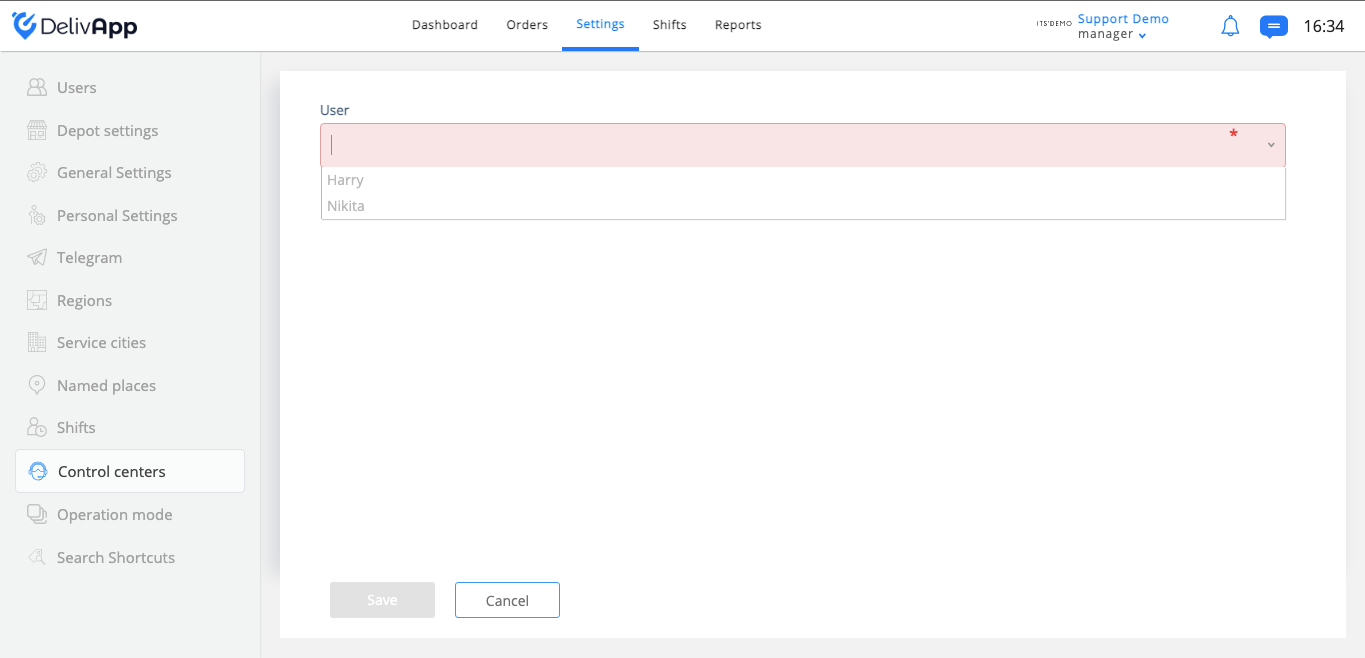
(screenshot 4)