Extracting orders report
You can download a report on the order details from the system. See the video or follow the instructions below.
To download a ״.xlsx״ file of the orders, do the following:
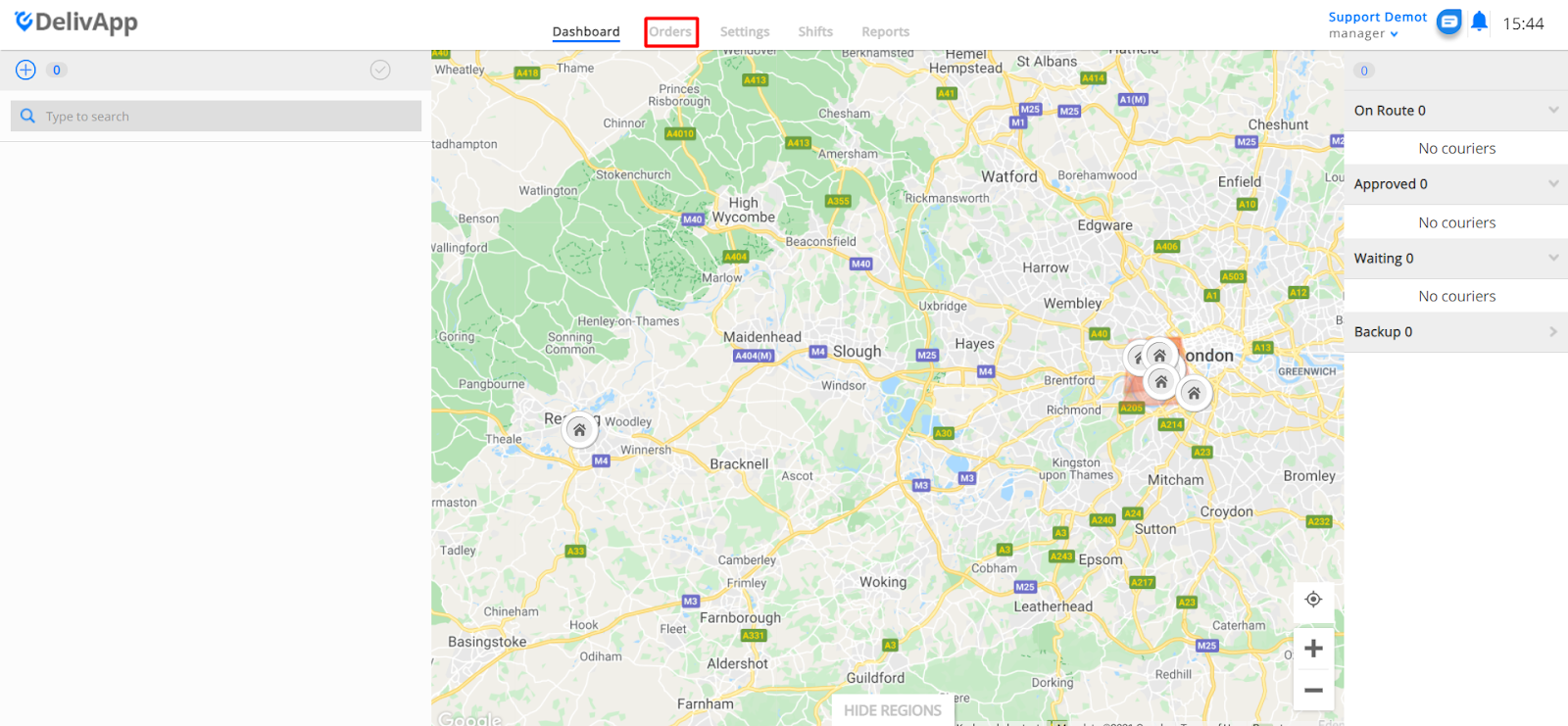
From the Dashboard, click on “Orders”:
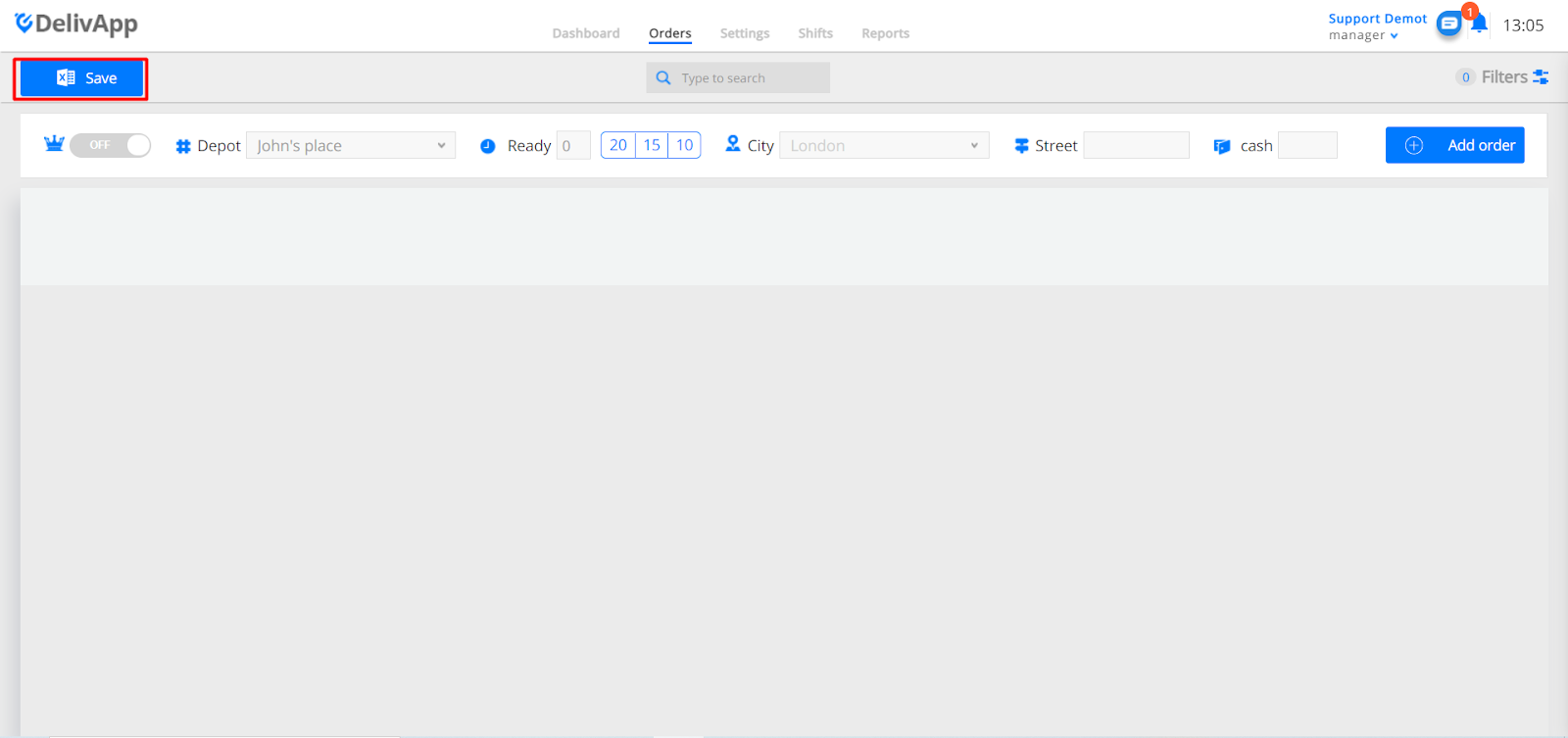
Click on “Save”:
A window with the filtering options will be opened:
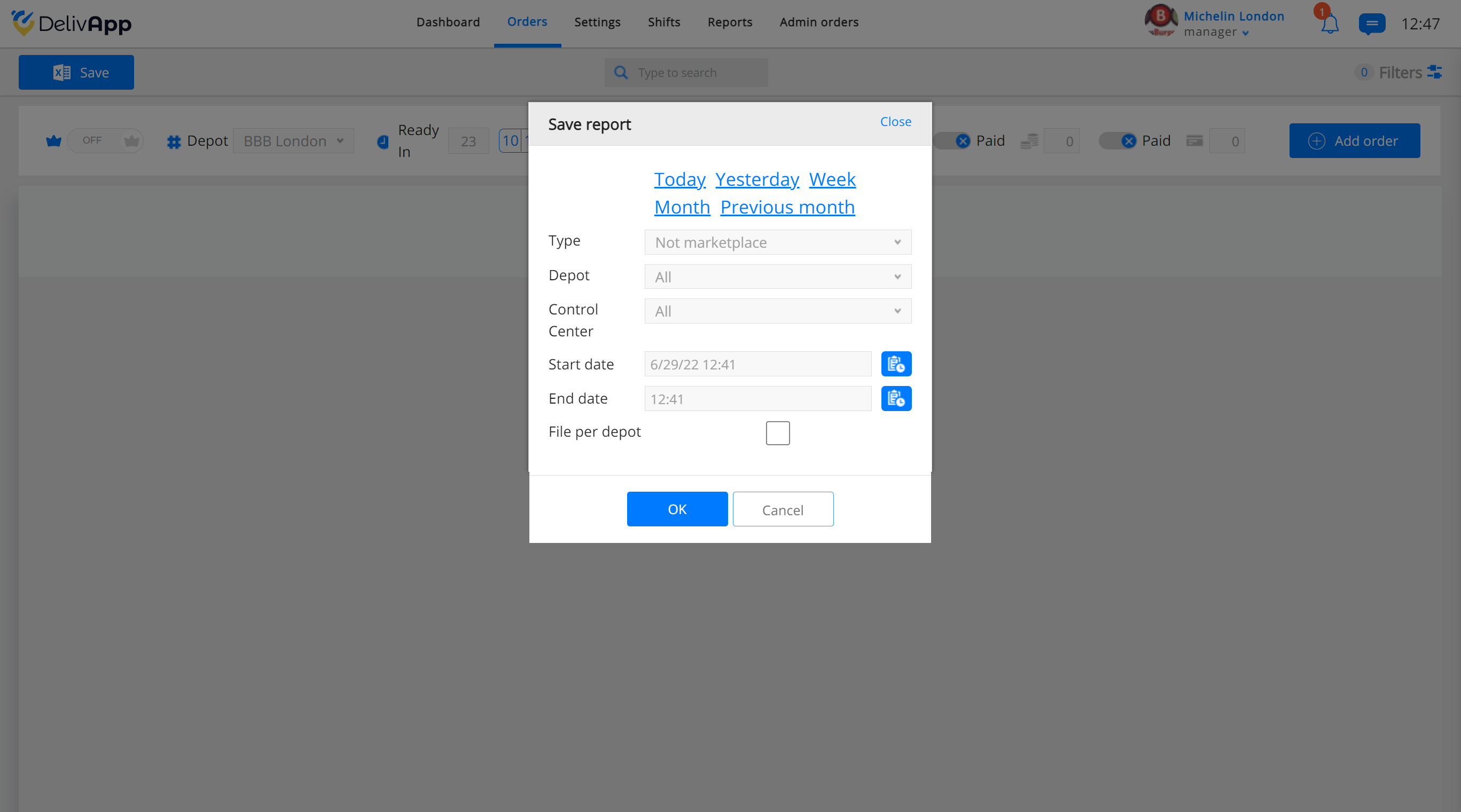
It’s possible to filter the orders by specific timeframes: Today, Yesterday, Week, Month, Previous Month:

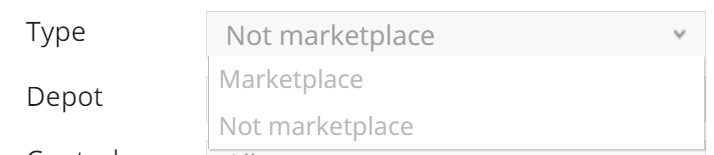
Filtering by type: Marketplace (Orders that were made from the DelivApp Ordering Application), Not Marketplace (Orders that were made through the restaurant):
The D****epot option allows you to select the restaurant to download the orders from:
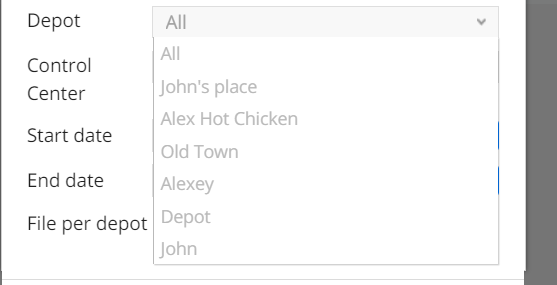
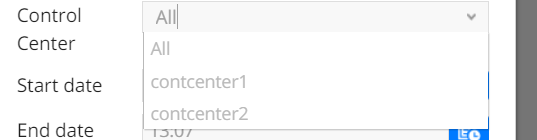
Select the Control Center:
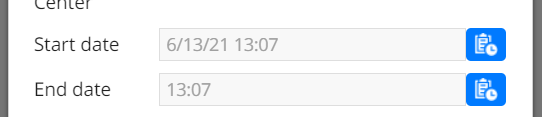
It’s possible to select the start and end date of the order (it's allow you to download the report according to your own timeframes):
By selecting the checkbox “File Per Depot”, a separate file will be created and downloaded for each restaurant. Otherwise, all orders of all restaurants will be saved in one file.

Once all the needed options are selected, click on the "OK" button, and the file will be downloaded: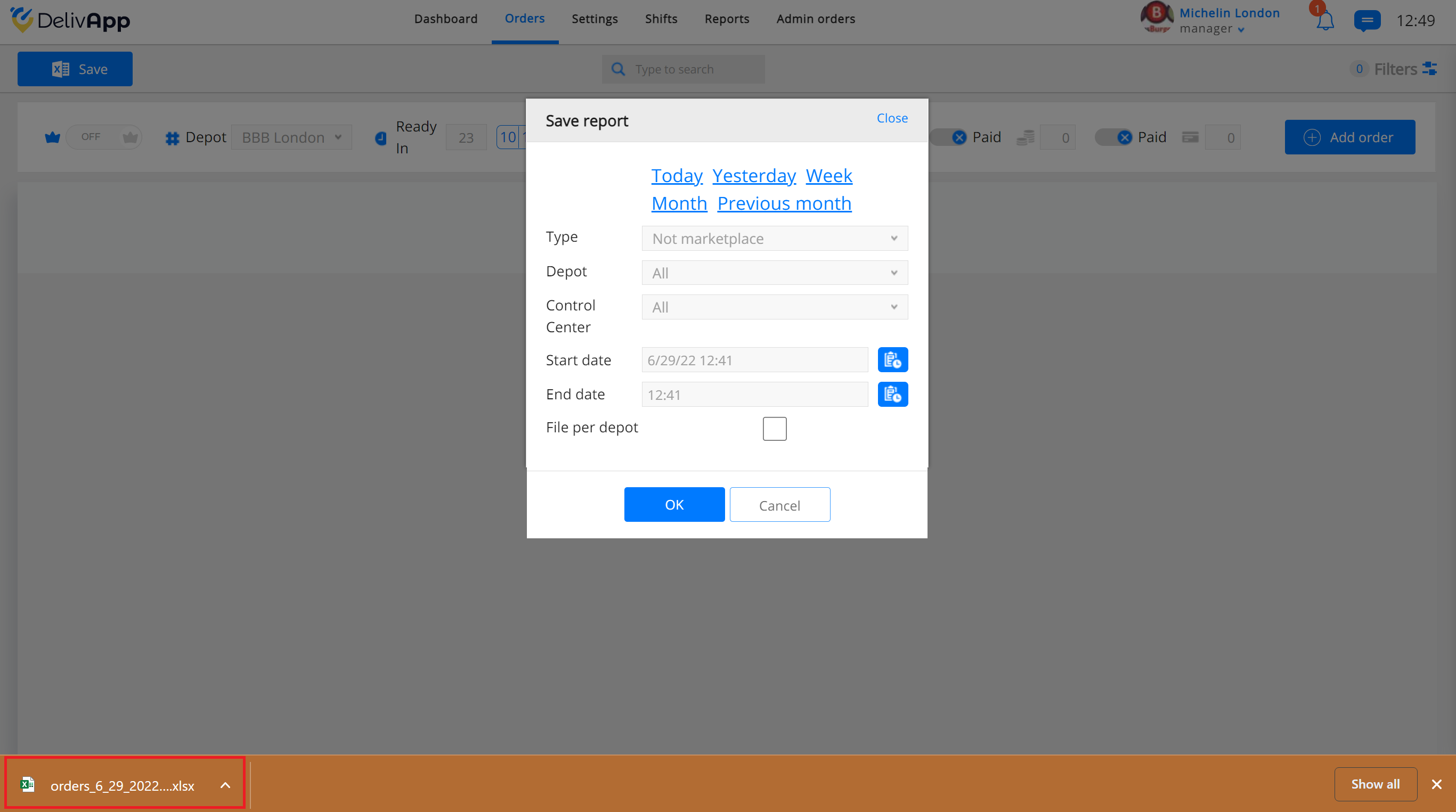
You can now open the file in Excel or import it to Google Sheets.
*Note that the download was made through the Chrome browser, therefore the download file workflow can differ depending on your browser.