How to close a control center
In order to close the shift of a control center, do the following:
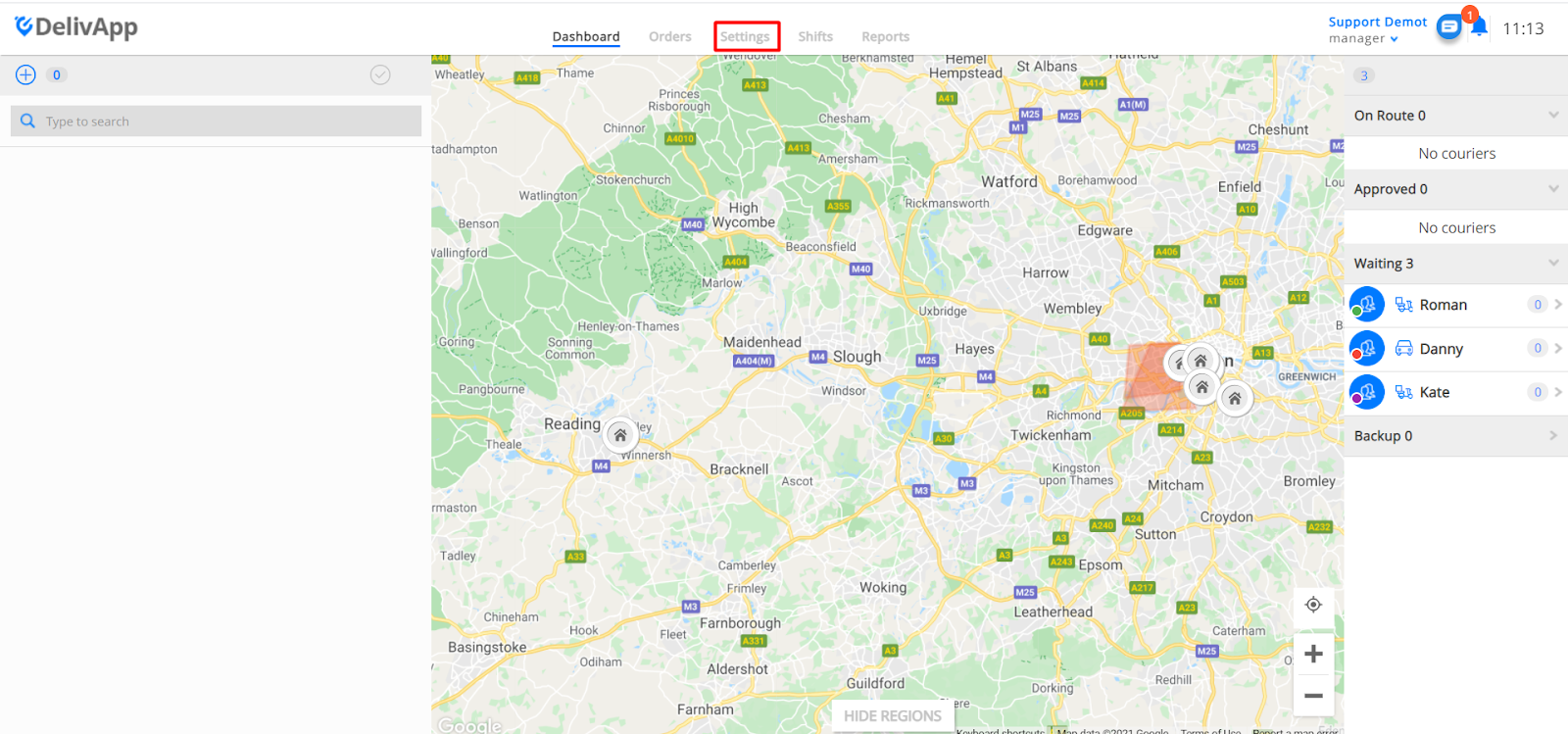
- from the Dashboard go to “Settings”
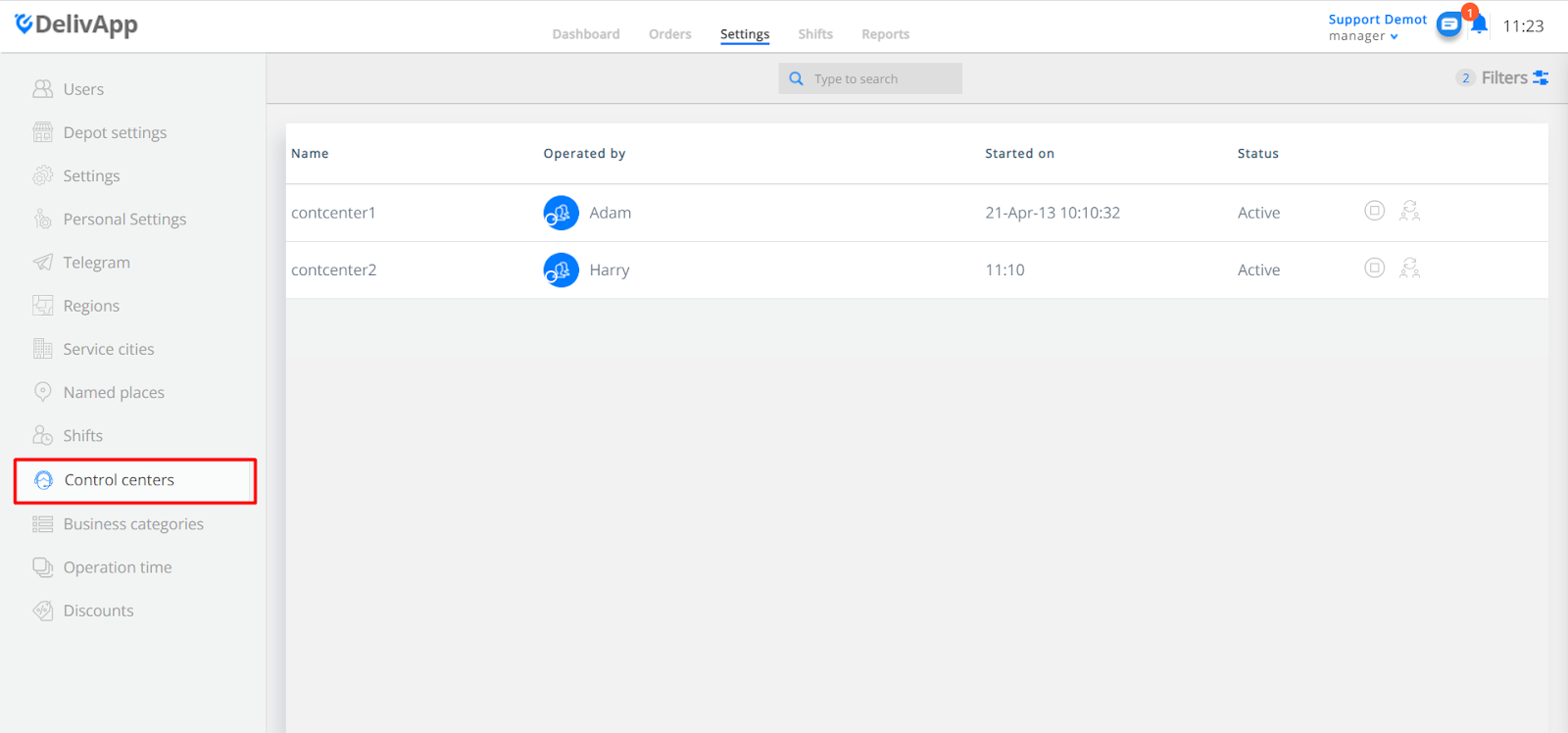
- Select “Control Center” on the left-side menu of the settings tab
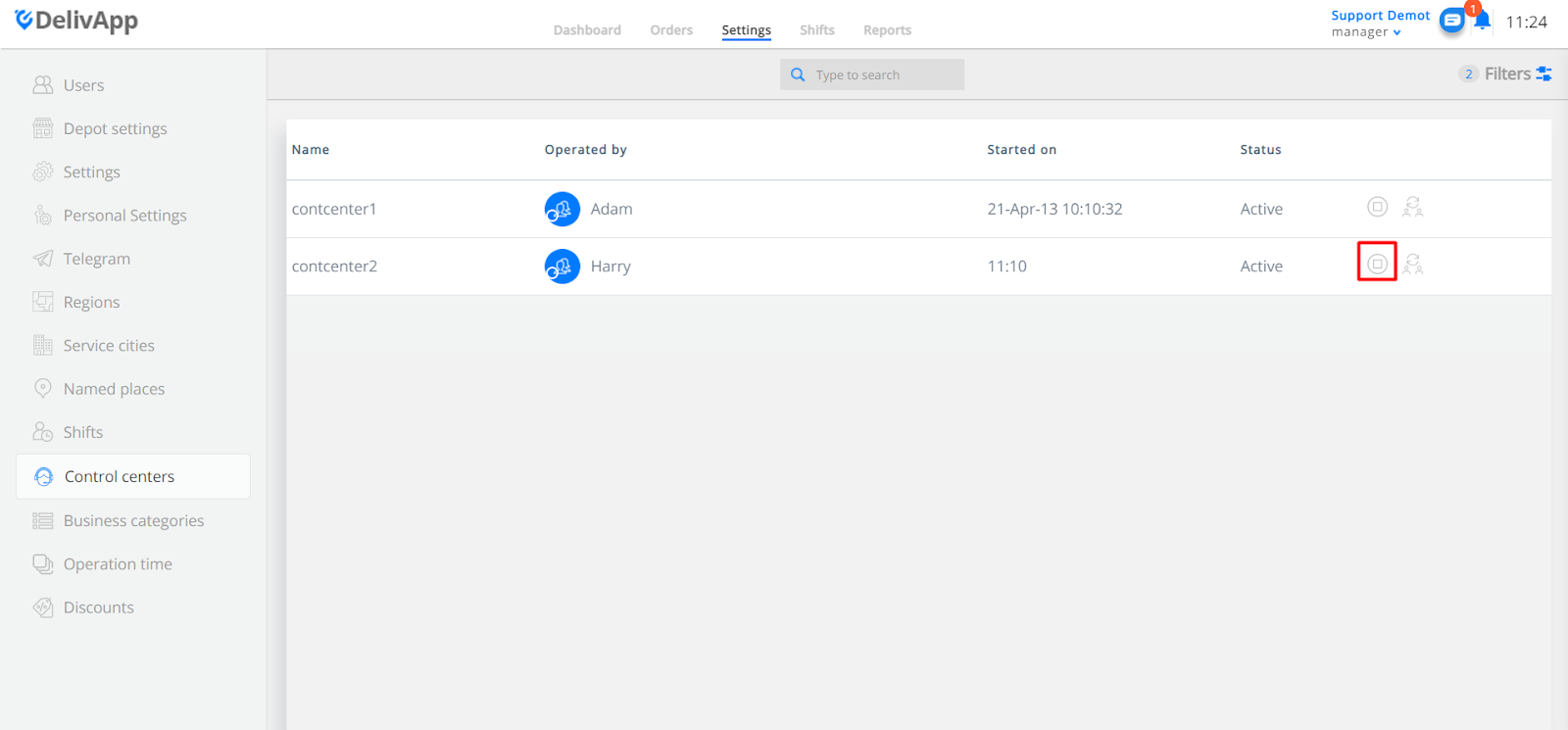
- Click on the square “Stop” button on the right side of the chosen control center (ex. controlcenter2).
Once you click on the “Stop” button, you will be redirected to the new page, which gives you a drop-down list with the control centers that are currently active (one control center has to be always active).
If there are still active orders (orders that still are not assigned to courier, in the control center that will be closed) you should move them to active control center. In order to move them, press on "Move data to control center" and choose one of the active control centers from the drop-down list. (Please be aware that only active orders will be moved to the selected control center. This rule is not applied for future orders that will get after this control center will be closed)
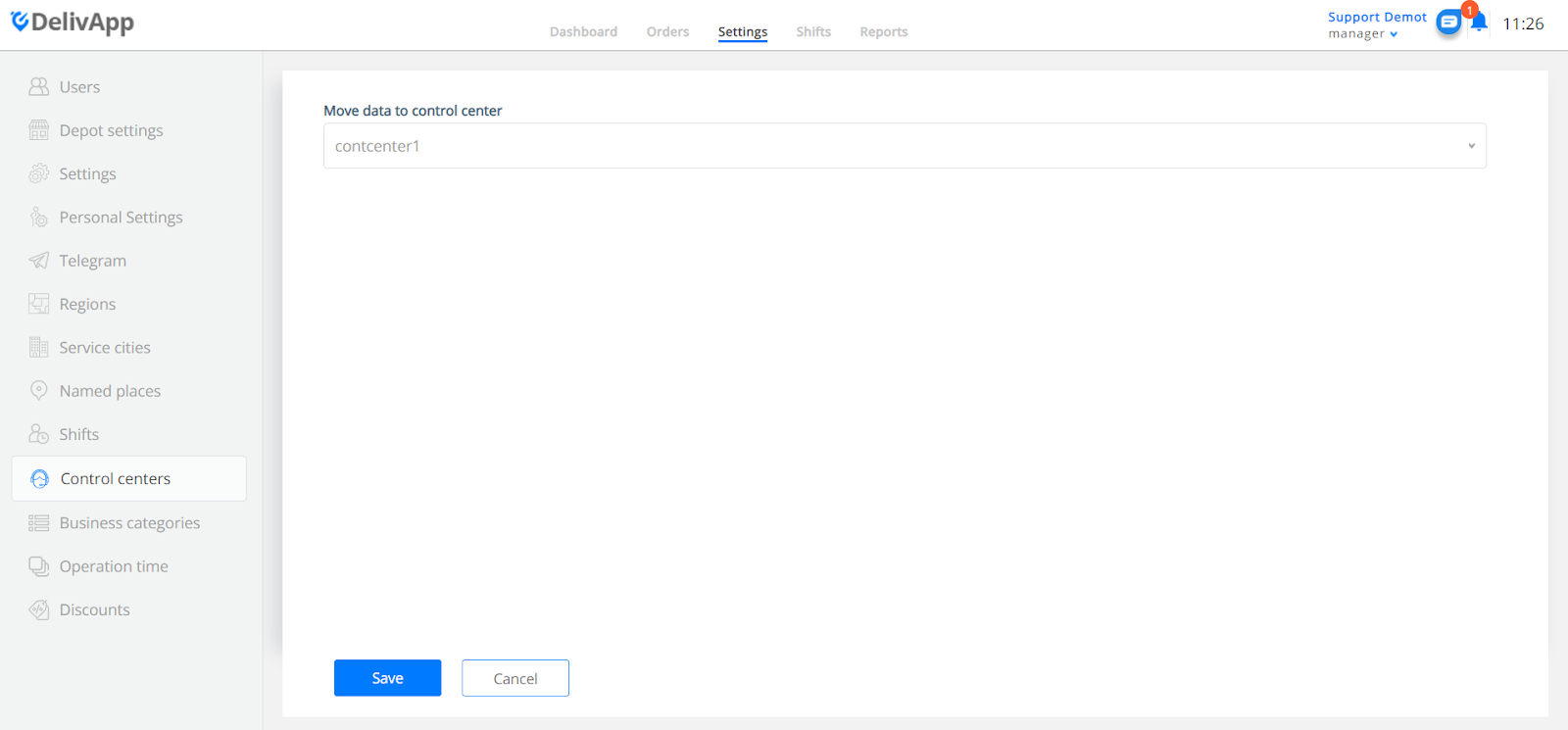
After selecting the Control Center, click “Save”:
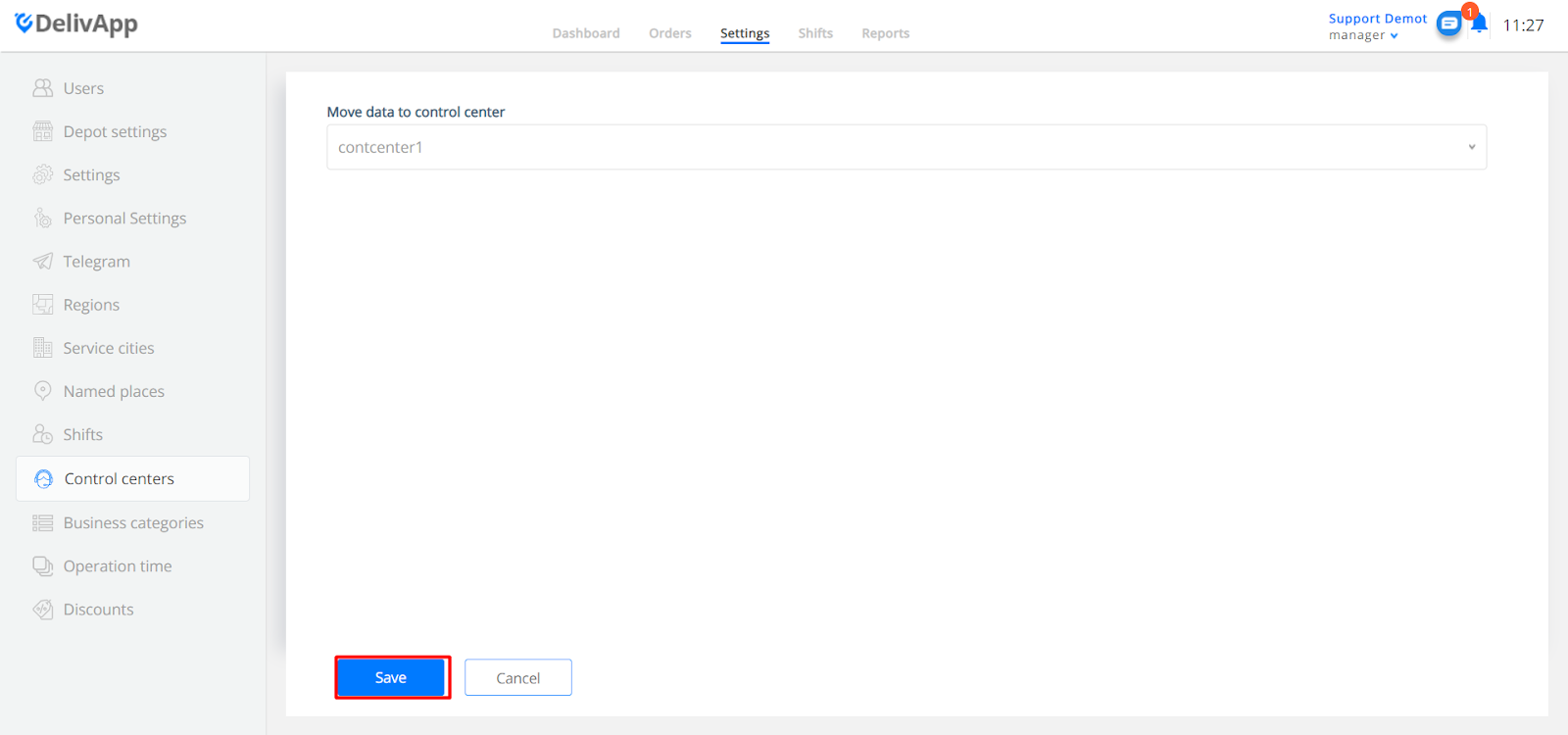
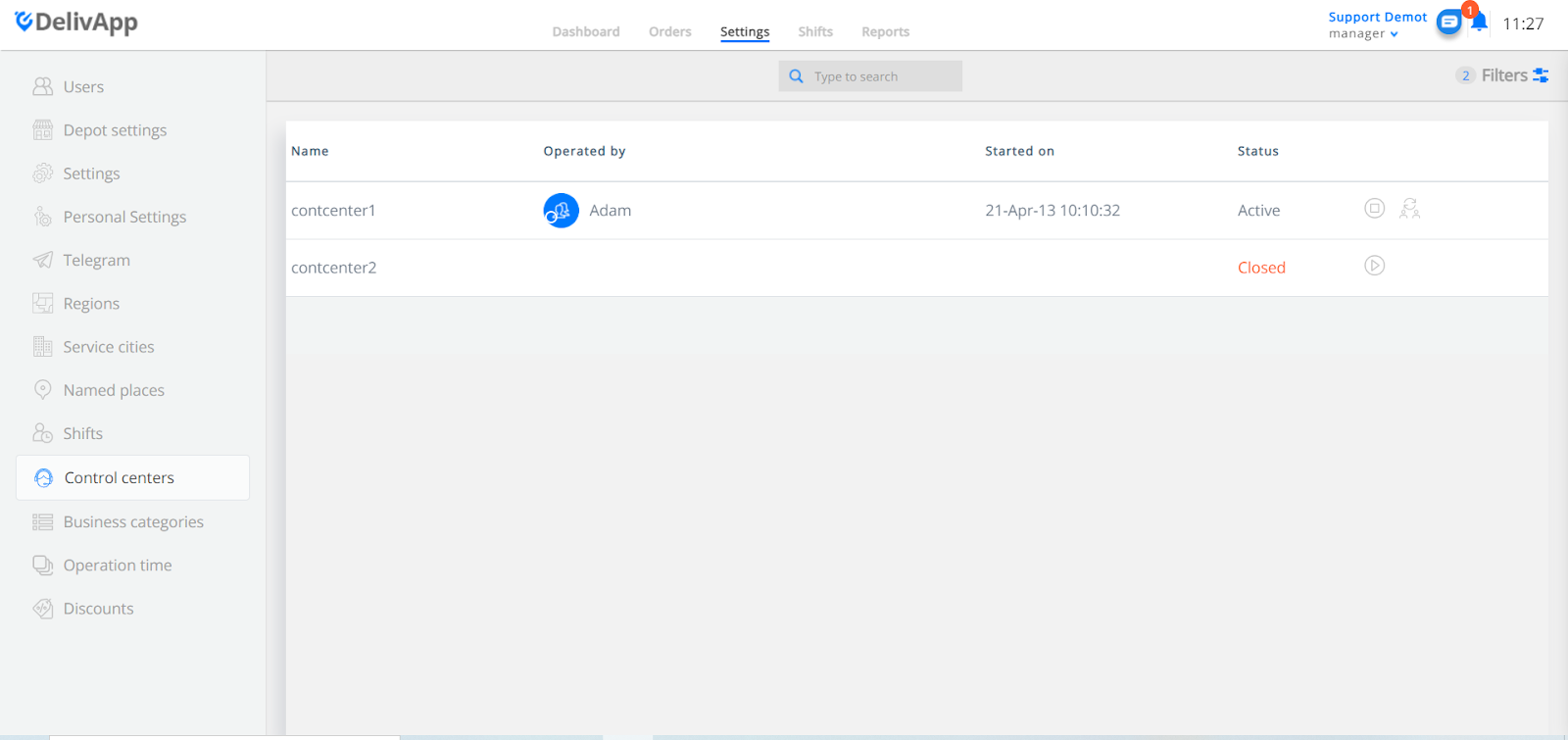
Now the control center will be indicated as closed: