Editing & Deleting Active Orders
If you need to update any order’s information while it’s being delivered, you can use the edit order option.
How to edit an order
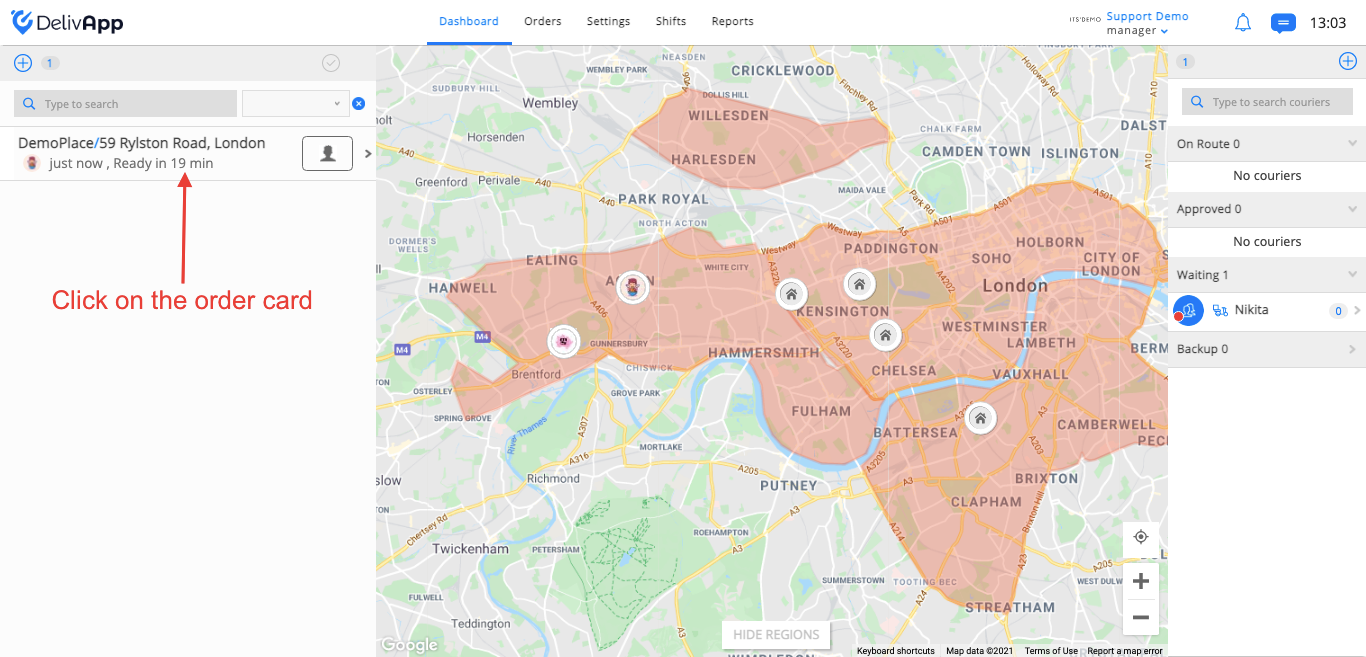
To edit an order, on the Dashboard screen, click on the order card (screenshot 1).
(screenshot 1)
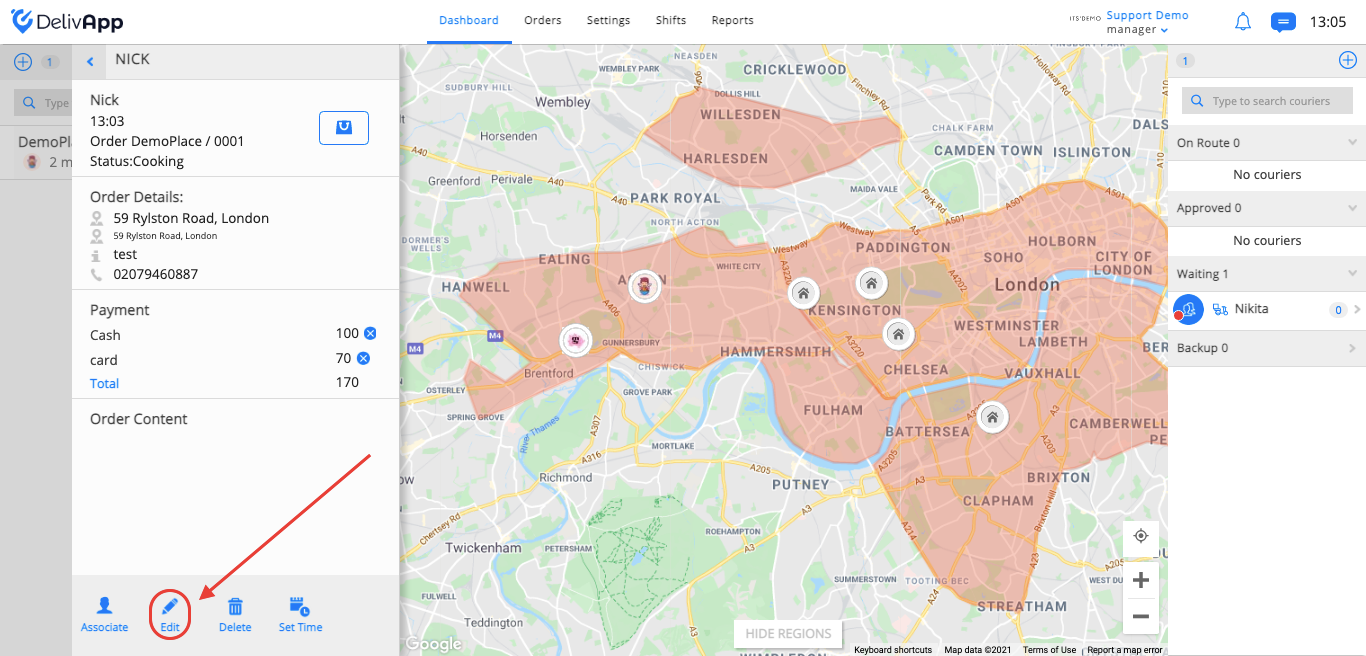
On the newly opened window, click on the edit button (screenshot 2).
(screenshot 2)
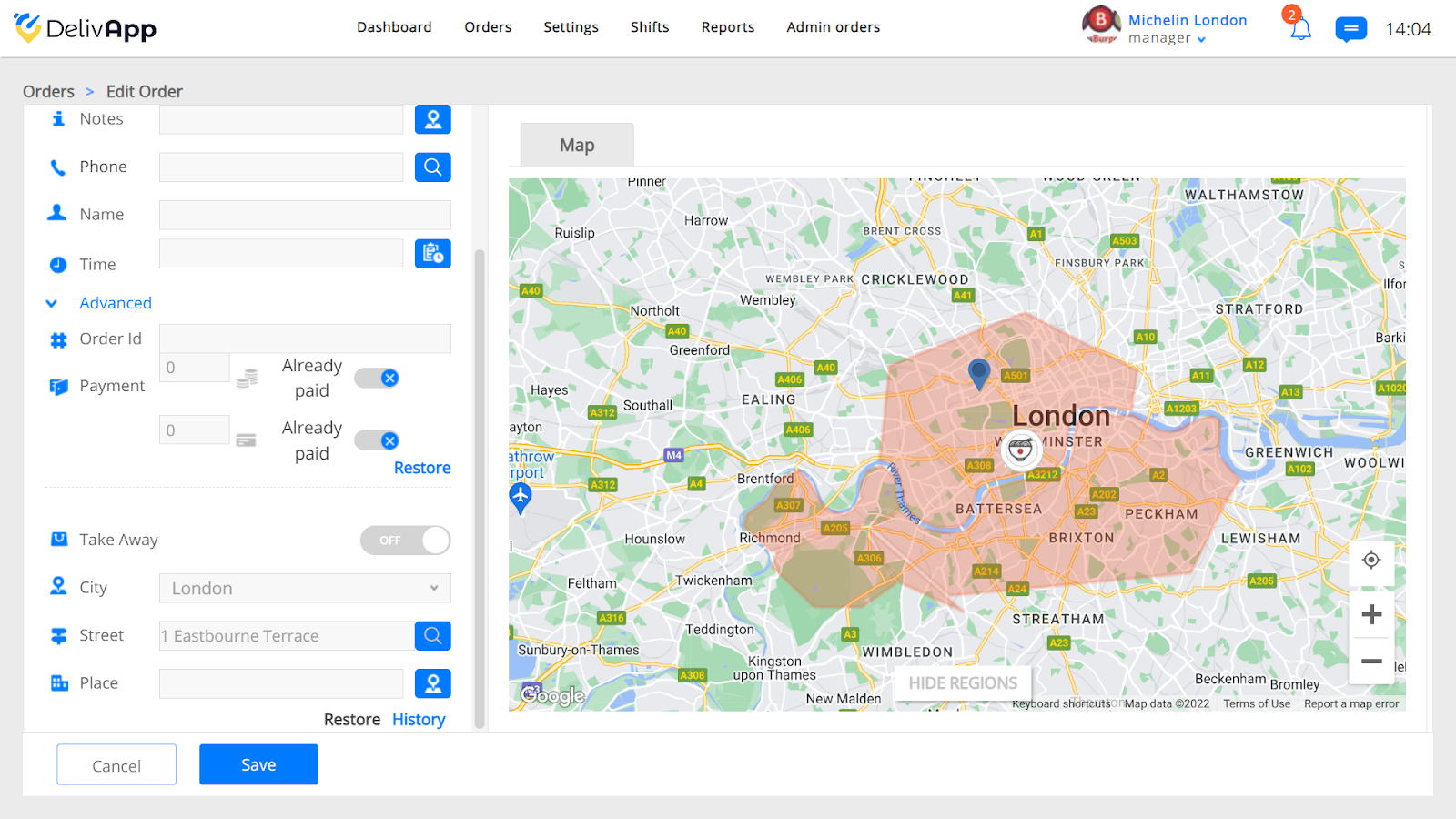
Once in the edit mode, you will see the following order information (screenshot 3):
VIP toggle (gives the order high priority. The algorithm takes this priority into account when creating the routes for couriers).
Depot (business name).
Ready In (the time needed for the order to be prepared).
Notes (notes related to the order).
Phone number (phone number of the customer).
Name (customer’s name).
Time (date and time that the order will be delivered).
Order Id (order number).
Payment (cash and credit).
Take Away toggle (if the customer wants to pick up the order on his own).
City, Street (customer’s address).
Place (autocomplete delivery address by entering place or clicking on the map).
(screenshot 3)
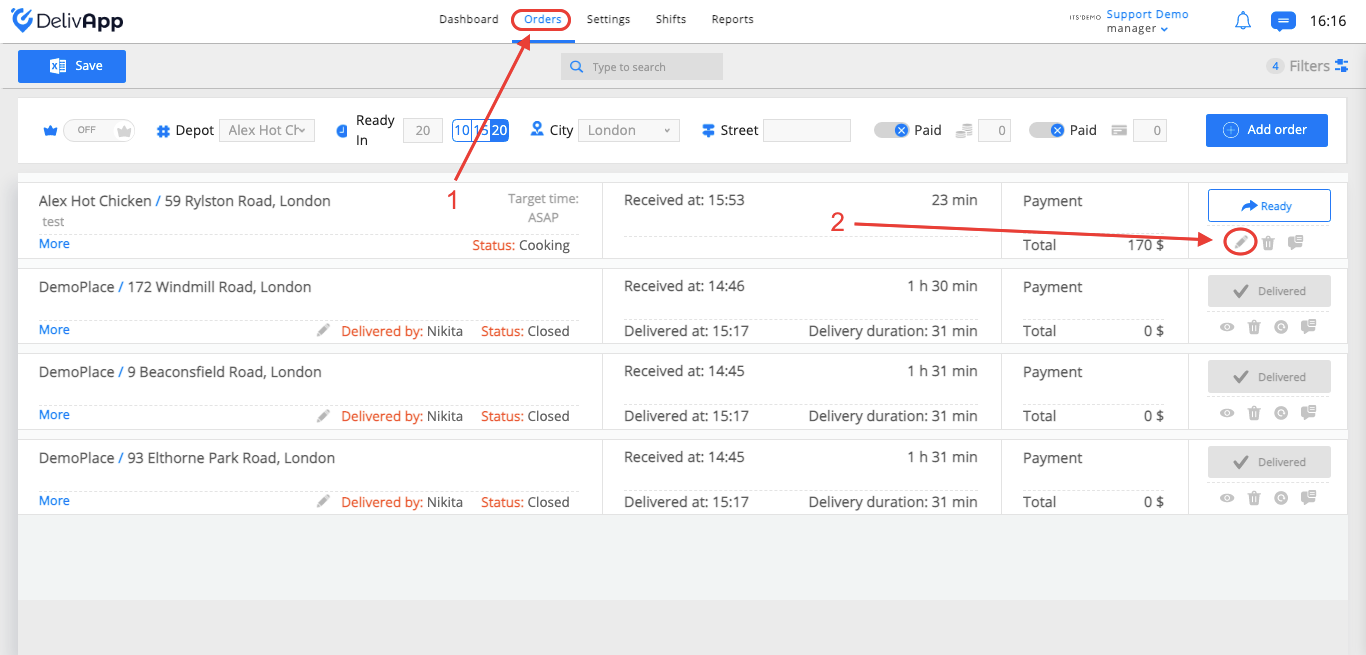
You can also edit an order by clicking on the orders tab on the upper navigation panel. Find the relevant order and click on the edit button (screenshot 4).
(screenshot 4)
The edit mode will open, as shown in the first case.
How to delete an existing order
If an order is no longer valid, you can always delete it. To do so, click on the order card on the Dashboard screen (screenshot 1).
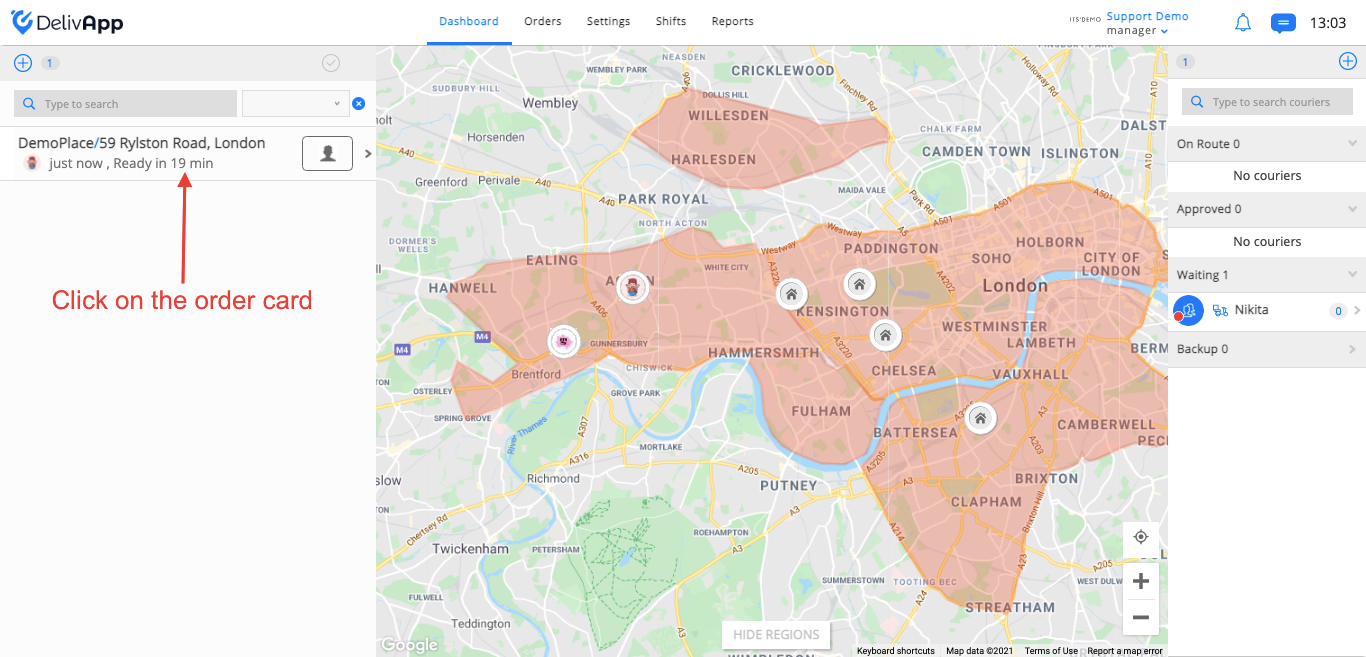
(screenshot 1)
On the newly opened window, click on the delete button (screenshot 2).
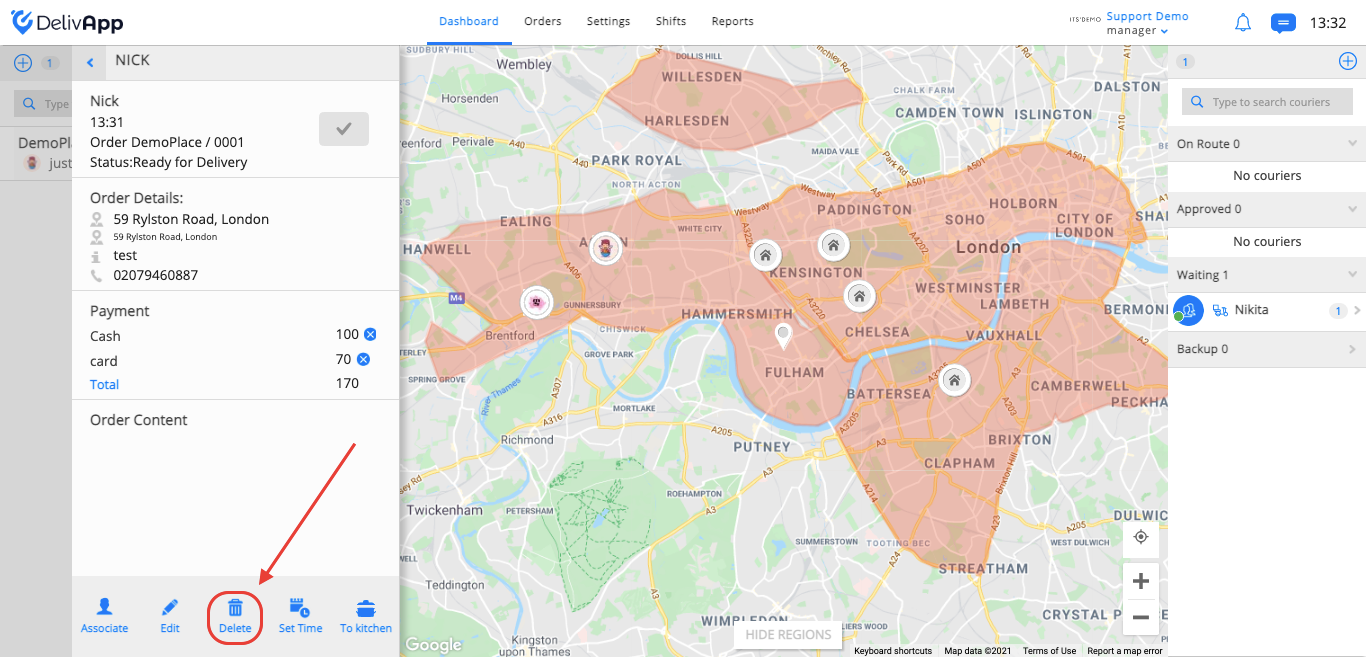
(screenshot 2)
Enter your password and click on the Sure? button (screenshot 3).
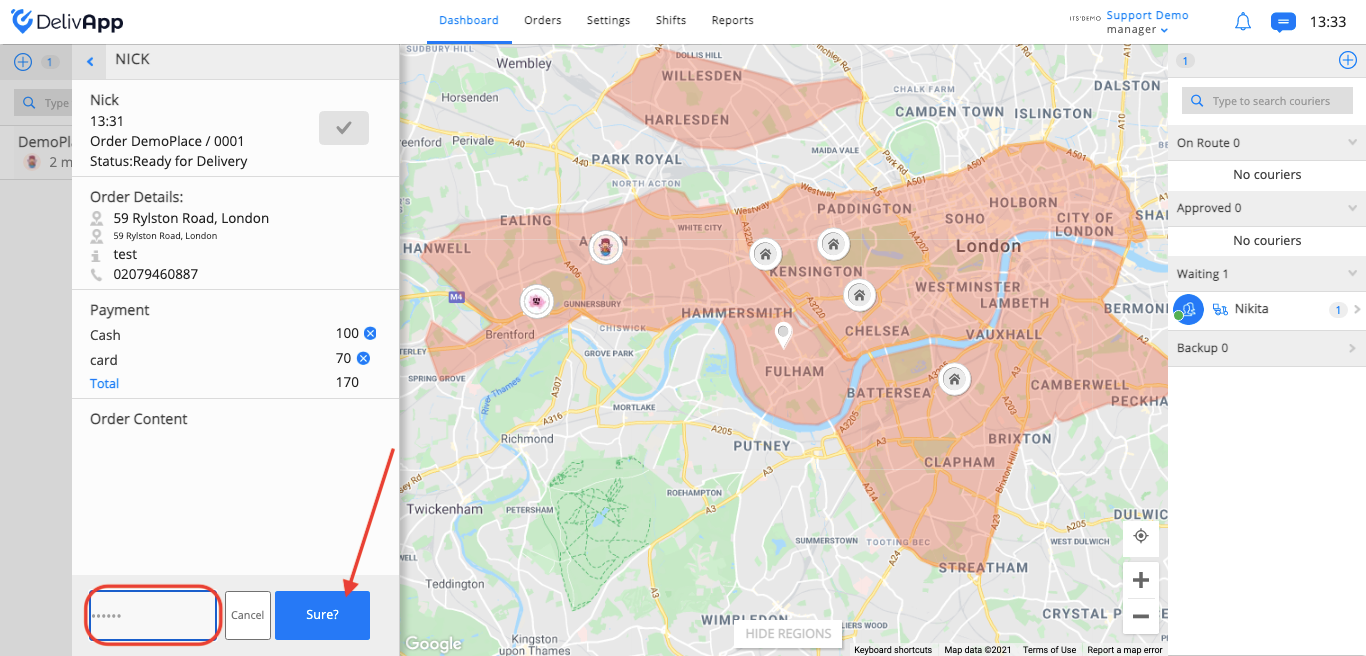
(screenshot 3)
You can also delete an existing order by clicking on the orders tab on the upper navigation panel, finding the relevant order and clicking on the delete button (screenshot 4).
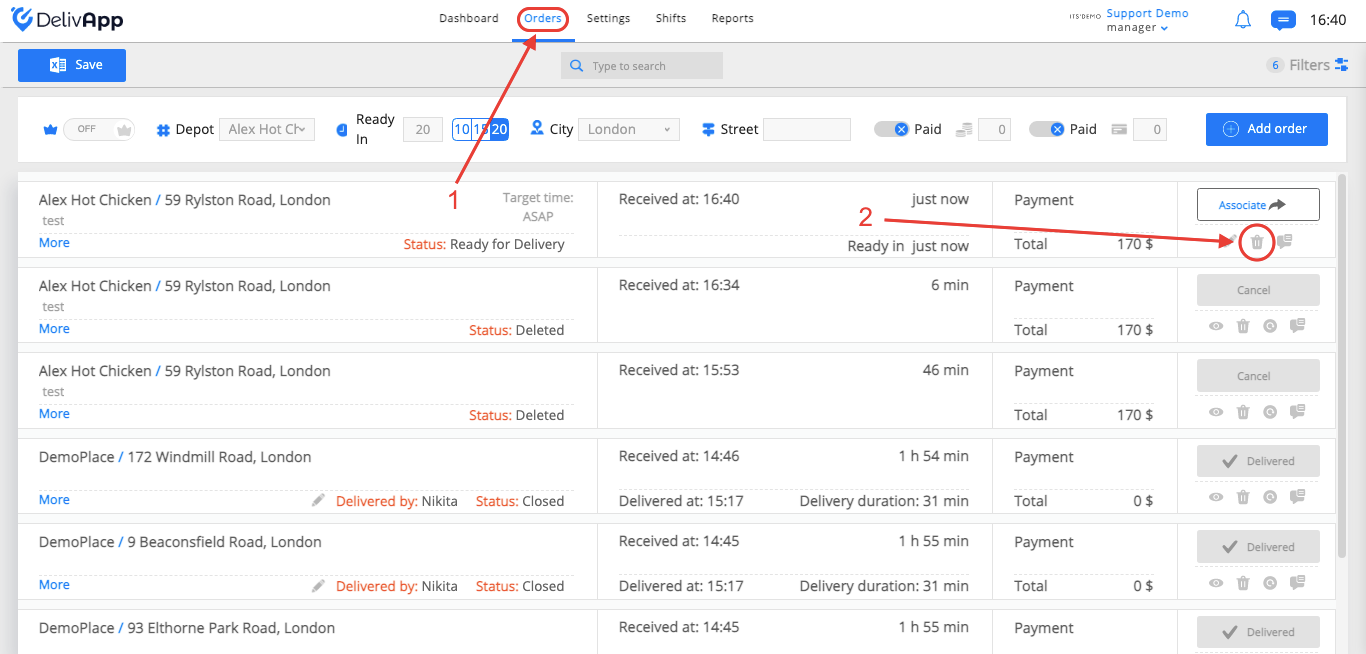
(screenshot 4)
Enter your password and click on the Sure button (screenshot 5).
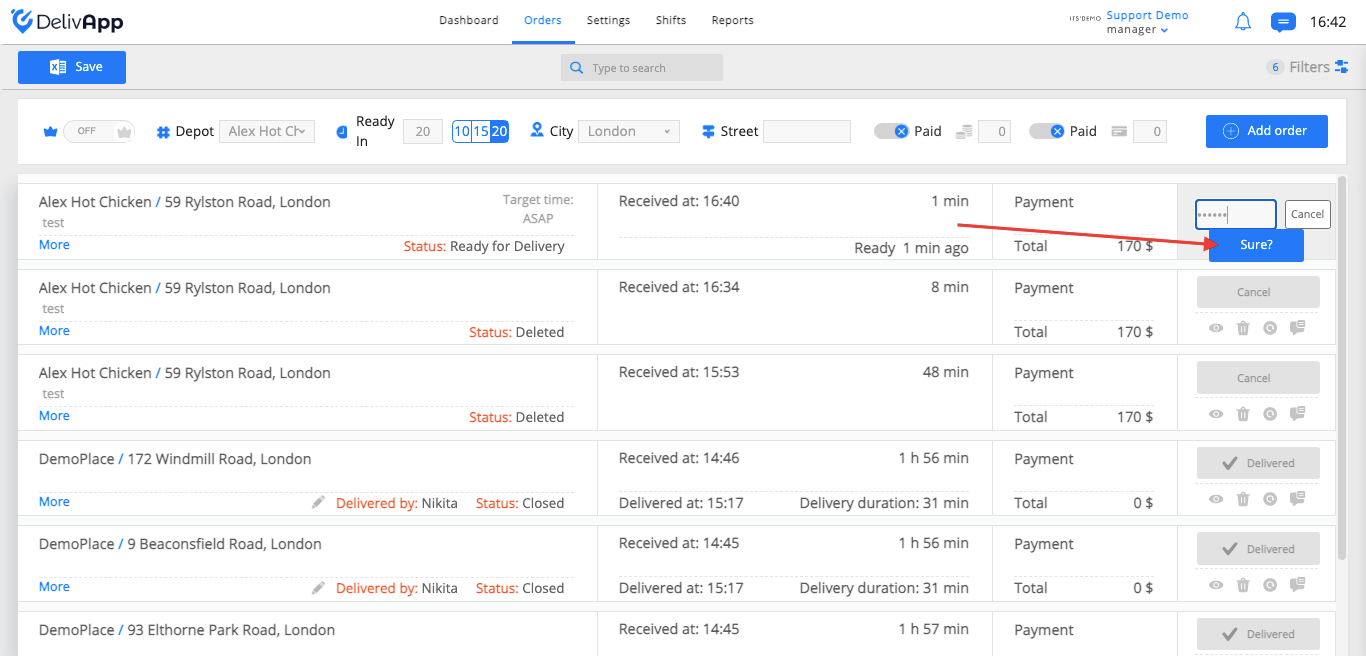
(screenshot 5)