Understanding the courier’s panel
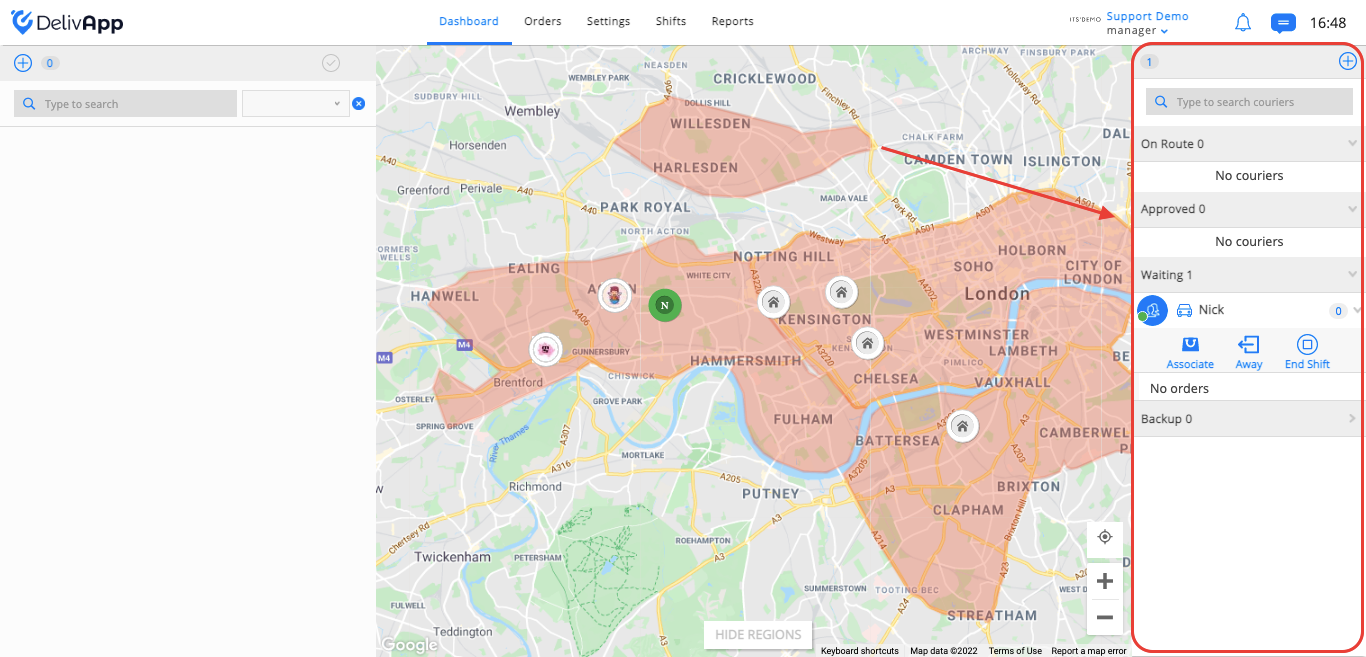
On the courier’s panel, you can find the route information like the number of orders, status, approximate delivery time, delivery address.
On the right side of the dashboard screen, you can find the couriers panel (screenshot 1).
screenshot 1
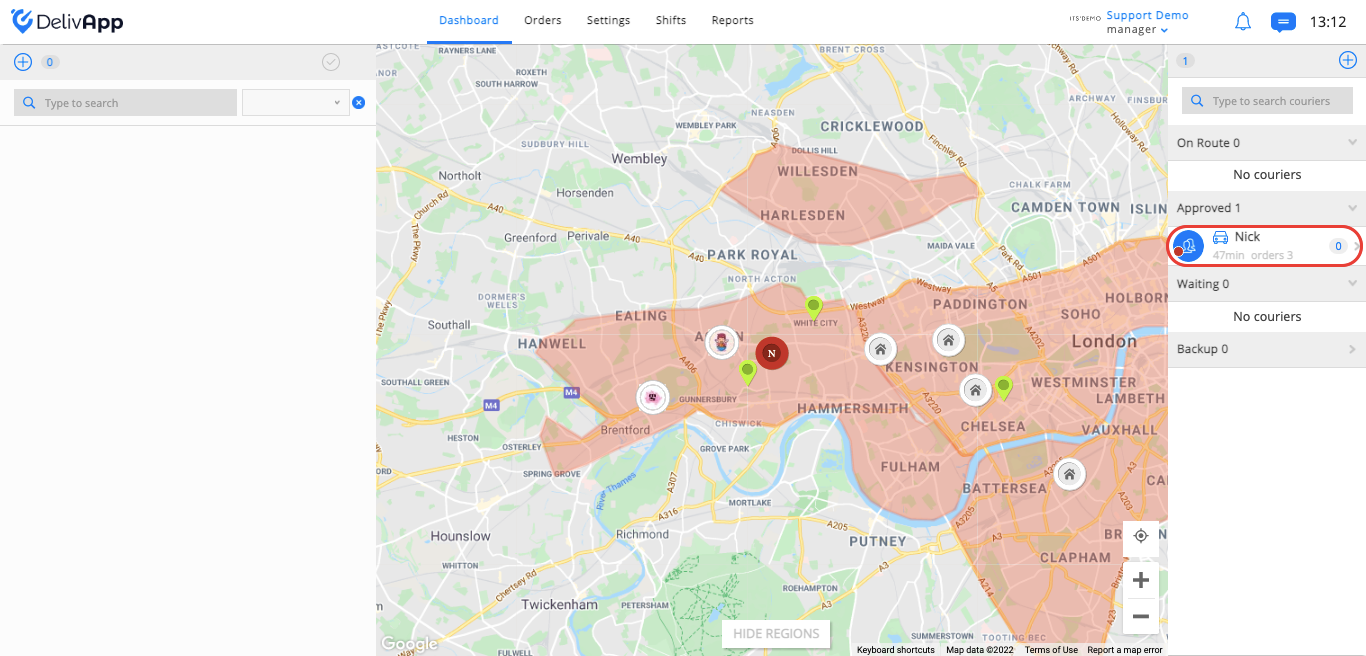
After assigning orders to a courier, you will see the distance time of the route and the number of orders in this route below the courier's name (screenshot 2).

screenshot 2
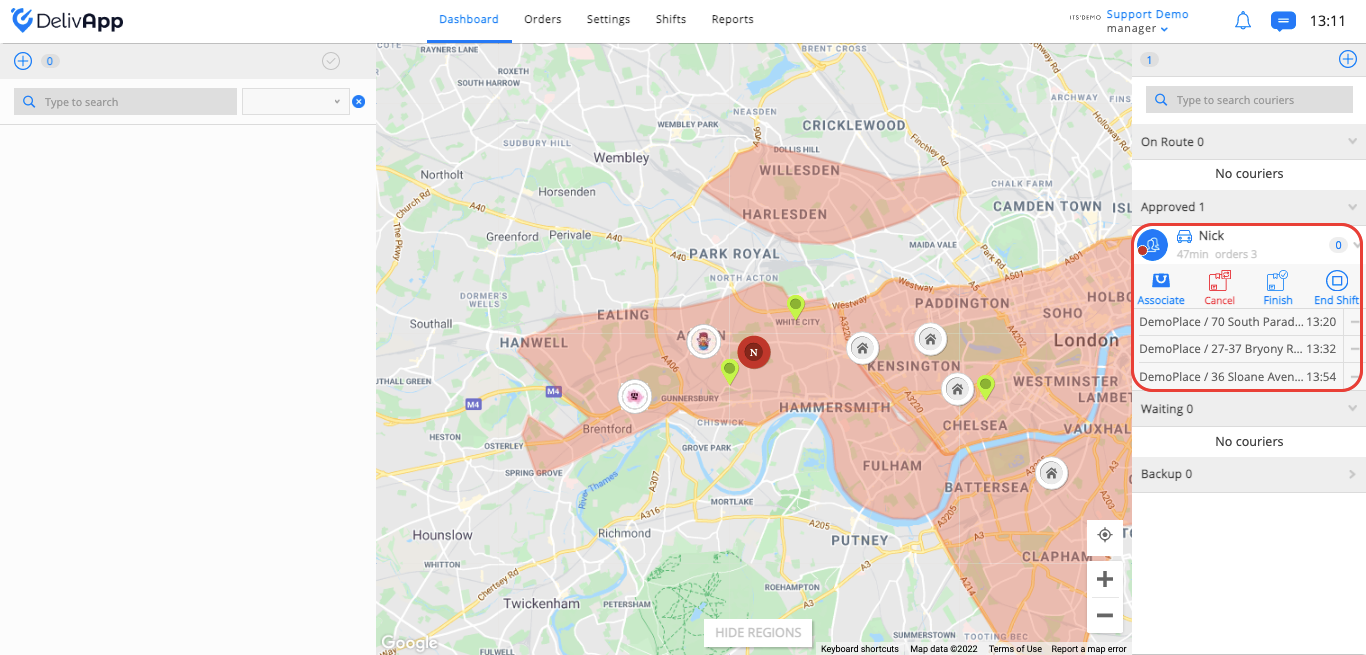
By clicking on the arrow next to the courier’s name, you will see the route list with the businesses name, the delivery address for each order and the approximate delivery time (screenshot 3).
screenshot 3
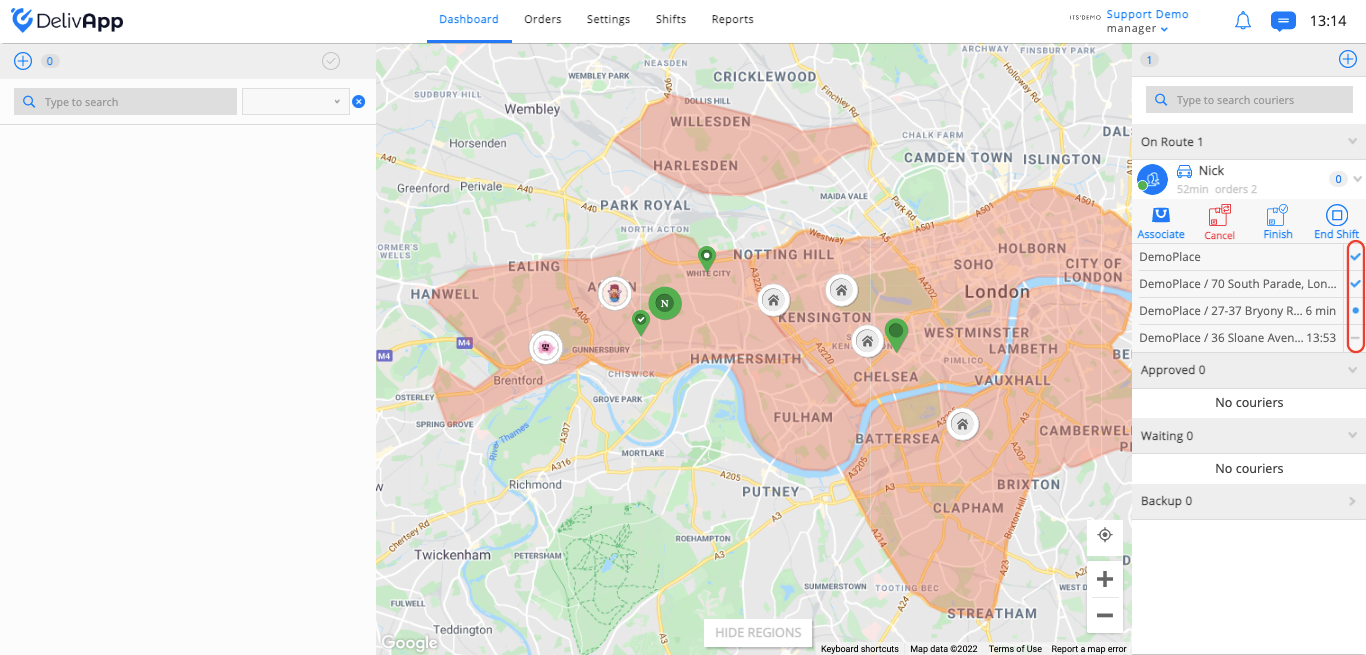
Next to the route delivery points, you will see the order status where “ ” is already delivered, “
 ” is next order to be delivered, and “-” is one of the orders in the route (screenshot 4).
screenshot 4
Also, on the courier’s panel, you can find the following buttons (screenshot 5):
Associate: You can reassign route to another courier.
Cancel: You can cancel the route assigned to the courier, and then make the changes you need.
Finish: You can finish the delivery of the orders with one click (if the courier has problems with connection or other issues).
End shift: You can end the courier’s shift from the panel.
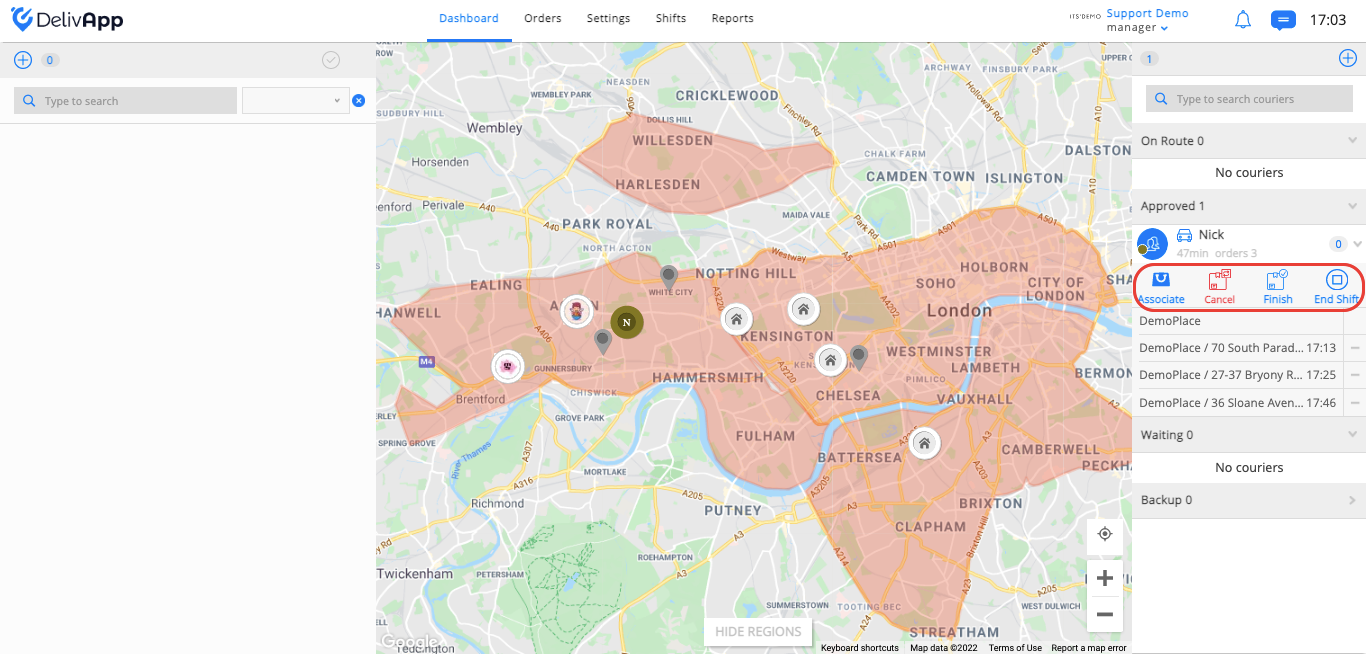
screenshot 5