How to reassign courier
How to reassign a courier
Orders that you assigned to one of your couriers can be reassigned to another in case of incorrect assignment or for some other reason.
There are 3 ways to reassign an order.
First option:
On the dashboard screen, find the order you want to reassign, click on it and then click on the Associate button in the orders card (screenshot 1).
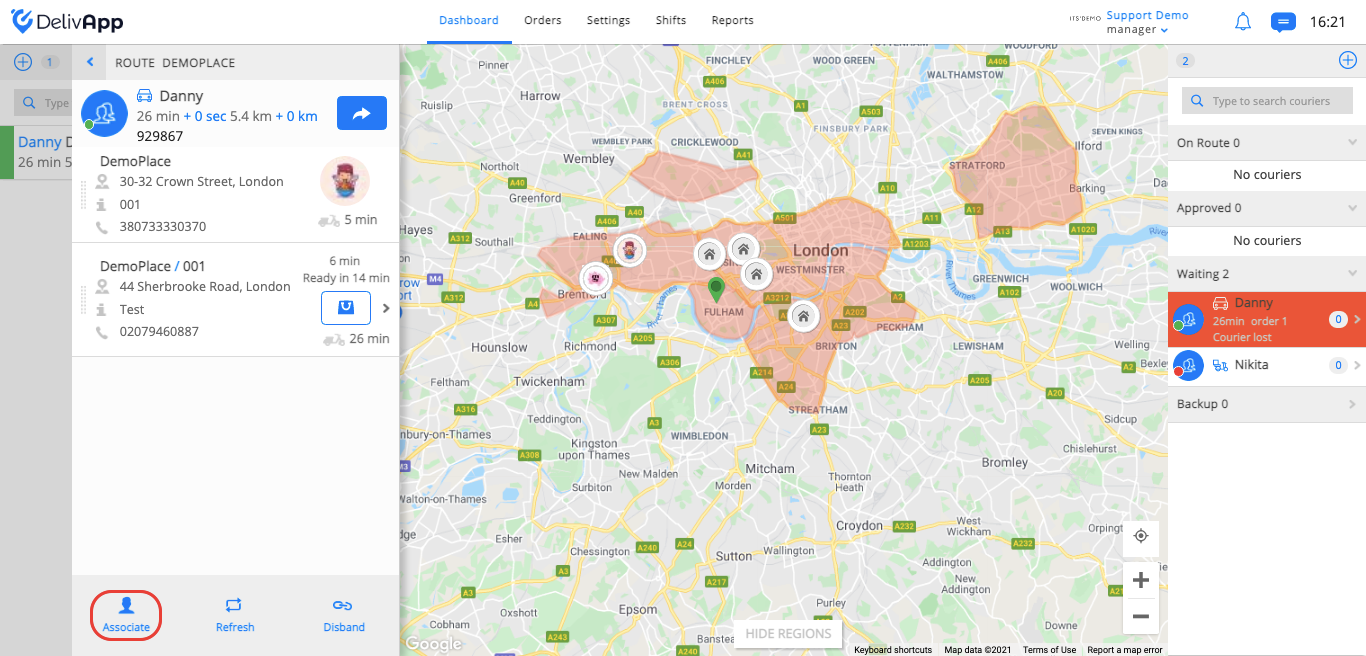
(screenshot 1)
Select a new courier that you want to assign from the new opened window and click on the OK button (screenshot 2).
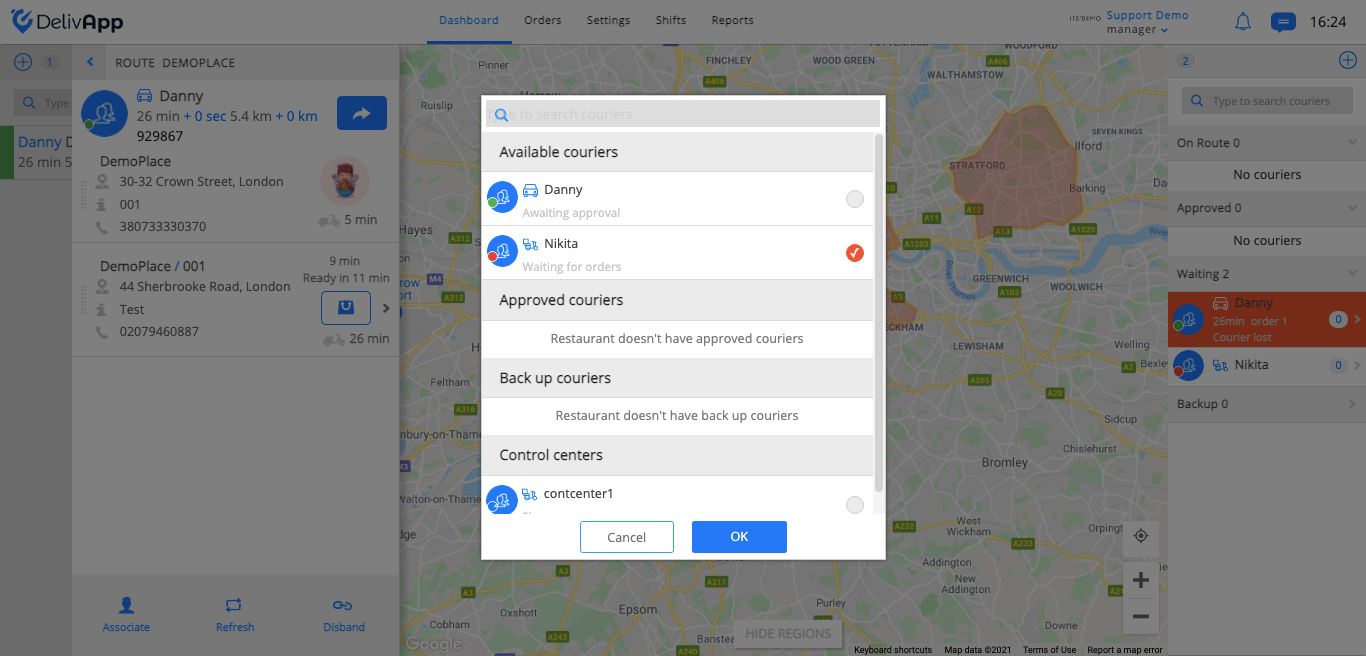
(screenshot 2)
Second option:
On the upper navigation panel, click on the Orders tab, find the order you want to reassign and click on the Associate button (screenshot 3).
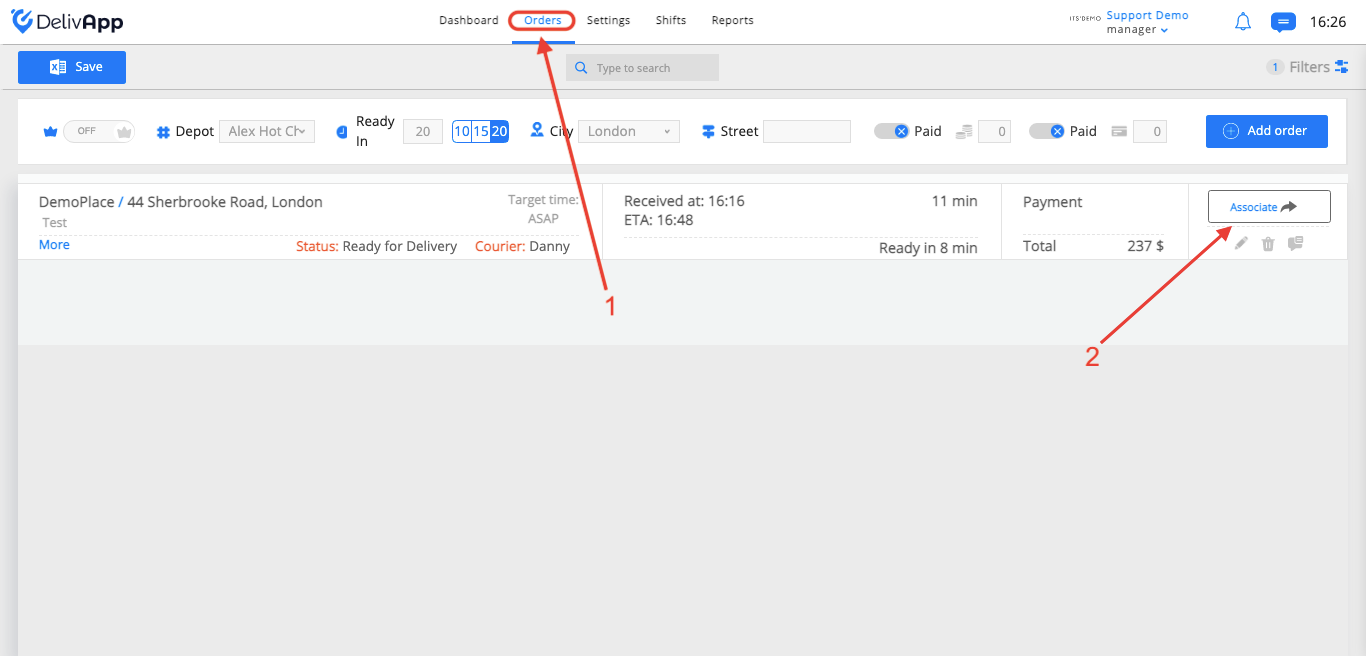
(screenshot 3)
Select an available courier from the new opened window and click on the OK button (screenshot 4).
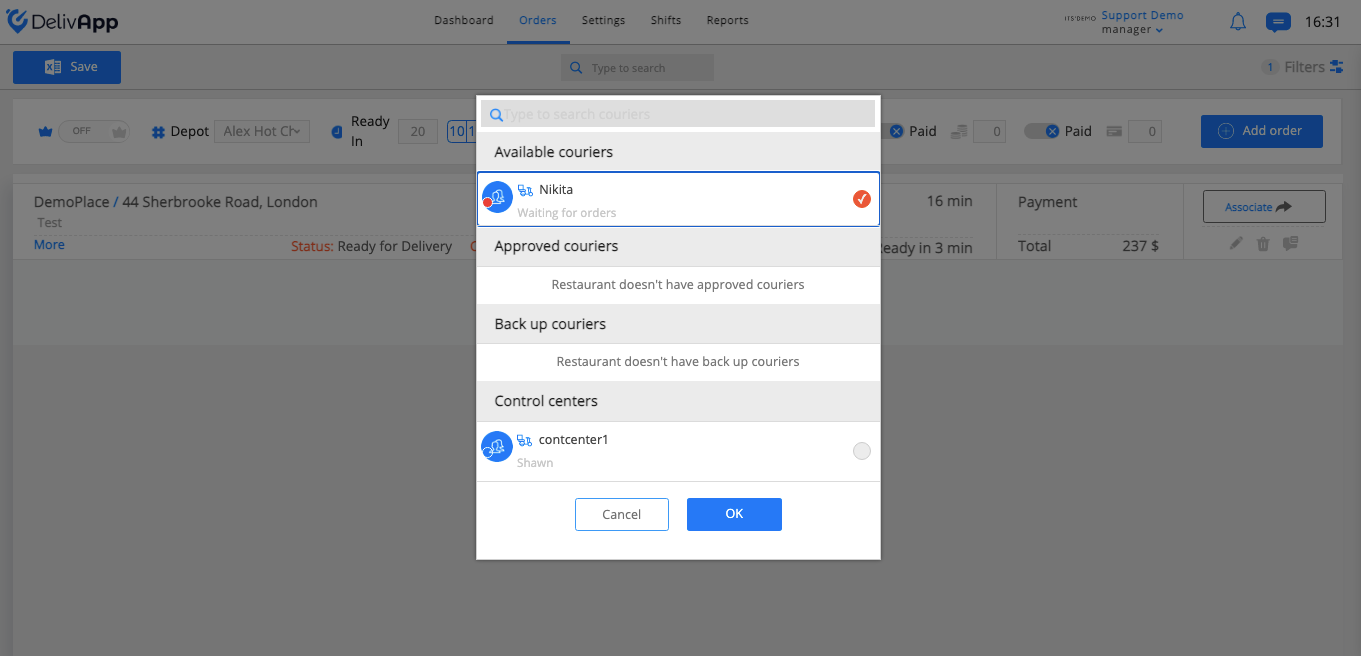
(screenshot 4)
Third option:
Once the order is delivered, you can also change the courier.
Click on the Edit button on the orders screen (screenshot 5).
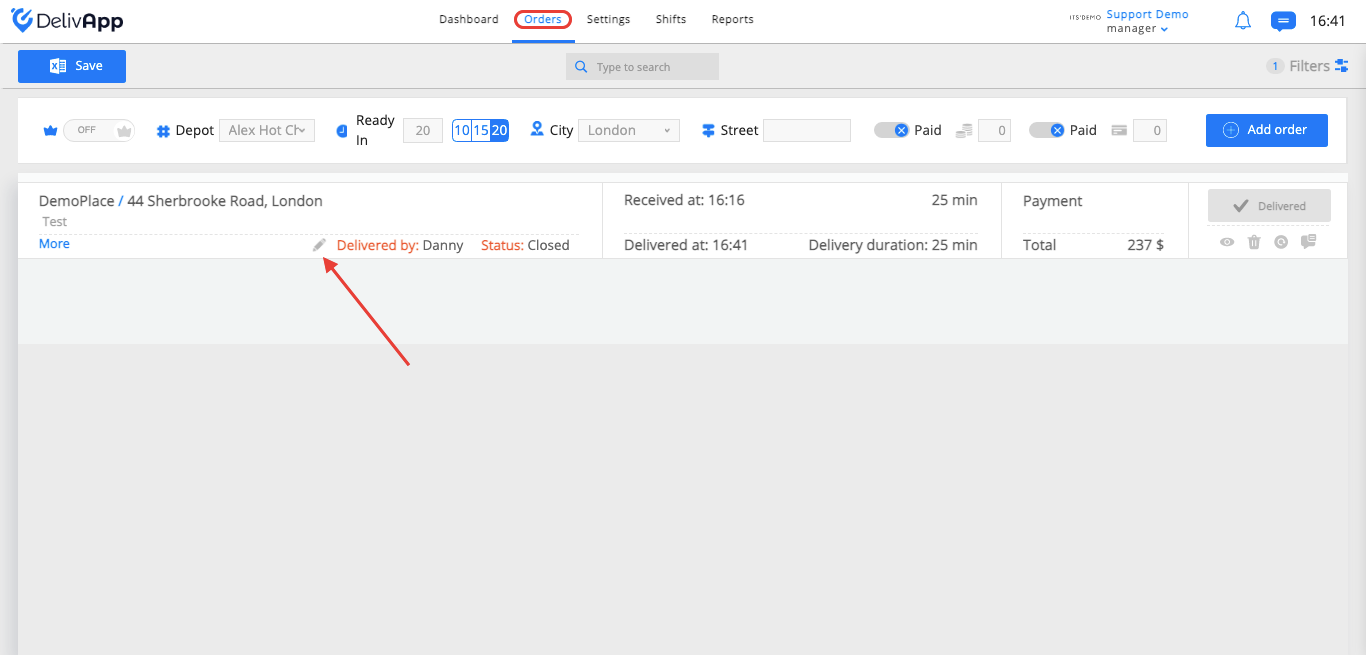
(screenshot 5)
Select a courier from the dropdown list or enter his name and click on “✓” (screenshot 6).
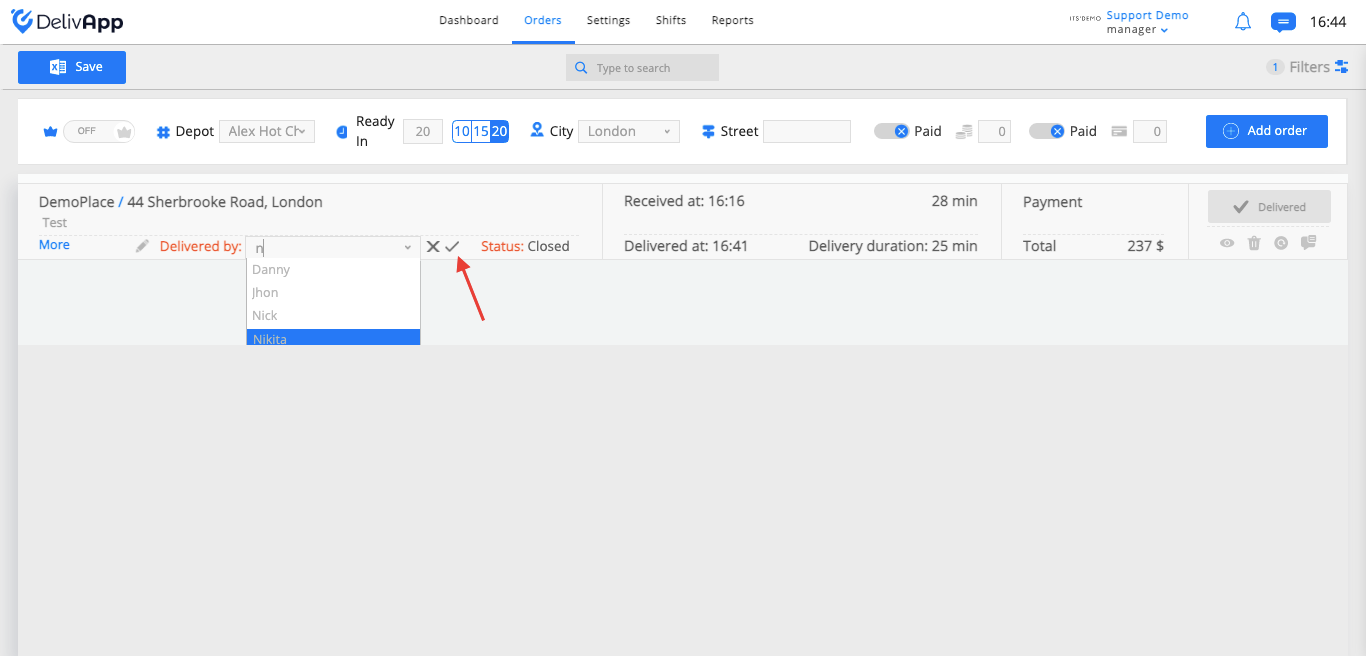
(screenshot 6)