Creating a merchant/business manager user
To give access to the DelivApp Merchant Portal to the business managers, you need to create users and credentials for them. You can watch the merchant creation video tutorial or follow the guide below. Make sure you also read the document on Adding multiple accounts/businesses to one device.
How to create a merchant/business manager user
To create a user for a merchant, click on the Settings tab on the upper navigation panel, then click on Depot settings (screenshot 1).
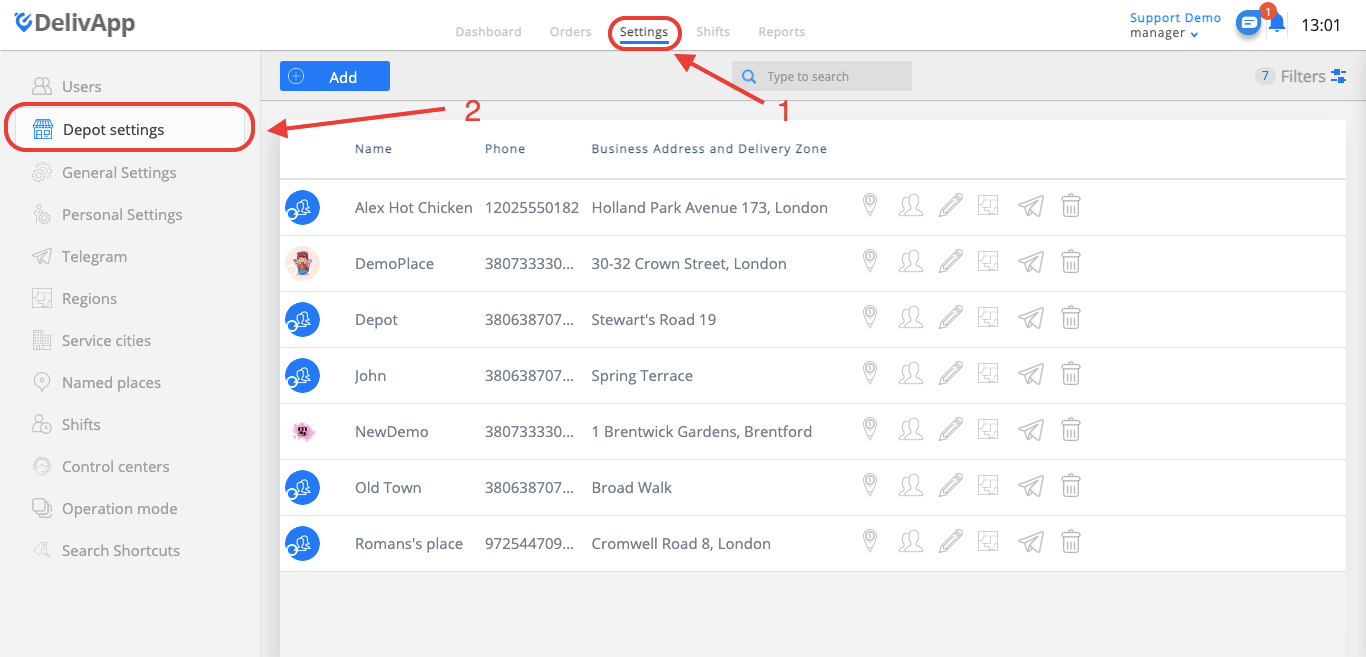
(screenshot 1)
On the Depot settings screen, click on the Manage users icon next to the name of the business whose user you want to create (screenshot 2).

(screenshot 2)
On the manage users screen, click on the Add button (screenshot 3).

(screenshot 3)
Fill in the Name, Phone number and click on the Save button (screenshot 4).
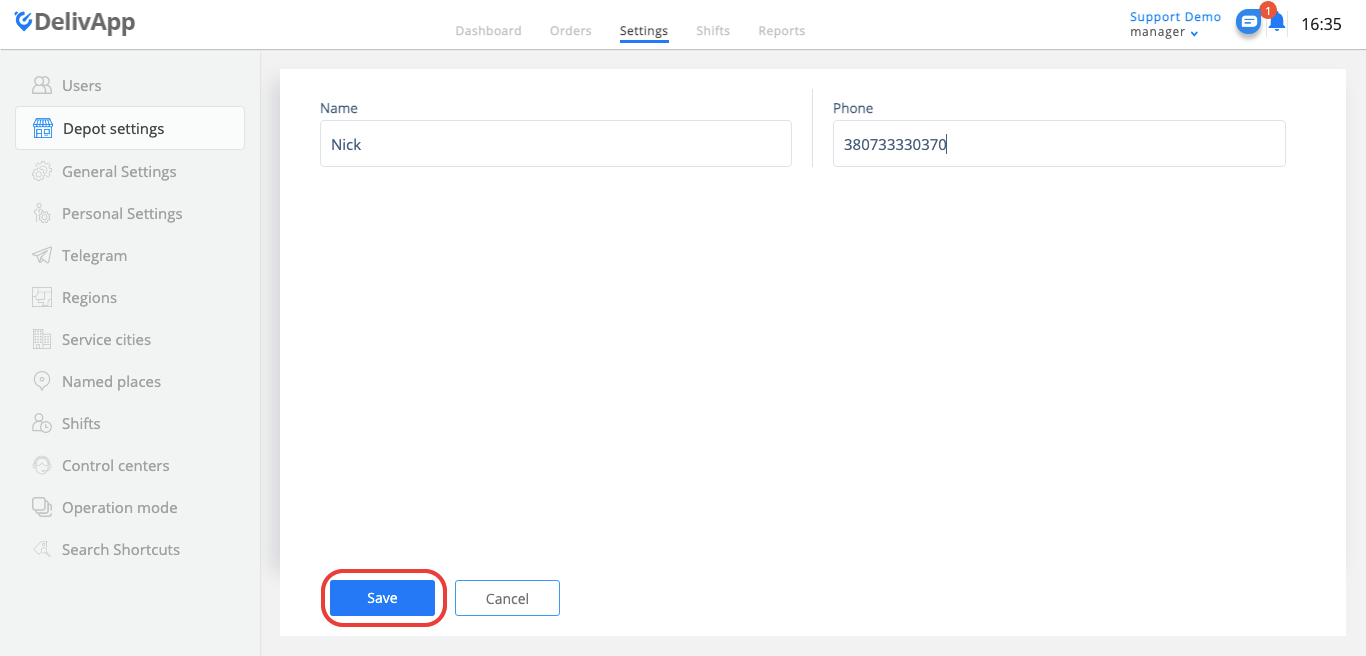
(screenshot 4)
Now, to create the credentials for the user, on the Manage users screen, click on the Change password icon (screenshot 5).
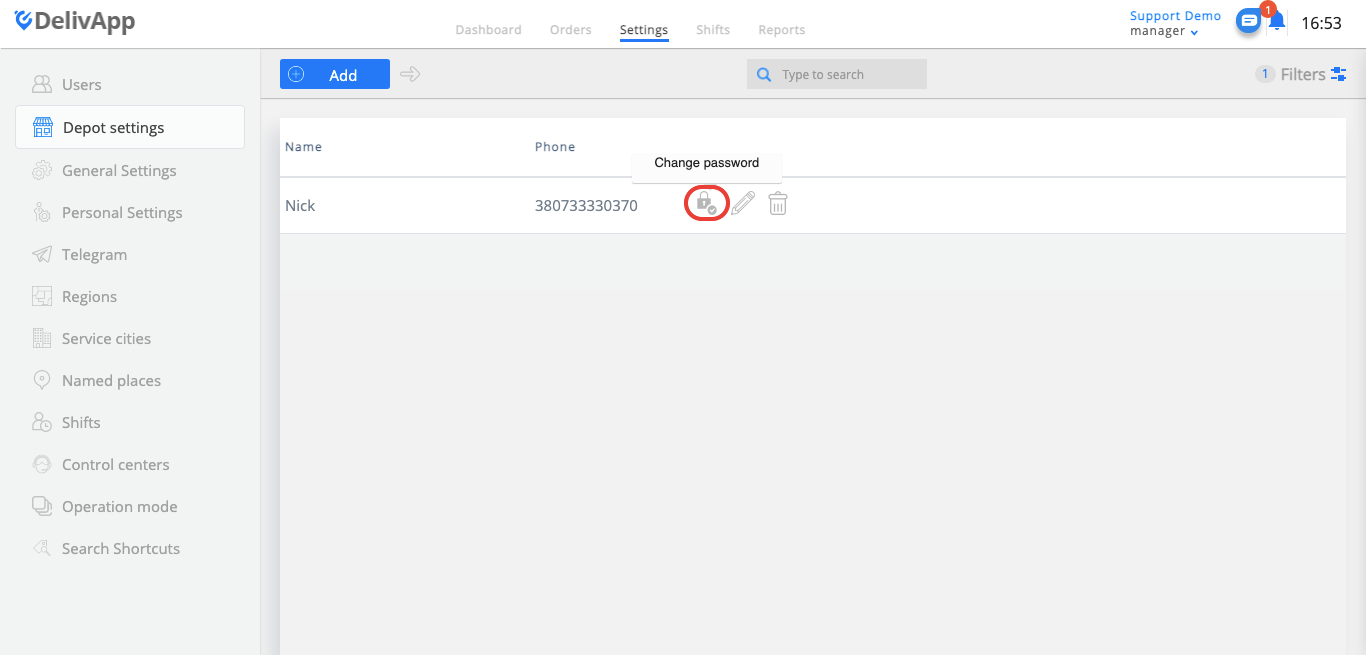
(screenshot 5)
Fill in the fields and click on the Save button (screenshot 6). Note that the Name field should be entered in English starting with a capital letter.
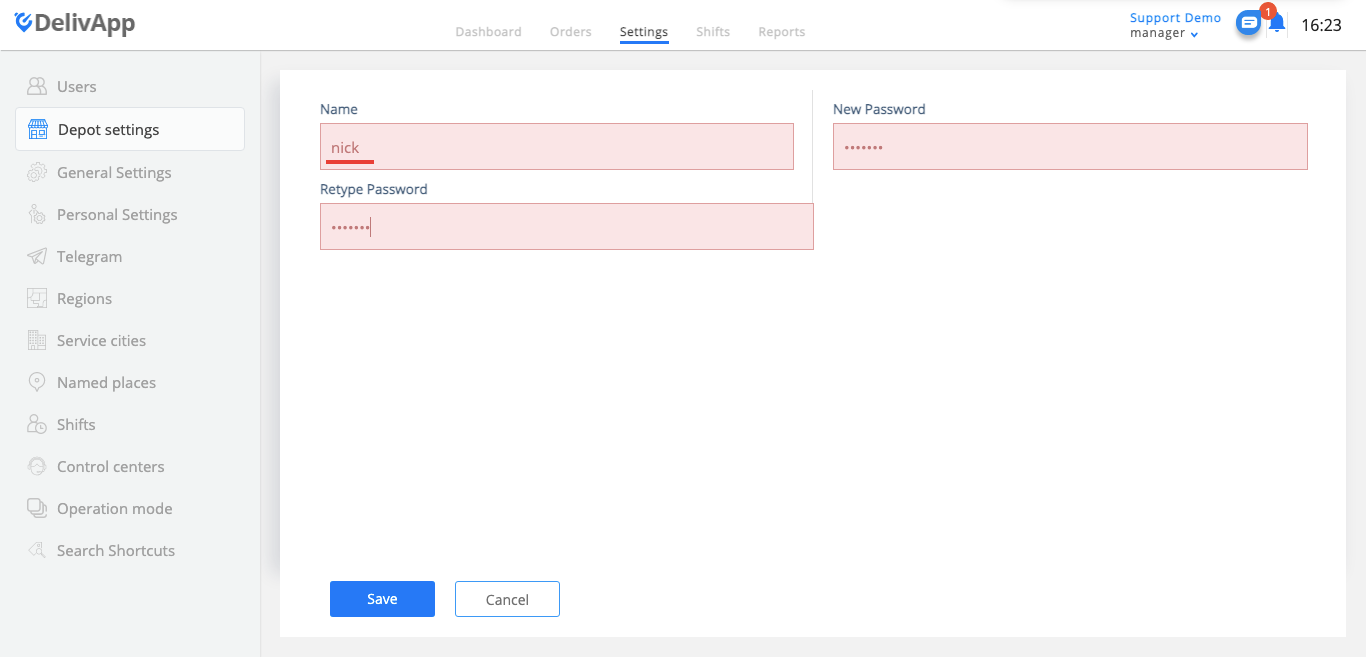
(screenshot 6)
Now this user can login to the system with the password that you created.
Remember that the username for logging in will be name@youraccountname, for example, if your account name is mydelivery.eu and you log in as manager@mydelivery.eu, your merchant will log in is as name@mydelivery.eu .
The Merchant Portal url is app.delivapp.com
How to log in to the admin portal via merchant user account
Merchant users can manage orders via the admin portal from their personal account.
Go to the DelivApp Admin Portal login page app.delivapp.com, fill in the username for the business (in the format: “username@youraccount”, e.g., nick@supportdemoeng), password, and click on the Log in button (screenshot 1).

(screenshot 1)
Well done! you are in the user's account page (screenshot 6).
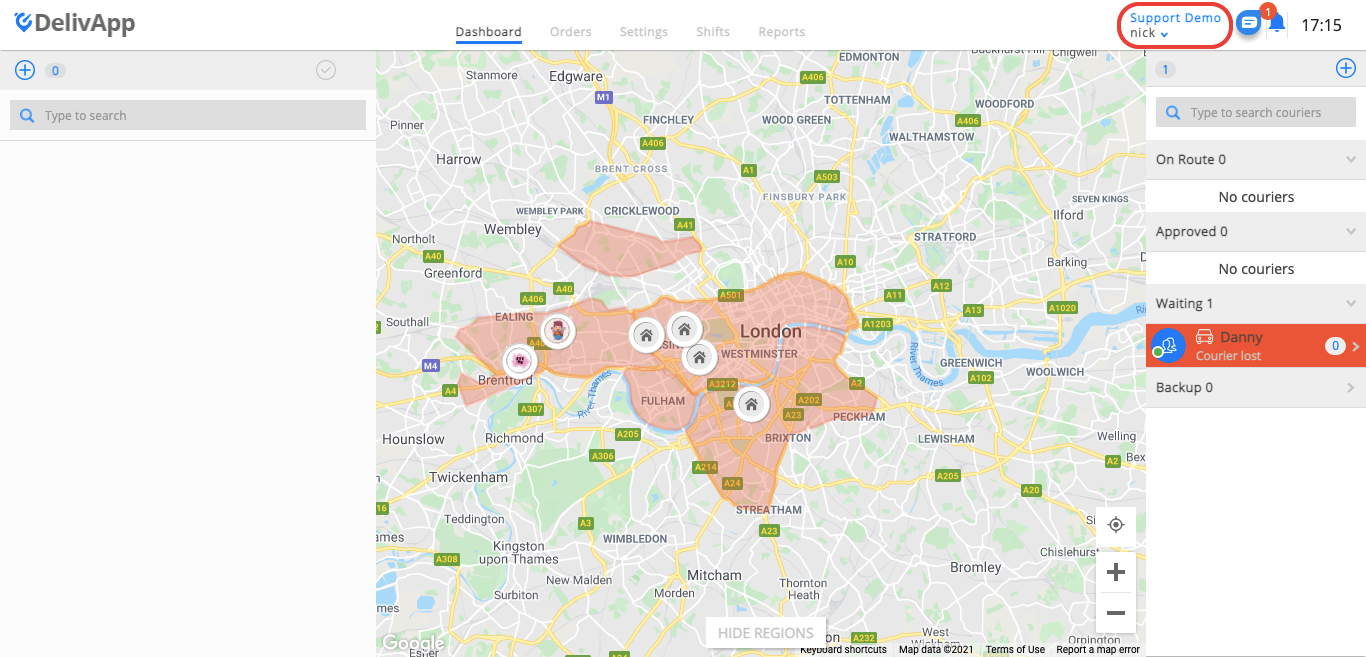
(screenshot 6)
From this page, a user can create orders and manage them via the portal.