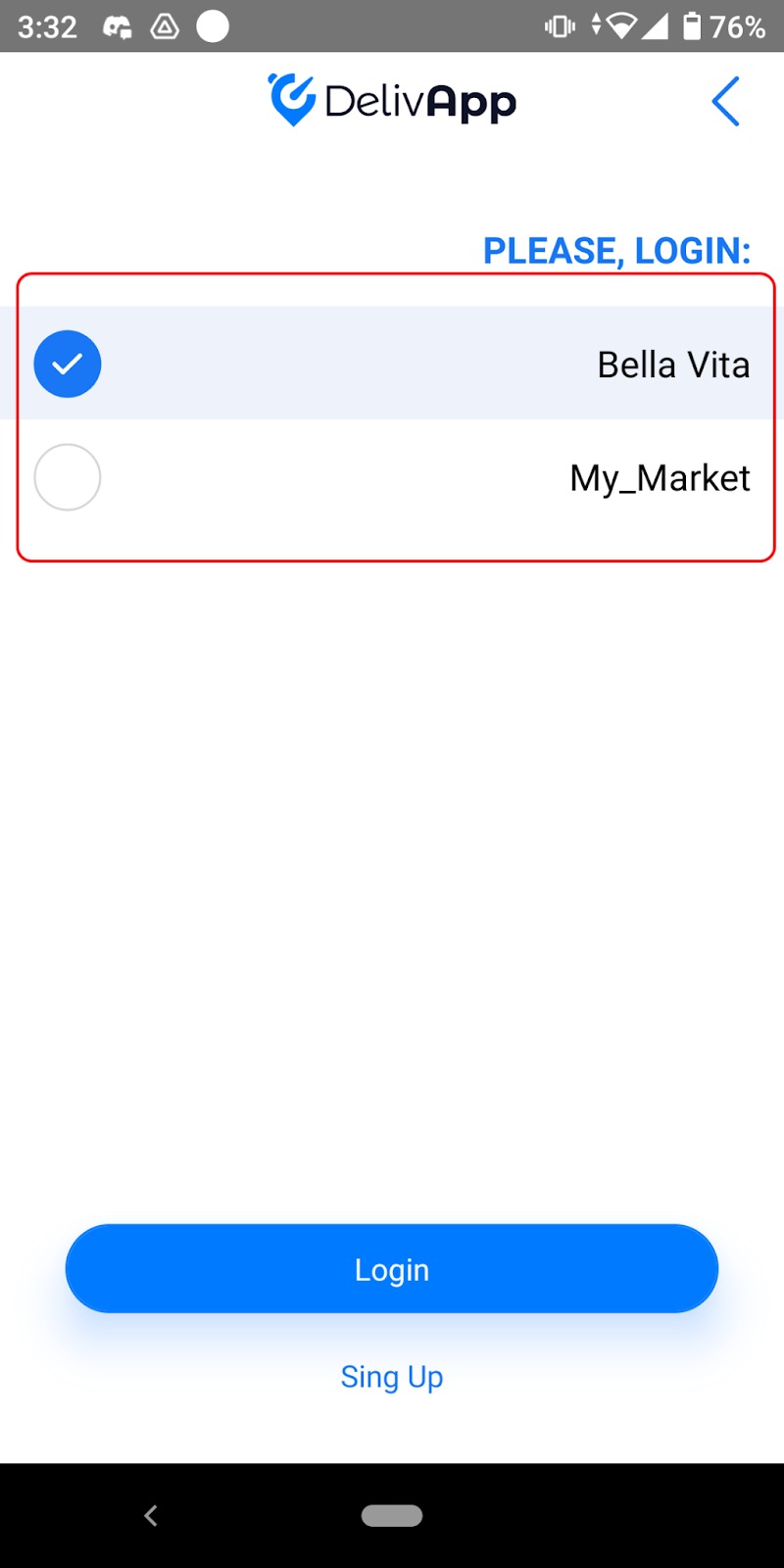
Adding multiple accounts/businesses to one device
If a merchant operates several brands or needs to use several merchant accounts to accept marketplace orders, they can manage all of these accounts from one device without having to input their credentials each time they need to switch between the accounts. The user receives notifications from all accounts added to the device, so they won’t miss incoming orders.
Here is how to set them up for that
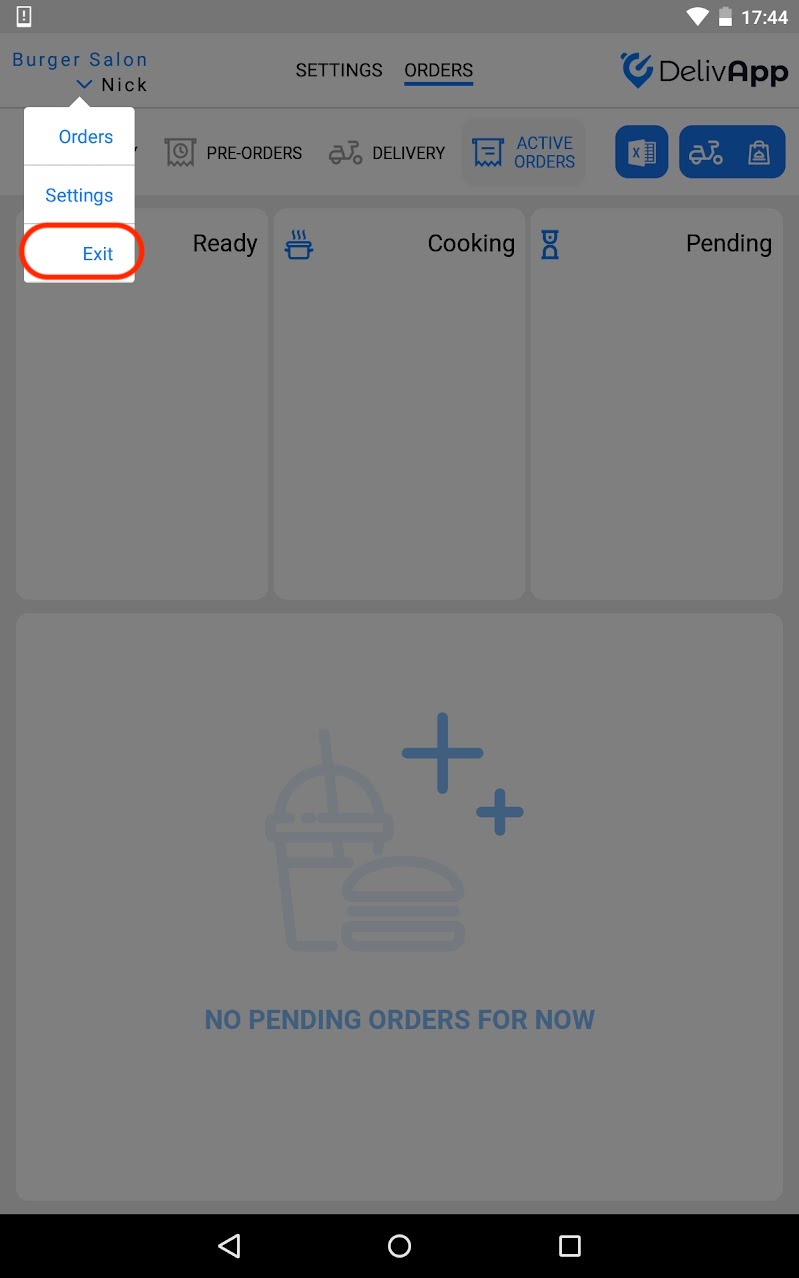
On the business tablet, log out of the current account:
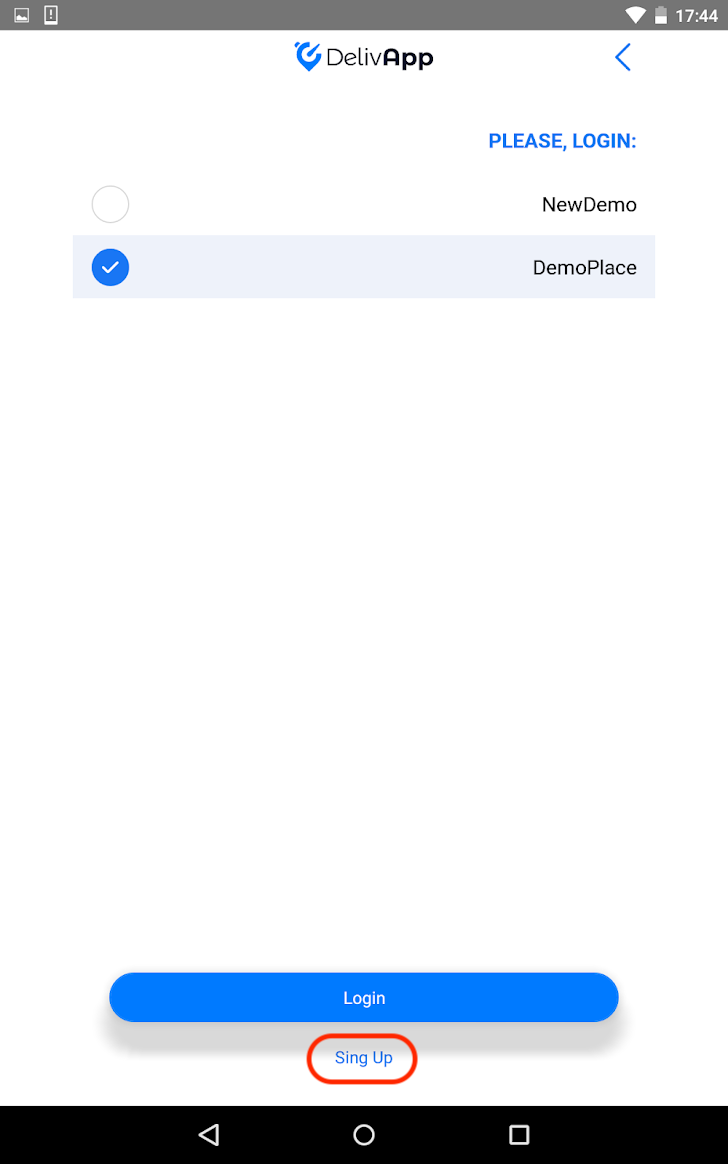
Next, click the sign up button below:
And sign in using a code, a login password, or a QR code from the second business (merchant account):
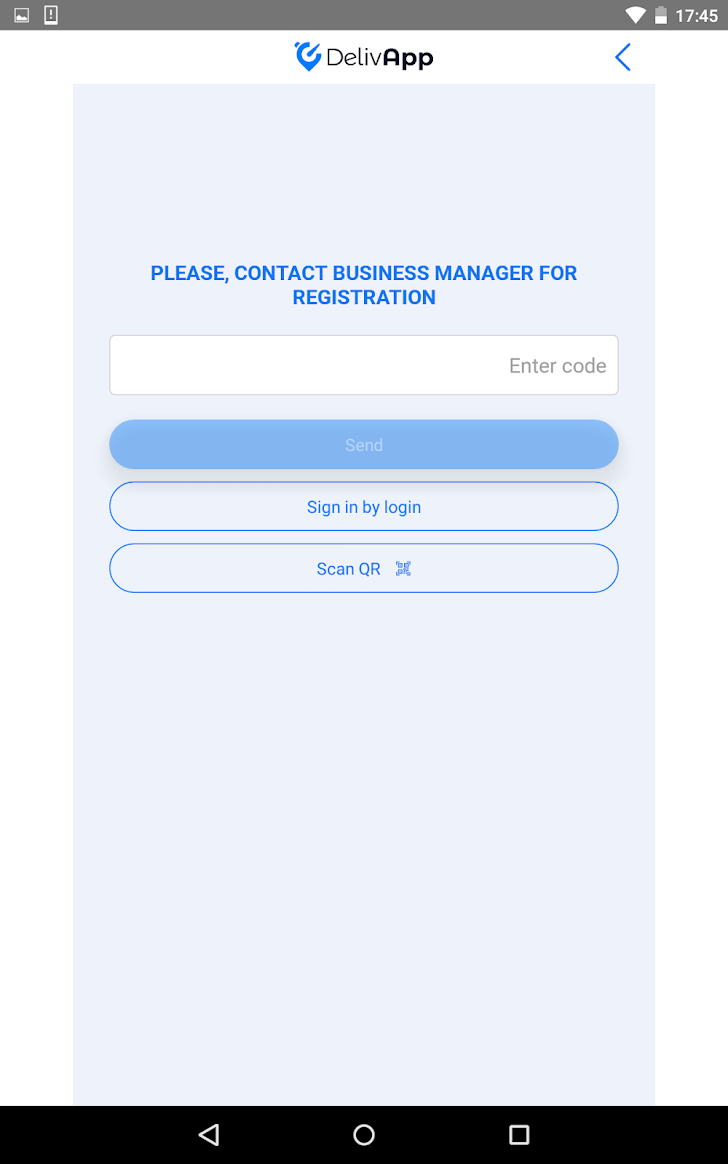
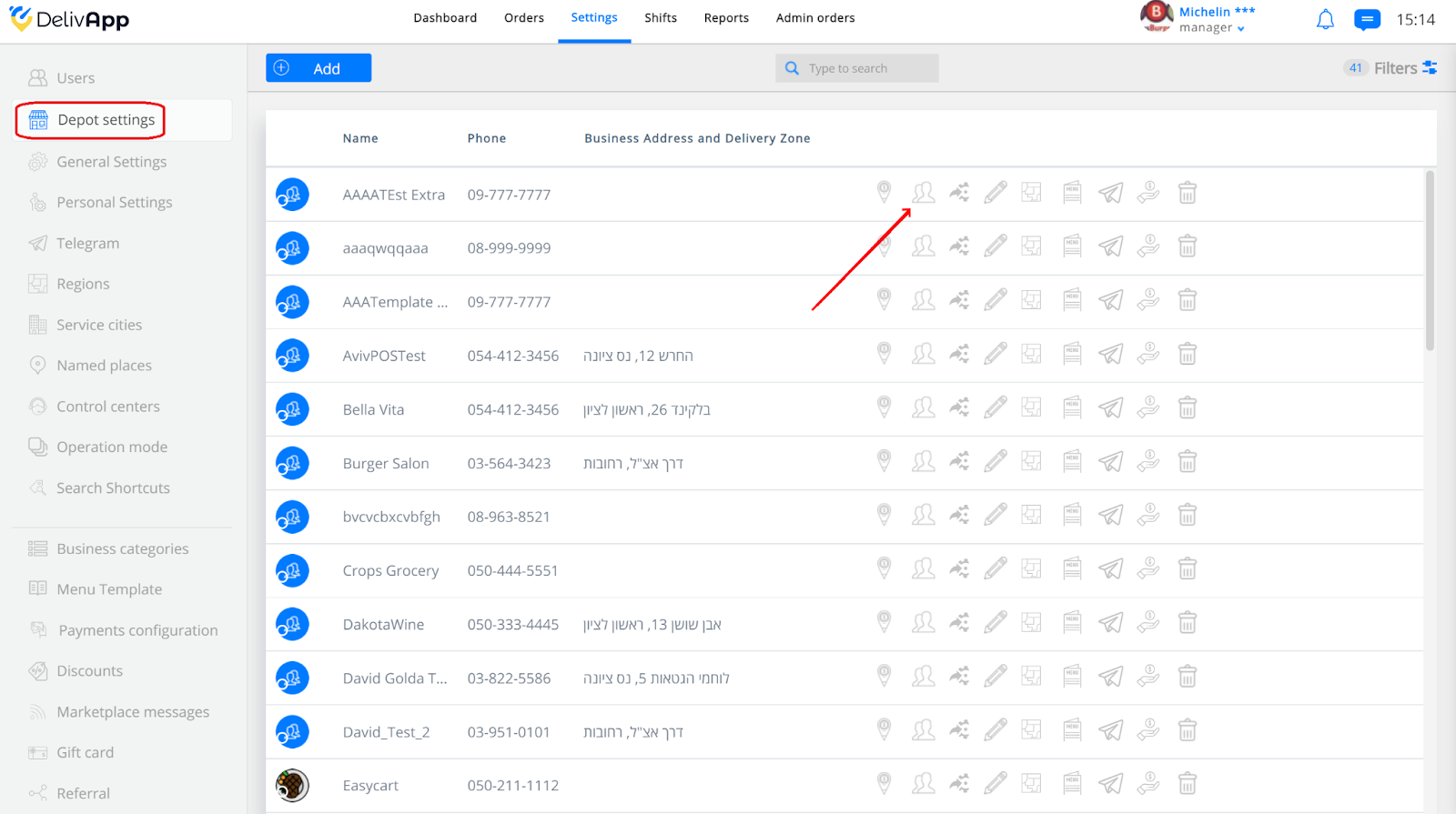
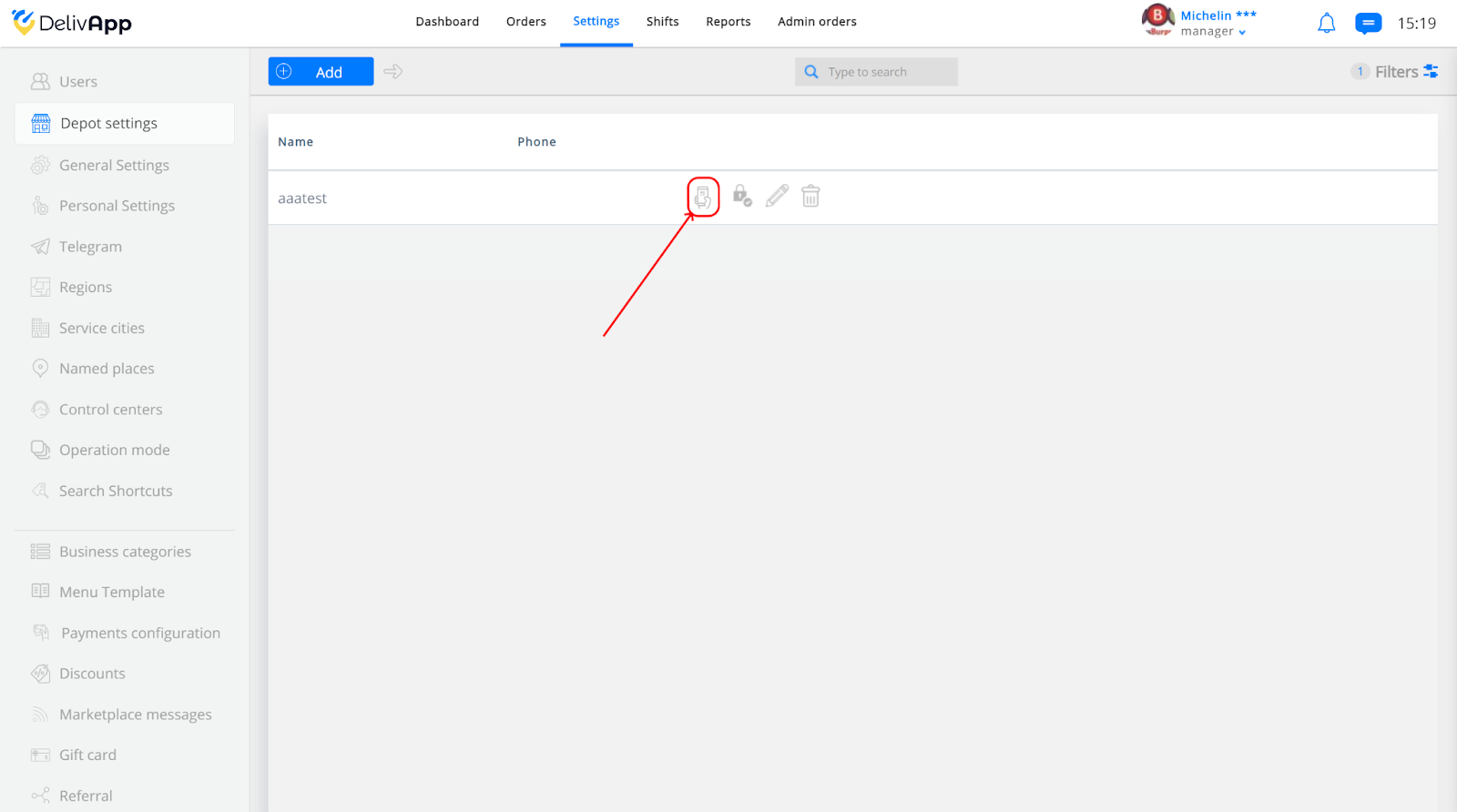
The QR code for a business can be created from Logistic Admin Portal in the settings of the business:
Now, when the merchant wants to switch between accounts, they can do so by logging out:
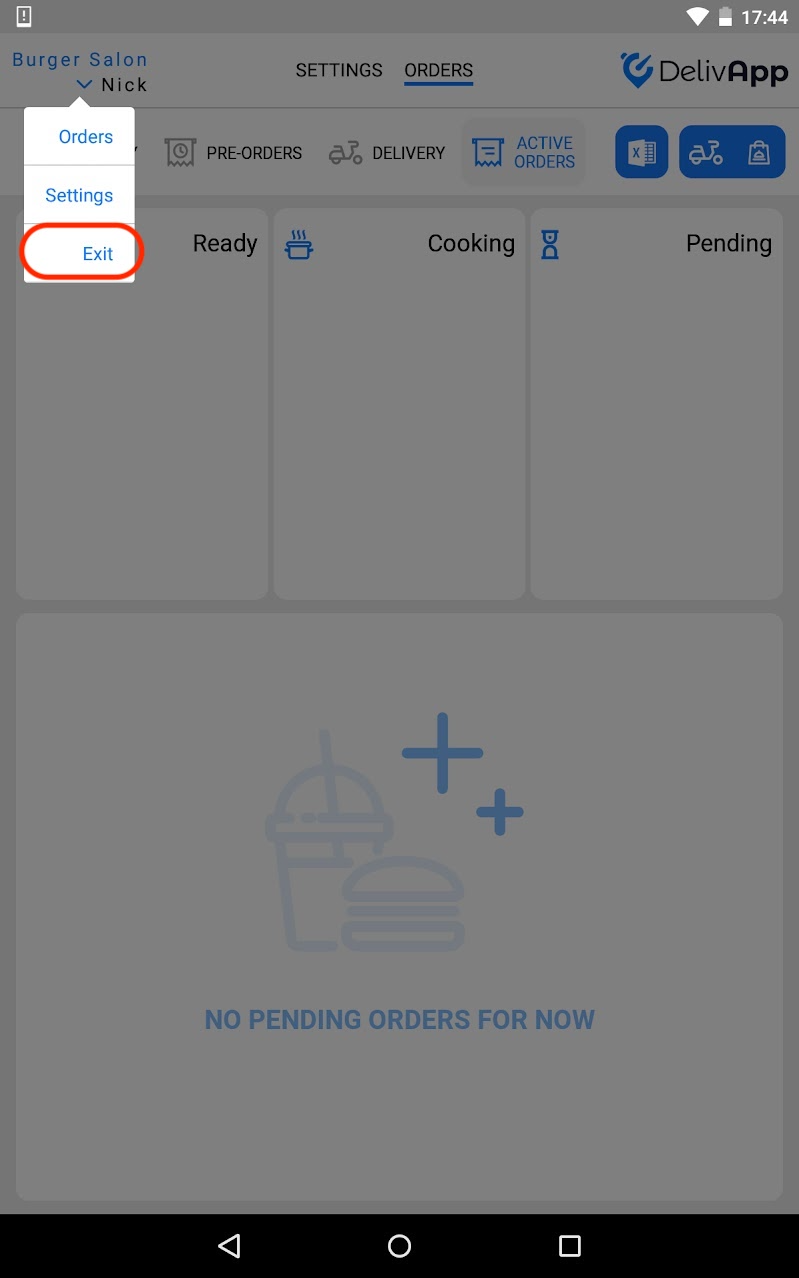
and switching to any account on the list by tapping on it: